If you need to implement a multi-department solution like the documented example scenario at Overview of managed metadata service applications in SharePoint Server 2013, it will work fine except it will break the incremental crawl of friendly URLs (FURL).
Microsoft support will tell you that using more than one proxy (connection) for a specific MMS is not supported, even if this scenario is documented and even if you can create more that one proxy and use each MMS proxy in two different proxy groups to have different default storage location settings for two web-applications.
Microsoft support will tell you that the product group says that the documented scenario on Technet is not supported. Using two connections (MMS proxy) would be required as the "column-specific term set location" needs to be different for the two web-apps, thus they cannot share/reuse a single MMS proxy.
According to MSFT support, the documentation on Technet is "not very accurate".
Showing posts with label Taxonomy. Show all posts
Sunday, June 21, 2015
Thursday, May 01, 2014
Managed Metadata Navigation, Anonymous Users in SP2013
The new term-driven navigation in SP2013 has some gotchas for anonymous users, resulting in them not seeing a full navigation menu. These are some things to check:
Related to the managed navigation is the friendly URL (FURL) mechanism, which uses the term set structure to build the FURL from the linked-to term. To prevent broken links when moving a term, SP2013 stores links using the FIXUPREDIRECT.ASPX page, with params such as the termID, which will be resolved server-side into a friendly URL when rendered (see navigation term GetResolvedDisplayUrl). Do not render RichHtmlField using the simple "SPWC:FieldValue" web-control, as this will not resolve the fixup-links. In addition, having the same control both in an edit mode panel and in a display mode panel might cause problems.
This all applies to author-in-place (AIP) usage of term-driven navigation and friendly URLs; cross-site publishing (XSP) have different kind of issues.
Note that the managed navigation term set is stored in the default MMS of the hosting web-application. It uses the local term store for the site-collection it belongs to (IsSiteCollectionGroup). This will affect your backup/restore procedure as not only the content database or the site-collection backup will be needed for a restore, the MMS database or tenant backup is also needed. As all host-named site-collections (HNSC) share a web-application, restoring the MMS with it's term stores will affect the navigation term set of all site-collections. Take care.
- Make sure there is a defined physical page for each navigation node term
- The terms must be available for tagging
- Make sure that anonymous users have read access to the TaxonomyHiddenList of the site-collection
- Always manage the navigation termset from site settings of the site-collection that hosts the termset; do not use manage term store from Central Admin
- If your custom code can't resolve and show terms in the navigation termset, make sure to use a view that don't depend on the cache being updated
Related to the managed navigation is the friendly URL (FURL) mechanism, which uses the term set structure to build the FURL from the linked-to term. To prevent broken links when moving a term, SP2013 stores links using the FIXUPREDIRECT.ASPX page, with params such as the termID, which will be resolved server-side into a friendly URL when rendered (see navigation term GetResolvedDisplayUrl). Do not render RichHtmlField using the simple "SPWC:FieldValue" web-control, as this will not resolve the fixup-links. In addition, having the same control both in an edit mode panel and in a display mode panel might cause problems.
This all applies to author-in-place (AIP) usage of term-driven navigation and friendly URLs; cross-site publishing (XSP) have different kind of issues.
Note that the managed navigation term set is stored in the default MMS of the hosting web-application. It uses the local term store for the site-collection it belongs to (IsSiteCollectionGroup). This will affect your backup/restore procedure as not only the content database or the site-collection backup will be needed for a restore, the MMS database or tenant backup is also needed. As all host-named site-collections (HNSC) share a web-application, restoring the MMS with it's term stores will affect the navigation term set of all site-collections. Take care.
Labels:
Configuration,
ManagedMetadataService,
Navigation,
Publishing,
SharePoint,
SP2013,
Taxonomy
Wednesday, October 23, 2013
Roadmap for Responsive Design and Dynamic Content in SharePoint 2013
Responsive design combined with dynamic user-driven content and mobile first seems to be the main focus everywhere these days. The approach outlined in Optimizing SharePoint 2013 websites for mobile devices by Waldek Mastykarz and his How we did it series show how it can be achieved using SharePoint 2013.
But what if you have thousands of pages with good content that you want make resposive? What approach will you use to adapt all those articles after migrating the content over from SharePoint 2010? This post suggests a roadmap for gradually transforming your static content to become dynamic content.
First of all, the metadata of your content types must be classified so that you know the ranking of the metadata within a content type, so that it can be used in combination with device channel panels and resposive web design (RWD) techniques to prioritize what to show on what devices. This will most likely introduce more specialized content types with more granular metadata fields. All your content will need to be edited to fit the new content classification, at least the most important content you have. By edited, I mean that the content type of articles must be changed and the content adapted to the new metadata; in addition, selecting a new content type will also cause a new RWD page layout to be used for the content. These new RWD page layouts and master pages are also something you need to design and implement, as part of your new user experience (UX) concept.
While editing all the (most important) existing content, it is also a good time to ensure that the content gets high quality tagging according to your information architecture (IA), as tagging is the cornerstone of a good, dynamic user experience provided by term-driven navigation and search-driven content. Editing the content is the most important job here, tagging the content is not required to enable RWD for your pages.
Doing all of this at once as part of migrating to SP2013 is by experience too much to be realistic, so this is my recommended roadmap:
Phase 1
- Focus on RWD based on the new content types and their new prioritized metadata and new responsive master pages and page layouts
- Quick win: revise the search center to exploit the new search features, even if tagging is postponed to a later phase (IA: findability and search experience)
- Keep the existing information architecture structure, and thus the navigation as-is
- Keep the page content as-is, do not add search-driven content to the pages yet, focus on making the articles responsive
- Most time-consuming effort: adapting the content type of all articles, cutting and pasting content within each article to fit the new prioritized metadata structure
Phase 2
- Focus on your new concept for structure and navigation in SP2013 (IA: content classification and structure, browse and navigate UX)
- Tagging of the articles according to the new IA-concept for dynamic structuring of the content (IA: term sets for taxonomy)
- Keep the page content as-is, no new search-driven UX in this phase, just term-driven navigation
- Most time-consuming effort: tagging all of your articles, try scripting some auto-tagging based on the existing structure of the content
Phase 3
- Focus on search-driven content in the pages according to the new concept (IA: discover and explore UX)
- New routines and processes for authors, approvers and publishers based on new SP2013 capabilities (IA: content contributor experience)
- Most time-consuming effort: tune and tag the content of all your articles to drive the ranking of the search-driven content according to the new concept
Phase 4
- Content targeting in the pages based on visitor profile segmentation, this kind of user-driven content is also search-driven content realized using query rules (and some code)
The IA aspects in the roadmap are taken from my SharePoint Information Architecture from the Field article.
But what if you have thousands of pages with good content that you want make resposive? What approach will you use to adapt all those articles after migrating the content over from SharePoint 2010? This post suggests a roadmap for gradually transforming your static content to become dynamic content.
First of all, the metadata of your content types must be classified so that you know the ranking of the metadata within a content type, so that it can be used in combination with device channel panels and resposive web design (RWD) techniques to prioritize what to show on what devices. This will most likely introduce more specialized content types with more granular metadata fields. All your content will need to be edited to fit the new content classification, at least the most important content you have. By edited, I mean that the content type of articles must be changed and the content adapted to the new metadata; in addition, selecting a new content type will also cause a new RWD page layout to be used for the content. These new RWD page layouts and master pages are also something you need to design and implement, as part of your new user experience (UX) concept.
While editing all the (most important) existing content, it is also a good time to ensure that the content gets high quality tagging according to your information architecture (IA), as tagging is the cornerstone of a good, dynamic user experience provided by term-driven navigation and search-driven content. Editing the content is the most important job here, tagging the content is not required to enable RWD for your pages.
Doing all of this at once as part of migrating to SP2013 is by experience too much to be realistic, so this is my recommended roadmap:
Phase 1
- Focus on RWD based on the new content types and their new prioritized metadata and new responsive master pages and page layouts
- Quick win: revise the search center to exploit the new search features, even if tagging is postponed to a later phase (IA: findability and search experience)
- Keep the existing information architecture structure, and thus the navigation as-is
- Keep the page content as-is, do not add search-driven content to the pages yet, focus on making the articles responsive
- Most time-consuming effort: adapting the content type of all articles, cutting and pasting content within each article to fit the new prioritized metadata structure
Phase 2
- Focus on your new concept for structure and navigation in SP2013 (IA: content classification and structure, browse and navigate UX)
- Tagging of the articles according to the new IA-concept for dynamic structuring of the content (IA: term sets for taxonomy)
- Keep the page content as-is, no new search-driven UX in this phase, just term-driven navigation
- Most time-consuming effort: tagging all of your articles, try scripting some auto-tagging based on the existing structure of the content
Phase 3
- Focus on search-driven content in the pages according to the new concept (IA: discover and explore UX)
- New routines and processes for authors, approvers and publishers based on new SP2013 capabilities (IA: content contributor experience)
- Most time-consuming effort: tune and tag the content of all your articles to drive the ranking of the search-driven content according to the new concept
Phase 4
- Content targeting in the pages based on visitor profile segmentation, this kind of user-driven content is also search-driven content realized using query rules (and some code)
Labels:
ContentType,
IA,
Navigation,
Publishing,
RWD,
Search,
SearchDriven,
SP2013,
Taxonomy,
UserDriven,
UX
Tuesday, November 01, 2011
SharePoint Information Architecture from the Field
Over the years, I've written quite a few articles on how to technically structure your SharePoint solutions into web-apps, sites, subsites, lists and document libraries. All based on having a defined Information Architecture (IA) as a basis for the solution design, or at least being able to reason about your content management using my "chest of drawers" and "news paper" analogies. The latter is based on my experiences from the field as most companies don't have a well-defined IA in place.
Common questions from customers are "what is Information Architecture?" and "what is the value of having an IA for SharePoint, can't we just create sites and doc-libs on the fly as needed?". Not to forget "how do we go about creating an Information Architecture for SharePoint?". So here are some IA advice from Puzzlepart projects:
In short, Information Architecture defines how to classify and structure your content so that it is easy for content consumers to find and explore relevant content, while making it simple for workers to contribute and manage content in an efficient manner.
The business goal of having an Information Architecture for your SharePoint solution is enabling workers to contribute, store and mange content in a manner that is simple and efficient, enabling more content sharing; and at the same time making it easy for workers to browse and find content they need, while also making it easy for workers to discover and explore relevant content they didn't know of. The outcome is more knowledgeable workers that are better informed about what’s going on in the company and about the range of intellectual property possessed by other employees, while also saving time wasted on finding information, and time wasted on incorrect or outdated information.
An outcome is a metric that customers use to define the successful realization of the objectives and goals. Outcomes happens after the project has delivered on its objectives and goals, and the customers must themselves work against securing the outcomes to achieve the desired business value.
The business value of having a working IA is capturing company knowledge from employees with better quality of shared content, which combined with good findability drive more knowledgeable workers that make better decisions and better faster processes. In addition, more and better content sharing helps user not only discover and explore content, but also people such as subject matter experts, allowing employees to build and expand their network throughout the company, helping the company to retain talented employees through social ties and communities. Access to discover more and better content and people expertise is central to enabling innovation and process improvement, as new knowledge is a trigger for new ideas and for identifying new opportunities.
The process of defining your IA for your SharePoint solution should focus on these objectives and goals:
Note that navigation is not IA, its just one way to explore the content. Using navigation to structure your content is just reapplying the fileshare folder approach, which we all know doesn't work too good for findability and discovery. Navigation should not define the statical IA structure for the content, do a LATCH analysis to model the possible IA structures, and choose one of them to define the statical IA structure. The site map is closer to define statical IA structure than navigation, still it is only good for logical IA structure and cannot be expected to be used directly as the physical IA structure in SharePoint.
In an upcoming article I will give some practical advice from the field on how to define and realize the Information Architecture for your SharePoint solution in an agile fashion.
Common questions from customers are "what is Information Architecture?" and "what is the value of having an IA for SharePoint, can't we just create sites and doc-libs on the fly as needed?". Not to forget "how do we go about creating an Information Architecture for SharePoint?". So here are some IA advice from Puzzlepart projects:
In short, Information Architecture defines how to classify and structure your content so that it is easy for content consumers to find and explore relevant content, while making it simple for workers to contribute and manage content in an efficient manner.
The business goal of having an Information Architecture for your SharePoint solution is enabling workers to contribute, store and mange content in a manner that is simple and efficient, enabling more content sharing; and at the same time making it easy for workers to browse and find content they need, while also making it easy for workers to discover and explore relevant content they didn't know of. The outcome is more knowledgeable workers that are better informed about what’s going on in the company and about the range of intellectual property possessed by other employees, while also saving time wasted on finding information, and time wasted on incorrect or outdated information.
An outcome is a metric that customers use to define the successful realization of the objectives and goals. Outcomes happens after the project has delivered on its objectives and goals, and the customers must themselves work against securing the outcomes to achieve the desired business value.
The business value of having a working IA is capturing company knowledge from employees with better quality of shared content, which combined with good findability drive more knowledgeable workers that make better decisions and better faster processes. In addition, more and better content sharing helps user not only discover and explore content, but also people such as subject matter experts, allowing employees to build and expand their network throughout the company, helping the company to retain talented employees through social ties and communities. Access to discover more and better content and people expertise is central to enabling innovation and process improvement, as new knowledge is a trigger for new ideas and for identifying new opportunities.
The process of defining your IA for your SharePoint solution should focus on these objectives and goals:
- Analyze and define the content classification and structure for the solution
- goal: identify what content to manage and plan how to store it in SP, leading to sites, subsites and doc-lib structure organized into SP web-apps
- Analyze and define how to browse and navigate the content
- goal: make it simple and efficient for users to find and use known content that they need in their daily work to drive better faster processes
- Analyze and define how to discover and explore the content
- goal: make it easy for users to stumble upon novel shared knowledge based on "common focus" to trigger innovation and build social ties
- Provide simple and efficient content contributor experience with liberal appliance of default metadata values, storing content close to the authors
- goal: make workers contributors, not knowledge management grunts, and help them store content correctly with better metadata and tagging, driving findability and "common focus" content discovery; drive better sharing and collaboration
- Analyze and define the starter content types with metadata and term set taxonomy based on the defined site and doc-lib architecture, with a strong focus on needed search experience capabilities
- goal: enable content management and support both search-driven and "common focus" content; drive findability, sharing and innovation
- Analyze and define the policies for social tagging and rating in the solution, also in relation to user profile interests, skills and responsibility tagging
- goal: drive "common focus" content discovery, drive findability, drive social communities, drive innovation
- Analyze and define the search experience, focusing on both search-driven content and on search center scopes and refiners
- goal: drive findability and provide both search-driven and "common focus" content
- Enable disposition of redundant and irrelevant content
- goal: provide users with better, correct and up-to-date information, drive findability, save storage cost, save process cost
Note that navigation is not IA, its just one way to explore the content. Using navigation to structure your content is just reapplying the fileshare folder approach, which we all know doesn't work too good for findability and discovery. Navigation should not define the statical IA structure for the content, do a LATCH analysis to model the possible IA structures, and choose one of them to define the statical IA structure. The site map is closer to define statical IA structure than navigation, still it is only good for logical IA structure and cannot be expected to be used directly as the physical IA structure in SharePoint.
In an upcoming article I will give some practical advice from the field on how to define and realize the Information Architecture for your SharePoint solution in an agile fashion.
Labels:
Findability,
IA,
Innovation,
Search,
SearchDriven,
SharePoint,
SiteStructure,
Taxonomy
Thursday, October 27, 2011
SharePoint is like a Chest of Drawers
I often get asked "how many document libraries and sites will we need?" in SharePoint, followed by "how will we know whether we should use more doc-libs in a site or just throw it all in there?" and "where should content be stored? we need to show it on the intranet home page, but it is really edited and owned by HR in region Gokk". Well, SharePoint is like a chest of drawers.
To answer such questions, you need to know how to classify and structure your content; ideally you should have an Information Architecture for all your different kinds of data. If you are like most others, you don't. This is where the "chest of drawers" analogy might help you reason about your content.
Whether you need many doc-libs or subsites or not depends on your IA policies for information management. Still don't have an IA? Think of a chest of drawers for you clothes: it makes it easier to manage different types of clothes in different ways at different schedules, by e.g. separating t-shirts from trousers. Maybe even handle different kinds of t-shirts differently, such as your precious Maiden t-shirts. It also allows for delegating a few drawers to be managed by your wife; maybe you even want to have some locked drawers with more privacy :)
Your content are the clothes, the drawers are doc-libs or even subsites; and depending on the variety of clothes you have, you might need quite a sophisticated chest of drawers. Throw in all your other stuff, and you might need a bigger closet or a garage!
So now all your content is stored into nicely separated drawers, with delegated and secure handling where needed. But is is not so easy to see what is in the drawers without actually opening and browsing the content of each drawer. Until we get one of those science fiction closets that knows whats in the drawers and let us explore what trendy outfits we can wear today, its time for another analogy: the good old news paper, even in its modern online incarnation.
Think of a news paper with a front page and then multiple sections, such as domestic, foreign, sports, economics, etc. The front page and section front pages are used to show the (elsewhere) stored content to readers, helping them quicly browse the content at wellknow locations in the paper. The shown stories are typically rollup content stored elsewhere, typically where maintained, close to the content editors.
So a paper is built from dispersed storage of content that can be rolled up and targeted to readers multiple places. The home page and section pages rollup content "teasers" and allows the user to browse the content stored elsewhere in the paper and decide whether to explore it further.
The front page is the home page of your SharePoint site, the sections are subsites and the section pages are the subsite welcome pages in SharePoint parlance. As for the drawers, there might be different management policies and different people handling the different sections, and this helps you decide when subsites are needed. The rollup, or cross publishing if you like, is achieved using the content by query web-part or search-driven content based on content types, tagging and metadata.
Controlled and secure management of content according to different policies and schedules is much simpler when using subsites as compared to throwing it all into one site. Store the content close to the producers, show it everywhere the users expect to find it - and also where *you* want them to discover and explore knowledge new to them.
To answer such questions, you need to know how to classify and structure your content; ideally you should have an Information Architecture for all your different kinds of data. If you are like most others, you don't. This is where the "chest of drawers" analogy might help you reason about your content.
Whether you need many doc-libs or subsites or not depends on your IA policies for information management. Still don't have an IA? Think of a chest of drawers for you clothes: it makes it easier to manage different types of clothes in different ways at different schedules, by e.g. separating t-shirts from trousers. Maybe even handle different kinds of t-shirts differently, such as your precious Maiden t-shirts. It also allows for delegating a few drawers to be managed by your wife; maybe you even want to have some locked drawers with more privacy :)
Your content are the clothes, the drawers are doc-libs or even subsites; and depending on the variety of clothes you have, you might need quite a sophisticated chest of drawers. Throw in all your other stuff, and you might need a bigger closet or a garage!
So now all your content is stored into nicely separated drawers, with delegated and secure handling where needed. But is is not so easy to see what is in the drawers without actually opening and browsing the content of each drawer. Until we get one of those science fiction closets that knows whats in the drawers and let us explore what trendy outfits we can wear today, its time for another analogy: the good old news paper, even in its modern online incarnation.
Think of a news paper with a front page and then multiple sections, such as domestic, foreign, sports, economics, etc. The front page and section front pages are used to show the (elsewhere) stored content to readers, helping them quicly browse the content at wellknow locations in the paper. The shown stories are typically rollup content stored elsewhere, typically where maintained, close to the content editors.
So a paper is built from dispersed storage of content that can be rolled up and targeted to readers multiple places. The home page and section pages rollup content "teasers" and allows the user to browse the content stored elsewhere in the paper and decide whether to explore it further.
The front page is the home page of your SharePoint site, the sections are subsites and the section pages are the subsite welcome pages in SharePoint parlance. As for the drawers, there might be different management policies and different people handling the different sections, and this helps you decide when subsites are needed. The rollup, or cross publishing if you like, is achieved using the content by query web-part or search-driven content based on content types, tagging and metadata.
Controlled and secure management of content according to different policies and schedules is much simpler when using subsites as compared to throwing it all into one site. Store the content close to the producers, show it everywhere the users expect to find it - and also where *you* want them to discover and explore knowledge new to them.
Labels:
IA,
SharePoint,
SiteStructure,
Taxonomy
Thursday, May 19, 2011
New Sites and the SharePoint 2010 Content Type Hub
The SharePoint 2010 content type hub does quite a good job of managing and publishing a centrally controlled set of content types. There are a few quirks and limitations, some of them documented in Content Type Hub FAQ and Limitations by Chaks' SharePoint Corner; not to forget the content type publishing timer jobs that actually push the content types to the subscribers.
One of the less documented areas of using a content type hub (HUB) is what happens to new site-collections that are provisioned? What if I have list definitions in my features, how can I be sure that their referenced content types have been provisioned at feature activation time? Can I deploy my enterprise content types feature at both the hub site-collection and also at new site-collections that users create?
First, when a new site-collection is created, it will immediately have all the published content types from the parent SharePoint web-application's connected Managed Metadata Service (MMS) application's defined HUB, automatically provisioned into its local content type gallery. Note that this applies only to the published content types as configured in the source hub. Content types that are not published, will not exist in your new site-collection. Note that hub content types are not by default published; this must be configured for every single content type in the source hub.
So if your list definitions depend on global content types that have not been published in the HUB, your feature activation will fail. You can of course solve this by publishing the applicable global content types in the source hub and run the timer jobs first, as this will ensure that new site-collections will have the enterprise content types auto-provisioned from the MMS HUB.
However, you can also deploy your enterprise content types feature to both the content type hub and to any other site-collection that you create. This works fine as the site content type definitions are identical, including the content type ID structure - after all it is the same content type CAML feature. This won't affect subscribing to the content type hub, and publishing new, updated or derived content types from the hub works just as expected.
Activate your site content type feature before activating your list definition feature, or any other feature that depends on the site content types being provisioned, to ensure that they exists locally in the new site-collection even if not yet published in the HUB.
As your taxonomy is subject to change, so are your enterprise content types. Thus, your deployment strategy for enterprise content types needs to handle change. I strongly recommend using the Open-Closed Principle for modifying and extending the enterprise content types. The Open-Closed Principle is based on using a set of immutable base content types that you derive from to make new specialized content types, inheriting fields from the base. The immutable base of the Open-Closed Principle coincides nicely with provisioning global content types through both a feature and the content type hub, as by policy any changes are made by extending the former through the latter.
Even trivial stuff such as providing standardized company templates for Word and other Office applications, is best done by publishing new derived content types. Use the content type hub to inherit your base PzlDocument into PzlDocumentMemo and attach a template, go to "Manage publishing for this content type" to publish the content type. Wait for, or run, the two HUB timer jobs, and then add the Word template to the applicable document libraries.
Now you're in for a surprise later on. The next time you try to create a new site-collection after publishing modifications in the HUB, you might get this "content type is read only" error:
The ULS log typically contains an exception like this:
SPContentTypeReadOnlyException
Error code: -2146232832
The content type is read only or updateChildren is true and one of the child objects of the content type is read only.
The root cause for this is that published content types are by default read-only in the subscribers. What typically leads to this error is the need to use code when provisioning content types, e.g. when renaming and reordering fields, or when adding the enterprise keywords field to your content type. Another typical scenario where code is required is managed metadata fields; see How to provision SharePoint 2010 Managed Metadata columns by Wictor Wilén.
Making changes to the site content type definition in the FeatureActivated code and then calling SPContentType Update with updateChildren=true will work fine, until someone creates a new derived content type in the source hub and publish it. Your carefully tested code will suddenly crash, as the published child content type is read-only! Alas, what better proof that the deployed and the published global content types are the same?
Luckily, the change is isolated to the new inherited content type, thus it can safely be ignored when deploying the base content types. Use this overloaded Update method when modifying the global content types:
The HUB change did not affect your global content type due to using the Open-Closed governance policy for enterprise content types. See my SharePoint 2010 Open-Closed Taxonomy post to learn more about this recommended policy.
The content type hub and the Managed Metadata Service are perhaps the best new features in SharePoint 2010, still there are some uncharted areas that make developers reluctant at using the MMS HUB. There are a lot of articles at Technet and MSDN on the architecture, but way too little about deployment scenarios and issues such as those in this post.
One of the less documented areas of using a content type hub (HUB) is what happens to new site-collections that are provisioned? What if I have list definitions in my features, how can I be sure that their referenced content types have been provisioned at feature activation time? Can I deploy my enterprise content types feature at both the hub site-collection and also at new site-collections that users create?
First, when a new site-collection is created, it will immediately have all the published content types from the parent SharePoint web-application's connected Managed Metadata Service (MMS) application's defined HUB, automatically provisioned into its local content type gallery. Note that this applies only to the published content types as configured in the source hub. Content types that are not published, will not exist in your new site-collection. Note that hub content types are not by default published; this must be configured for every single content type in the source hub.
So if your list definitions depend on global content types that have not been published in the HUB, your feature activation will fail. You can of course solve this by publishing the applicable global content types in the source hub and run the timer jobs first, as this will ensure that new site-collections will have the enterprise content types auto-provisioned from the MMS HUB.
However, you can also deploy your enterprise content types feature to both the content type hub and to any other site-collection that you create. This works fine as the site content type definitions are identical, including the content type ID structure - after all it is the same content type CAML feature. This won't affect subscribing to the content type hub, and publishing new, updated or derived content types from the hub works just as expected.
Activate your site content type feature before activating your list definition feature, or any other feature that depends on the site content types being provisioned, to ensure that they exists locally in the new site-collection even if not yet published in the HUB.
As your taxonomy is subject to change, so are your enterprise content types. Thus, your deployment strategy for enterprise content types needs to handle change. I strongly recommend using the Open-Closed Principle for modifying and extending the enterprise content types. The Open-Closed Principle is based on using a set of immutable base content types that you derive from to make new specialized content types, inheriting fields from the base. The immutable base of the Open-Closed Principle coincides nicely with provisioning global content types through both a feature and the content type hub, as by policy any changes are made by extending the former through the latter.
Even trivial stuff such as providing standardized company templates for Word and other Office applications, is best done by publishing new derived content types. Use the content type hub to inherit your base PzlDocument into PzlDocumentMemo and attach a template, go to "Manage publishing for this content type" to publish the content type. Wait for, or run, the two HUB timer jobs, and then add the Word template to the applicable document libraries.
Now you're in for a surprise later on. The next time you try to create a new site-collection after publishing modifications in the HUB, you might get this "content type is read only" error:
The ULS log typically contains an exception like this:
SPContentTypeReadOnlyException
Error code: -2146232832
The content type is read only or updateChildren is true and one of the child objects of the content type is read only.
The root cause for this is that published content types are by default read-only in the subscribers. What typically leads to this error is the need to use code when provisioning content types, e.g. when renaming and reordering fields, or when adding the enterprise keywords field to your content type. Another typical scenario where code is required is managed metadata fields; see How to provision SharePoint 2010 Managed Metadata columns by Wictor Wilén.
Making changes to the site content type definition in the FeatureActivated code and then calling SPContentType Update with updateChildren=true will work fine, until someone creates a new derived content type in the source hub and publish it. Your carefully tested code will suddenly crash, as the published child content type is read-only! Alas, what better proof that the deployed and the published global content types are the same?
Luckily, the change is isolated to the new inherited content type, thus it can safely be ignored when deploying the base content types. Use this overloaded Update method when modifying the global content types:
public void Update(
bool updateChildren := true,
bool throwOnSealedOrReadOnly := false
)
The HUB change did not affect your global content type due to using the Open-Closed governance policy for enterprise content types. See my SharePoint 2010 Open-Closed Taxonomy post to learn more about this recommended policy.
The content type hub and the Managed Metadata Service are perhaps the best new features in SharePoint 2010, still there are some uncharted areas that make developers reluctant at using the MMS HUB. There are a lot of articles at Technet and MSDN on the architecture, but way too little about deployment scenarios and issues such as those in this post.
Monday, February 21, 2011
Starting Term Store Management in SharePoint 2010
If you can't get any edit or management popup menus such as add term store term group to show in the SharePoint 2010 Managed Metadata Service application Term Store Management Tool, check that:
This is required even if you are an administrator of the MMS application itself and you have full control MMS connection permissions.
So then you're ready to realize your ingenious taxonomy for classifying and organizing your knowledge with managed metadata and content types.
- Internet Explorer is started with "Run as administrator"
- You have added your taxonomy managers to the "Term Store Administrators" for the MMS root node
This is required even if you are an administrator of the MMS application itself and you have full control MMS connection permissions.
So then you're ready to realize your ingenious taxonomy for classifying and organizing your knowledge with managed metadata and content types.
Labels:
ManagedMetadataService,
SharePoint,
Taxonomy,
TermStore
Friday, June 18, 2010
Open-Closed Term Sets & Terms in SharePoint 2010
The 'Move Term Set' action for term store management, in combination with Restricted and Full permissions settings for the Managed Metadata Service, can be used to enforce the Open-Closed principle for adding new term sets to your taxonomy. Allow local taxonomy managers to add column specific term sets (open for extension) in local site-collections, but do not give them full permissions on the core term store (closed for modification). Then have a policy for periodically reviewing local site-collection term sets to incorporate useful new ones into the shared core term store.
Note that each term set also have an open-closed setting for controlling if new terms can be added to the term set or not. Users with restricted or full permissions are allowed to add new terms to open term sets, users with read permissions are not. Use the combination of open + restricted to enforce the "open for extension, closed for modification" policy for term set terms.
Note that access to the term store is granted per web-application using the app-pool account, not per user or group. In addition, you can control permissions on each term group using the "contribute" and "manage" settings for granting rights to users and groups. If users are not granted contribute rights, they will be restricted to read even if the web-application's MMS connection permissions allows for more than just read.
Note that each term set also have an open-closed setting for controlling if new terms can be added to the term set or not. Users with restricted or full permissions are allowed to add new terms to open term sets, users with read permissions are not. Use the combination of open + restricted to enforce the "open for extension, closed for modification" policy for term set terms.
Note that access to the term store is granted per web-application using the app-pool account, not per user or group. In addition, you can control permissions on each term group using the "contribute" and "manage" settings for granting rights to users and groups. If users are not granted contribute rights, they will be restricted to read even if the web-application's MMS connection permissions allows for more than just read.
Tuesday, June 15, 2010
Content Type Hub Publishing and Column Specific Term Sets in SharePoint 2010
In SharePoint 2010, you realize your taxonomy using the content type hub and term store provided by the Managed Metadata Service (MMS). The hub contains site content types built from site columns, and the "Managed Metadata" column type is what you use to connect term sets to a field. When adding a managed metadata column, you must choose between "Use a managed term set" defined in the MMS using Central Admin, or "Customize your term set" which allows you to create a new column specific term set on the fly.
Column specific term sets that you create will by default be assigned to the site-collection hosting the site content type gallery in which you create the site column. Such term sets will not be visible in the Term Store Management Tool in Central Admin, even if the MMS connection is set as the default storage location for column specific term sets. This also applies to column specific term sets created in the content type hub.
Do not create column specific term sets in a content type hub, this will break the content type publishing. If you click "Manage publishing for this content type" you will get this error:
Move the term set, then verify that the content type publishing setting is Republish in the content type hub. In Central Admin, run the "Content Type Hub" job first, then all applicable "Content Type Subscriber" jobs to execute the actual publish-subscribe process. Finally, open the site content types inventory in a subscriber site-collection and verify the subscribed content type, site column and term set.
I also recommend updating the site column definition to use the "use a managed term set" setting after moving the term set into the core term store.
Column specific term sets that you create will by default be assigned to the site-collection hosting the site content type gallery in which you create the site column. Such term sets will not be visible in the Term Store Management Tool in Central Admin, even if the MMS connection is set as the default storage location for column specific term sets. This also applies to column specific term sets created in the content type hub.
Do not create column specific term sets in a content type hub, this will break the content type publishing. If you click "Manage publishing for this content type" you will get this error:
The current content type contains a managed metadata column that uses a customized term set that is not available outside the current site collection. Please change the column setting or remove the column and publish the content type again.There is, however, a third option in addition to the two suggestions; moving the term set from the site collection term group to a shared term set group in the managed metadata service term store.
Move the term set, then verify that the content type publishing setting is Republish in the content type hub. In Central Admin, run the "Content Type Hub" job first, then all applicable "Content Type Subscriber" jobs to execute the actual publish-subscribe process. Finally, open the site content types inventory in a subscriber site-collection and verify the subscribed content type, site column and term set.
I also recommend updating the site column definition to use the "use a managed term set" setting after moving the term set into the core term store.
Saturday, June 12, 2010
SharePoint 2010 Intra-Farm Term Store Syndication
The managed metadata service in SharePoint 2010 makes it simple to realize an enterprise taxonomy across all site-collections in a farm, or even across farms. In addition, the managed metadata service (MMS) application can be syndicated, that is, you can have multiple instances of the MMS and they can all be consumed in combination as one by web-applications. You can have multiple instances of the other service application types, but only one of them can be the active default association in a consuming web-application.
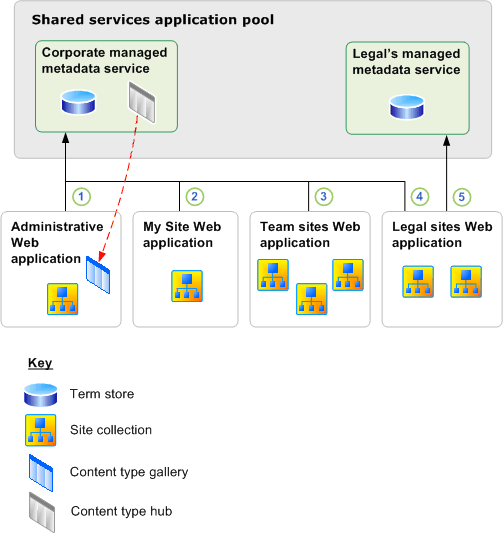
The Managed metadata service application overview on Technet used to have a nice example scenario of managed metadata term store and content type syndication across multiple departments in a company, in the page published on April 16th. As the example scenario has been removed in the page published on May 12th, the following figure shows the MMS syndication example:
For those of you who speak Spanish, or want to run it through Google translate, the managed metadata syndication example is still available here: http://technet.microsoft.com/es-es/library/ee424403.aspx
The salient point of the example is that the HR, IT, Products and Legal departments all share a common base term store and content type hub, allowing for the Products department to extend the base with its own term store and content types, and allowing the Legal department to have its own private term store while syndicating both the Global and Products managed metadata services.
An important detail in the example is that the Legal department uses term sets to represent confidential information. Therefore, it requires its own term store that prohibits other departments from seeing the confidential terms, even as new terms and term sets are added. Thus, the Legal department requires its own default term set location to prevent new confidential terms being added to the Global and Products managed metadata services.
This scenario is quite possible to realize as the two managed metadata service connection setting Default keyword location and Default term set location allows for specifying per MMS connection if this is the MMS term store where new keywords and column specific term sets will be added. However, as these options are set on the "Managed Metadata Service Connection" proxy itself rather than on the web-application "Service Application Associations" settings, there is a problem for the example scenario.
All web-applications in a farm share all service applications, connection proxies and proxy groups defined in the farm. The example scenario requires the IT, HR, Products and Legal web-applications to all be connected to the "Global Managed Metadata" service. As indicated by the red markup in the above figure, the web-apps require a different setting for default term set location - Legal requires "no", the others "yes". Thus, they cannot use the same MMS connection, a second connection is needed. However, you cannot add another local service application connection from Manage Service Applications, only cross-farm connections can be created from Central Admin .
The solution is to use PowerShell to add a new Managed Metadata Service Connection with the command New-SPMetadataServiceApplicationProxy using the -ServiceApplication parameter, rather than the -Uri parameter used for cross-farm connections.
New-SPMetadataServiceApplicationProxy -Name "MMS_PX001" -ServiceApplication "MMS2"
Some other parameters are:
-DefaultKeywordTaxonomy: This service application is the default storage location for keywords.
-DefaultSiteCollectionTaxonomy: This service application is the default storage location for column specific term sets.
-ContentTypeSyndicationEnabled: Publish content types from the content type hub.
-ContentTypePushdownEnabled: Push-down updates from the content type hub to subscribers.
-DefaultProxyGroup: Add this connection to the service application associations [default] proxy group.
Don't add your custom MMS syndication connections to the default proxy group as you will need to configure the service application associations per web-application that subscribes to a syndicated set of managed metadata services, typically using the [custom] proxy group. Additional custom proxy groups can be created in the farm using the New-SPServiceApplicationProxyGroup PowerShell cmdlet.
Note that as there are two term set "default" settings, there are four possible combination of MMS connection configurations for terms. Thus, four MMS connection variants must be created to cover all possible scenarios per managed metadata service instance. Then, each web-application can use its own service application associations [custom] proxy group to pick the applicable set of MMS connections.
Make sure that each proxy group has only zero or one default keyword location and default term set location. Having zero for either will prevent users from adding new keywords or new term sets. Having multiple defaults for either will cause an error as SharePoint cannot know in which of the locations to add new keywords and new term sets.
A final note about term store permissions: Access to the term store is granted per web-application using the app-pool account, not per user or group. In addition, you can control permissions on each term group using the "contribute" and "manage" settings for granting rights to users and groups. If users are not granted contribute rights, they will be restricted to read even if the web-application's MMS connection permissions allows for more than just read.
[UPDATE] This scenario will make incremental crawl of friendly URLs (FURL) fail in SP2013; and if you contact Microsoft Support you will get help from people who don't understand proxy groups, default proxy/MMS connection, default keyword location and default column-specific term set location settings, who will tell you that the product group confirms that the documented scenario on Technet is in fact not supported. Stay away from using SharePoint for anything else than a single department collaboration scenario, SP2013 is not built for real-life enterprise usage.
The Managed metadata service application overview on Technet used to have a nice example scenario of managed metadata term store and content type syndication across multiple departments in a company, in the page published on April 16th. As the example scenario has been removed in the page published on May 12th, the following figure shows the MMS syndication example:
For those of you who speak Spanish, or want to run it through Google translate, the managed metadata syndication example is still available here: http://technet.microsoft.com/es-es/library/ee424403.aspx
The salient point of the example is that the HR, IT, Products and Legal departments all share a common base term store and content type hub, allowing for the Products department to extend the base with its own term store and content types, and allowing the Legal department to have its own private term store while syndicating both the Global and Products managed metadata services.
An important detail in the example is that the Legal department uses term sets to represent confidential information. Therefore, it requires its own term store that prohibits other departments from seeing the confidential terms, even as new terms and term sets are added. Thus, the Legal department requires its own default term set location to prevent new confidential terms being added to the Global and Products managed metadata services.
This scenario is quite possible to realize as the two managed metadata service connection setting Default keyword location and Default term set location allows for specifying per MMS connection if this is the MMS term store where new keywords and column specific term sets will be added. However, as these options are set on the "Managed Metadata Service Connection" proxy itself rather than on the web-application "Service Application Associations" settings, there is a problem for the example scenario.
All web-applications in a farm share all service applications, connection proxies and proxy groups defined in the farm. The example scenario requires the IT, HR, Products and Legal web-applications to all be connected to the "Global Managed Metadata" service. As indicated by the red markup in the above figure, the web-apps require a different setting for default term set location - Legal requires "no", the others "yes". Thus, they cannot use the same MMS connection, a second connection is needed. However, you cannot add another local service application connection from Manage Service Applications, only cross-farm connections can be created from Central Admin .
The solution is to use PowerShell to add a new Managed Metadata Service Connection with the command New-SPMetadataServiceApplicationProxy using the -ServiceApplication parameter, rather than the -Uri parameter used for cross-farm connections.
New-SPMetadataServiceApplicationProxy -Name "MMS_PX001" -ServiceApplication "MMS2"
Some other parameters are:
-DefaultKeywordTaxonomy: This service application is the default storage location for keywords.
-DefaultSiteCollectionTaxonomy: This service application is the default storage location for column specific term sets.
-ContentTypeSyndicationEnabled: Publish content types from the content type hub.
-ContentTypePushdownEnabled: Push-down updates from the content type hub to subscribers.
-DefaultProxyGroup: Add this connection to the service application associations [default] proxy group.
Don't add your custom MMS syndication connections to the default proxy group as you will need to configure the service application associations per web-application that subscribes to a syndicated set of managed metadata services, typically using the [custom] proxy group. Additional custom proxy groups can be created in the farm using the New-SPServiceApplicationProxyGroup PowerShell cmdlet.
Note that as there are two term set "default" settings, there are four possible combination of MMS connection configurations for terms. Thus, four MMS connection variants must be created to cover all possible scenarios per managed metadata service instance. Then, each web-application can use its own service application associations [custom] proxy group to pick the applicable set of MMS connections.
Make sure that each proxy group has only zero or one default keyword location and default term set location. Having zero for either will prevent users from adding new keywords or new term sets. Having multiple defaults for either will cause an error as SharePoint cannot know in which of the locations to add new keywords and new term sets.
A final note about term store permissions: Access to the term store is granted per web-application using the app-pool account, not per user or group. In addition, you can control permissions on each term group using the "contribute" and "manage" settings for granting rights to users and groups. If users are not granted contribute rights, they will be restricted to read even if the web-application's MMS connection permissions allows for more than just read.
[UPDATE] This scenario will make incremental crawl of friendly URLs (FURL) fail in SP2013; and if you contact Microsoft Support you will get help from people who don't understand proxy groups, default proxy/MMS connection, default keyword location and default column-specific term set location settings, who will tell you that the product group confirms that the documented scenario on Technet is in fact not supported. Stay away from using SharePoint for anything else than a single department collaboration scenario, SP2013 is not built for real-life enterprise usage.
Wednesday, May 12, 2010
Minimal SharePoint Governance Plan - Part III
This is part III in a mini-series about the Minimal SharePoint Governance Plan needed to get you started with your SharePoint governance efforts.This part gives a more detailed overview of the mininal governance plan. The overview comprises operational and functional areas from SharePoint architecture, via site, user and information lifecycle management, to realization of SharePoint solutions. As you will see, there is a multitude of governance aspects, even if just focusing on the technical aspects. Executing on all governance aspects from day one is not viable, that is why I recommend to start with simple governance.
The is no one governance plan to rule them all. Governance is too multi-faceted for a single set of policies to fit all the different site types across diverse business areas. Governance for controlled publishing sites will be very different from Enterprise 2.0 pull-style situational solutions, as will it differ for management of project sites and team sites, and as for community, social and personal sites. Adapt your governance plan according to the targeted solution.
The site classification scheme shown here is from the Technet SharePoint Governance Checklist Guide, refer to page 20 for more details.
Architectural Governance
The governance plan for the SharePoint solution must define a logical architecture model based on your Information Architecture analysis, adhering to architectural components, farm deployment, capacity and planning recommendations on Technet.
• Farm design policies for a robust and flexible platform
• Sharing and isolation policies for applications and information
• Site-collection structure policies to drive overall solution architecture & governance
• Information asset structure policies to ensure classification, management and findability
The objective of having architectural policies is to create a workable farm and solution design considering hard and soft SharePoint limits.
Site Lifecycle Management
The governance plan for site lifecycle management (SLM) must specify policies for managing sites from creation to disposition. Define a classification scheme for site types and adapt your governance plan to each site type. It is recommended to develop timer jobs to automate and enforce SLM policies.
You need a site sweeper job that disposes expired, abandoned and useless sites from your solution to ensure that the overall effect produces useful business results. Make sure that knowledge captured in obsolete sites are retained through information management tasks before permanently disposing the sites. Alas, don't be afraid of self-service provisioning, after all more is different.
• SLM policies must be defined and enforced
• Site Provisioning
o Implement custom provisioning if ootb functionality is not sufficient
o Provisioning policy per site type defines level of automation and self-service
o Use provisioning wizard to collection data related to SLM
o Store SLM data in site properties or a site inventory list
• Site Retention
o Do not rely on database backup for retention, backup retention might be shorter than site retention
o Prepare to restore sites deleted by users
• Site Disposition
o Implement custom site sweeper if ootb functionality is not sufficient
o Standard site sweeper is only for site-collections (site use confirmation)
o Define a procedure for information management when disposing a site
Note that there is no ootb site directory in SharePoint 2010. Still, just create a shared custom list and use it for inventory management of sites as part of your SLM implementation.
DocAve Backup & Recovery a recommended 3rd-party tool, it provides capabilities beyond ootb SharePoint 2010, such as item-level recovery. For site retention, the CodePlex MSIT Site Delete Capture tool is an option.
User Lifecycle Management / Identity & Access Management
The governance plan for user lifecycle management (ULM) must specify policies for managing users from onboarding to termination. ULM is directly related to information security (access and auditing), information management, and Identity & Access Management (IAM). Employees come and go, resulting in SharePoint data that nobody manages, or in worst case, lost knowledge.
Implementing good site disposition policies and good information management policies will reduce the efforts required for user lifecycle management, as obsolete sites and information then will be disposed of in a timely manner - keeping the quantity of orphaned data down.
• ULM policies must be defined and enforced
• Site memberships and permissions must be assigned for new users
• Site and information asset permissions & ownership must be handled when
o Account is terminated
o User transfers to another business role or department
• A policy for reassignment of ownership must be defined
Having tools for management of user permissions, ownership and lifespan is nice, but no prerequisite. LigthningTools DeliverPoint or Axceler ControlPoint are recommended partner solutions for user management.
Content Type Governance / Information Management
The governance plan must specify policies for content management according to your Information Architecture analysis and taxonomy. A taxonomy is realized in SharePoint using Site Content Types for information asset types and Term Sets for coherent tagging of information. Content types combined with metadata tagging is essential for information classification and for driving findability.
Content types defines the static classification hierarchy of the information managed in SharePoint. A content type is built from a set of fields defining the metadata of the content type, further detailing the classification of the information. Some metadata fields require the use of a controlled vocabulary for content tagging.
Information management policies can be assigned to content types. The most important are for retention and disposition of content, helping you manage e.g. outdated content to ensure the relevance and timeliness of your information.
• Reuse the Open-Closed Enterprise Taxonomy across web-applications and site-collections
• Always use a core Content Type Hub store for the enterprise taxonomy
• The core content type store defines company specific immutable base content types
• Ensure that all additional content types derives from the core content types, by extending the immutable base
• Use few required metadata fields, max 3-5 per content type
• Use sensible default values where possible
• Define polices for
o Reusable content (document repository)
o Retention of outdated content / historical archive (document repository)
o Retention of expired content (records repository or disposition)
o Regulatory compliance records (records management)
o Disposition of content
• Retention policies are important for driving findability, use them to prevent irrelevant search results
• Define and enforce behavior using
o Information Management policies
o Workflows / Event receivers
• Use Information Management policies for
o Retention, disposition, auditing, labeling / barcodes
• Ensure that content types are evolved according to best practices
The new SharePoint 2010 multi-stage retention support, combined with workflow and document /records repositories allows for implementing and enforcing sophisticated content management policies. Note that the new SharePoint 2010 Content Organizer only supports Document-based content types, in addition to e-mail messages.
Managed Metadata Governance
The governance plan must specify policies for management of the managed metadata used when tagging content in SharePoint. Managed metadata is a controlled vocabulary defined in the corporate taxonomy, realized in SharePoint 2010 as term sets defined in the Managed Metadata Service.
• Reuse the Open-Closed Enterprise Taxonomy across web-applications and site-collections
• Always use a core Managed Metadata Service term store for the enterprise taxonomy
• Allow local Managed Metadata Services for isolated, locally managed term stores
• Always use synonyms when defining terms, consistent content tagging is essential for content management and for driving findability
• Use term translation to support other languages for the term
• Avoid random or haphazard tagging due to unintelligible terms
• Enable managed keywords for user-driven freeform tagging of content
• Ensure that term sets are evolved according to best practices
• Define and enforce a policy for reviewing open term sets for improper usage
Note that search do not comprise term synonyms or translations when searching, it only finds the stored key term. The same applies to faceted search – or 'refinement panels' as they are called.
You can have multiple Term Set stores and Content Type Hub inventories in SharePoint 2010. This allows for combining both enterprise definitions and local definitions to support both shared and isolated taxonomy configurations. See Plan to share terminology and content types on Technet.
Social Tagging Governance
The governance plan must specify policies for management of the social tagging features
• Use managed keywords to enable folksonomy for content (list items)
• Use social tagging to enable folksonomy for "anything with an URL"
• Allow for managed metadata and managed keywords to be included in social tags
• Define and enforce a policy for reviewing the folksonomy tags for improper usage
Note that the social tagging of "anything with an URL" is provided by the SharePoint2010 User Profile Service application, not the Managed Metadata Service application. Thus, social tags have no explicit relation to the term store at all. The same applies to other SharePoint2010 social features such as ranking and social bookmarking.
Document Template Governance
The governance plan must specify policies for using Office templates in content types.
• Use a shared set of enterprise Office templates
• Manage and store templates in a SharePoint document library at a central location
• Do not store templates directly in content types, always reference the central shared templates
• Make use of the Office 2010 Backstage or the document information panel for managing metadata directly in Office
Office 2010 now has support for storing templates in a SharePoint repository. Use AD group policies to populate 'File > Save As' and to lock down storage locations such as file shares and local disk.
List & Library Definition Governance
The governance plan must specify policies for managing content in lists and libraries. It is strongly recommended to use only lists based on site content types, rather than directly customizing list definitions. Enforcement of consistent classification and information management policies depends on using site content types.
• List content
o Use only a few content types per list
o Content types in a list must be cohesive
o Prefer list views over "dumb" folders
o Use SharePoint 2010 folders when appropriate
• List permissions
o Prefer using inherited permissions
o Avoid user item level permissions
• Enforce content management policies using
o Versioning, check-in/out, workflows / event receivers
• Information Rights Management (IRM)
o Policies for document access and usage restrictions
o Applies IRM policies when document is downloaded from library
o Enable by installing Active Directory Rights Management Services (AD RMS)
• Information management policies
o Prefer implementing IM policies on content types rather than on lists or libraries
Note that some of the new SharePoint 2010 features work only for document libraries, such as the Unique Document ID, Document Set and Content Organizer features.
Permissions Governance
The governance plan must specify policies for how to manage access to sites and information assets, including which permissions users and groups have. All experience shows that simple permission policies are more secure. The more intricate and fine-grained permissions assignments you have, the harder it is to know who has access to what – and the more likely it is that there will be information security breaches exposing confidential information.
• Use SP groups to manage user group memberships
• Build your SP groups from AD security groups
o Management of AD group members is typically a bottleneck, thus avoid it
• Do not assign permissions to single users, always assign to SP groups
• Prefer inherited groups (role assignments)
• Prefer inherited permission levels (role definitions)
• Use unique permissions at site level (favored) or list/library level only when absolutely required
• Avoid assigning item level permissions
• Site-collections are preferred security management boundaries
The visibility into what a user has access to has improved a bit in SharePoint 2010, so has the usage reporting capabilities. Still, 3rd-party tools such as LigthningTools DeliverPoint or Axceler ControlPoint might be required for professional permissions management beyond the built-in SharePoint 2010 Permissions Tool.
Search Governance
The governance plan must specify policies for driving findability through indexing and search. The Information Architecture analysis defines the information taxonomy and organization blueprint realized in a SharePoint site structure capable of storing and managing your content. The site structure combined with content types enables findability through consistent classification and tagging of content.
• Ensure ease of adding information assets to correct location
o Users should not have to enter a lot of required metadata
o Users should not have to browse/navigate extensively to store content
o Task context should deduce location, e.g. CRM client document store
• Metadata tagging through content types for all findable assets
• Use content type retention policies to prevent irrelevant, outdated search results
• Use search scopes to provide search context: people, tasks, articles, project, archive, etc.
• Use faceted search (refinement panel)
• Ensure and enforce information isolation
o Farm design must prevent configuration mistakes from exposing confidential information by accident
o Use separate service application groups or even separate shared services farms
The most valuable search is the one that connects a user to other people, as people are often the best sources of information and knowledge, especially tacit knowledge – know-how relating to new better business performance or to novel information that generate flow of new knowledge – in short, that ignites innovation. A former CEO of Hewlett Packard famously observed: "If HP knew what HP knows, we would be three times as profitable".
Findability is more than just search capabilities, it also includes the SharePoint 2010 social computing features such as “Tags & Notes” for tagging and social bookmarking. Tag clouds, metadata-based navigation and filtering, and even the My Site activity feed are all enablers of driving findability.
Note how I say "driving findability"; findability is not something you just enable, you have to actively manage and adapt the Search Service application settings according to your business needs. Just enabling search is just as bad as not managing your user's expectations for what to expect from enterprise search.
All parts of this mini-series:
Part I - SharePoint Governance - Eating an Elephant
Part II - Start with Simple Governance
Part III - Minimal Governance Plan (this post)
The is no one governance plan to rule them all. Governance is too multi-faceted for a single set of policies to fit all the different site types across diverse business areas. Governance for controlled publishing sites will be very different from Enterprise 2.0 pull-style situational solutions, as will it differ for management of project sites and team sites, and as for community, social and personal sites. Adapt your governance plan according to the targeted solution.
The site classification scheme shown here is from the Technet SharePoint Governance Checklist Guide, refer to page 20 for more details.
Architectural Governance
The governance plan for the SharePoint solution must define a logical architecture model based on your Information Architecture analysis, adhering to architectural components, farm deployment, capacity and planning recommendations on Technet.
• Farm design policies for a robust and flexible platform
• Sharing and isolation policies for applications and information
• Site-collection structure policies to drive overall solution architecture & governance
• Information asset structure policies to ensure classification, management and findability
The objective of having architectural policies is to create a workable farm and solution design considering hard and soft SharePoint limits.
Site Lifecycle Management
The governance plan for site lifecycle management (SLM) must specify policies for managing sites from creation to disposition. Define a classification scheme for site types and adapt your governance plan to each site type. It is recommended to develop timer jobs to automate and enforce SLM policies.
You need a site sweeper job that disposes expired, abandoned and useless sites from your solution to ensure that the overall effect produces useful business results. Make sure that knowledge captured in obsolete sites are retained through information management tasks before permanently disposing the sites. Alas, don't be afraid of self-service provisioning, after all more is different.
• SLM policies must be defined and enforced
• Site Provisioning
o Implement custom provisioning if ootb functionality is not sufficient
o Provisioning policy per site type defines level of automation and self-service
o Use provisioning wizard to collection data related to SLM
o Store SLM data in site properties or a site inventory list
• Site Retention
o Do not rely on database backup for retention, backup retention might be shorter than site retention
o Prepare to restore sites deleted by users
• Site Disposition
o Implement custom site sweeper if ootb functionality is not sufficient
o Standard site sweeper is only for site-collections (site use confirmation)
o Define a procedure for information management when disposing a site
Note that there is no ootb site directory in SharePoint 2010. Still, just create a shared custom list and use it for inventory management of sites as part of your SLM implementation.
DocAve Backup & Recovery a recommended 3rd-party tool, it provides capabilities beyond ootb SharePoint 2010, such as item-level recovery. For site retention, the CodePlex MSIT Site Delete Capture tool is an option.
User Lifecycle Management / Identity & Access Management
The governance plan for user lifecycle management (ULM) must specify policies for managing users from onboarding to termination. ULM is directly related to information security (access and auditing), information management, and Identity & Access Management (IAM). Employees come and go, resulting in SharePoint data that nobody manages, or in worst case, lost knowledge.
Implementing good site disposition policies and good information management policies will reduce the efforts required for user lifecycle management, as obsolete sites and information then will be disposed of in a timely manner - keeping the quantity of orphaned data down.
• ULM policies must be defined and enforced
• Site memberships and permissions must be assigned for new users
• Site and information asset permissions & ownership must be handled when
o Account is terminated
o User transfers to another business role or department
• A policy for reassignment of ownership must be defined
Having tools for management of user permissions, ownership and lifespan is nice, but no prerequisite. LigthningTools DeliverPoint or Axceler ControlPoint are recommended partner solutions for user management.
Content Type Governance / Information Management
The governance plan must specify policies for content management according to your Information Architecture analysis and taxonomy. A taxonomy is realized in SharePoint using Site Content Types for information asset types and Term Sets for coherent tagging of information. Content types combined with metadata tagging is essential for information classification and for driving findability.
Content types defines the static classification hierarchy of the information managed in SharePoint. A content type is built from a set of fields defining the metadata of the content type, further detailing the classification of the information. Some metadata fields require the use of a controlled vocabulary for content tagging.
Information management policies can be assigned to content types. The most important are for retention and disposition of content, helping you manage e.g. outdated content to ensure the relevance and timeliness of your information.
• Reuse the Open-Closed Enterprise Taxonomy across web-applications and site-collections
• Always use a core Content Type Hub store for the enterprise taxonomy
• The core content type store defines company specific immutable base content types
• Ensure that all additional content types derives from the core content types, by extending the immutable base
• Use few required metadata fields, max 3-5 per content type
• Use sensible default values where possible
• Define polices for
o Reusable content (document repository)
o Retention of outdated content / historical archive (document repository)
o Retention of expired content (records repository or disposition)
o Regulatory compliance records (records management)
o Disposition of content
• Retention policies are important for driving findability, use them to prevent irrelevant search results
• Define and enforce behavior using
o Information Management policies
o Workflows / Event receivers
• Use Information Management policies for
o Retention, disposition, auditing, labeling / barcodes
• Ensure that content types are evolved according to best practices
The new SharePoint 2010 multi-stage retention support, combined with workflow and document /records repositories allows for implementing and enforcing sophisticated content management policies. Note that the new SharePoint 2010 Content Organizer only supports Document-based content types, in addition to e-mail messages.
Managed Metadata Governance
The governance plan must specify policies for management of the managed metadata used when tagging content in SharePoint. Managed metadata is a controlled vocabulary defined in the corporate taxonomy, realized in SharePoint 2010 as term sets defined in the Managed Metadata Service.
• Reuse the Open-Closed Enterprise Taxonomy across web-applications and site-collections
• Always use a core Managed Metadata Service term store for the enterprise taxonomy
• Allow local Managed Metadata Services for isolated, locally managed term stores
• Always use synonyms when defining terms, consistent content tagging is essential for content management and for driving findability
• Use term translation to support other languages for the term
• Avoid random or haphazard tagging due to unintelligible terms
• Enable managed keywords for user-driven freeform tagging of content
• Ensure that term sets are evolved according to best practices
• Define and enforce a policy for reviewing open term sets for improper usage
Note that search do not comprise term synonyms or translations when searching, it only finds the stored key term. The same applies to faceted search – or 'refinement panels' as they are called.
You can have multiple Term Set stores and Content Type Hub inventories in SharePoint 2010. This allows for combining both enterprise definitions and local definitions to support both shared and isolated taxonomy configurations. See Plan to share terminology and content types on Technet.
Social Tagging Governance
The governance plan must specify policies for management of the social tagging features
• Use managed keywords to enable folksonomy for content (list items)
• Use social tagging to enable folksonomy for "anything with an URL"
• Allow for managed metadata and managed keywords to be included in social tags
• Define and enforce a policy for reviewing the folksonomy tags for improper usage
Note that the social tagging of "anything with an URL" is provided by the SharePoint2010 User Profile Service application, not the Managed Metadata Service application. Thus, social tags have no explicit relation to the term store at all. The same applies to other SharePoint2010 social features such as ranking and social bookmarking.
Document Template Governance
The governance plan must specify policies for using Office templates in content types.
• Use a shared set of enterprise Office templates
• Manage and store templates in a SharePoint document library at a central location
• Do not store templates directly in content types, always reference the central shared templates
• Make use of the Office 2010 Backstage or the document information panel for managing metadata directly in Office
Office 2010 now has support for storing templates in a SharePoint repository. Use AD group policies to populate 'File > Save As' and to lock down storage locations such as file shares and local disk.
List & Library Definition Governance
The governance plan must specify policies for managing content in lists and libraries. It is strongly recommended to use only lists based on site content types, rather than directly customizing list definitions. Enforcement of consistent classification and information management policies depends on using site content types.
• List content
o Use only a few content types per list
o Content types in a list must be cohesive
o Prefer list views over "dumb" folders
o Use SharePoint 2010 folders when appropriate
• List permissions
o Prefer using inherited permissions
o Avoid user item level permissions
• Enforce content management policies using
o Versioning, check-in/out, workflows / event receivers
• Information Rights Management (IRM)
o Policies for document access and usage restrictions
o Applies IRM policies when document is downloaded from library
o Enable by installing Active Directory Rights Management Services (AD RMS)
• Information management policies
o Prefer implementing IM policies on content types rather than on lists or libraries
Note that some of the new SharePoint 2010 features work only for document libraries, such as the Unique Document ID, Document Set and Content Organizer features.
Permissions Governance
The governance plan must specify policies for how to manage access to sites and information assets, including which permissions users and groups have. All experience shows that simple permission policies are more secure. The more intricate and fine-grained permissions assignments you have, the harder it is to know who has access to what – and the more likely it is that there will be information security breaches exposing confidential information.
• Use SP groups to manage user group memberships
• Build your SP groups from AD security groups
o Management of AD group members is typically a bottleneck, thus avoid it
• Do not assign permissions to single users, always assign to SP groups
• Prefer inherited groups (role assignments)
• Prefer inherited permission levels (role definitions)
• Use unique permissions at site level (favored) or list/library level only when absolutely required
• Avoid assigning item level permissions
• Site-collections are preferred security management boundaries
The visibility into what a user has access to has improved a bit in SharePoint 2010, so has the usage reporting capabilities. Still, 3rd-party tools such as LigthningTools DeliverPoint or Axceler ControlPoint might be required for professional permissions management beyond the built-in SharePoint 2010 Permissions Tool.
Search Governance
The governance plan must specify policies for driving findability through indexing and search. The Information Architecture analysis defines the information taxonomy and organization blueprint realized in a SharePoint site structure capable of storing and managing your content. The site structure combined with content types enables findability through consistent classification and tagging of content.
• Ensure ease of adding information assets to correct location
o Users should not have to enter a lot of required metadata
o Users should not have to browse/navigate extensively to store content
o Task context should deduce location, e.g. CRM client document store
• Metadata tagging through content types for all findable assets
• Use content type retention policies to prevent irrelevant, outdated search results
• Use search scopes to provide search context: people, tasks, articles, project, archive, etc.
• Use faceted search (refinement panel)
• Ensure and enforce information isolation
o Farm design must prevent configuration mistakes from exposing confidential information by accident
o Use separate service application groups or even separate shared services farms
The most valuable search is the one that connects a user to other people, as people are often the best sources of information and knowledge, especially tacit knowledge – know-how relating to new better business performance or to novel information that generate flow of new knowledge – in short, that ignites innovation. A former CEO of Hewlett Packard famously observed: "If HP knew what HP knows, we would be three times as profitable".
Findability is more than just search capabilities, it also includes the SharePoint 2010 social computing features such as “Tags & Notes” for tagging and social bookmarking. Tag clouds, metadata-based navigation and filtering, and even the My Site activity feed are all enablers of driving findability.
Note how I say "driving findability"; findability is not something you just enable, you have to actively manage and adapt the Search Service application settings according to your business needs. Just enabling search is just as bad as not managing your user's expectations for what to expect from enterprise search.
All parts of this mini-series:
Part I - SharePoint Governance - Eating an Elephant
Part II - Start with Simple Governance
Part III - Minimal Governance Plan (this post)
Labels:
ContentType,
ContentTypeHub,
Findability,
Governance,
IA,
ManagedMetadataService,
SharePoint,
Taxonomy
Tuesday, May 11, 2010
Start with Simple Governance - Part II
This is part II in a mini-series about the Minimal SharePoint Governance Plan needed to get you started with your SharePoint governance efforts. The objective is to create a simple and viable plan that covers the core governance aspects for operations and solution management. The plan comprises the functional areas of textbook enterprise governance plans, skipping organizational aspects to focus on technical aspects. The focus is on lifecycle management of SharePoint sites and users, classification and management of content, and on driving findability, all hosted on a robust SharePoint farm.
Required Operational Governance
The governance plan for the SharePoint environments must specify policies for both farm infrastructure and operations. The architecture of the farm must be adequate for hosting the planned solutions within defined service level agreements (SLA), and at the same time be positioned for future expansion into other solution areas.
Operational aspects that must be covered by the governance plan:
• Availability
o Farm with redundancy
o Monitoring
• Backup and Recovery
o Retention and disposition policies must be defined and enforced
o Restore specific information assets
o Tested disaster recovery plan
o Complete solution can be restored within allowed time limit
Usage of SCOM SharePoint management packs is recommended. For recovery is DocAve Backup & Recovery a recommended 3rd-party tool, it provides capabilities beyond ootb SharePoint 2010, such as item-level recovery.
Required Solution Governance
The governance plan for the SharePoint solution must specify policies for governing the sites and information assets that make up the solution. This especially applies to how to manage solutions over time as they evolve in response to changed business requirements.
Solution aspects that must be covered by the governance plan:
• Site Lifecycle Management (SLM)
o Policies for provisioning, retention and disposition must be defined
o Automation of SLM through site provisioning forms and timer jobs
o Site delete capture for retention beyond database backups
• Content Type and metadata definitions (taxonomy)
o Policies for retention and disposition, including archival and records, must be defined
o Classification of all information assets, from sites to documents and items
o Cover the core content types for your company (the immutable base content types)
o Enable findability through consistent classification and tagging of content
SharePoint has little built-in support for SLM, but most SharePoint workflow tools provides support for user input forms and site creation and management. For site retention, the CodePlex MSIT Site Delete Capture tool is an option.
There is good taxonomy support in SharePoint 2010 provided by the Managed Metadata Service and the Content Type Hub mechanism. Note that neither managed metadata nor social tagging is included in SharePoint Foundation 2010, these are SharePoint Server 2010 service applications.
Optional Solution Governance
In addition to the above aspects, governance policies for how to manage users, their permissions and their ownership of sites and data should be defined. Employees come and go, resulting in SharePoint data that nobody manages, or in worst case, lost knowledge.
Solution aspects that should be covered by the governance plan:
• User Lifecycle Management (ULM)
o Manage the lifecycle of accounts due to onboarding, transfering, and termination of users
o Policies for permissions and ownership of sites and information assets
o Automation of ULM though partner/open solutions
• Visibility into usage
• Visibility into permissions
The visibility into what a user has access to has improved a bit in SharePoint 2010, so has the usage reporting capabilities. Still, 3rd-party tools such as LigthningTools DeliverPoint or Axceler ControlPoint might be required dependent on needs.
SharePoint Governance Checklist
Microsoft provides a SharePoint governance checklist guide whitepaper that my customers find very useful. The checklist covers important governance and lifecycle management aspects that must be included in a governance plan. It is strongly recommended to review all areas of your governance plan against this checklist.
Aspects covered includes:
• Design-time and run-time governance
• Roles and ownership
• Information architecture, navigation and findability
• Branding
• Infrastructure and operations
• Testing and development
Each checklist has a related tips & information section, effectively making this a pocket governance guide.
All parts of this mini-series:
Part I - SharePoint Governance - Eating an Elephant
Part II - Start with Simple Governance (this post)
Part III - Minimal Governance Plan
Required Operational Governance
The governance plan for the SharePoint environments must specify policies for both farm infrastructure and operations. The architecture of the farm must be adequate for hosting the planned solutions within defined service level agreements (SLA), and at the same time be positioned for future expansion into other solution areas.
Operational aspects that must be covered by the governance plan:
• Availability
o Farm with redundancy
o Monitoring
• Backup and Recovery
o Retention and disposition policies must be defined and enforced
o Restore specific information assets
o Tested disaster recovery plan
o Complete solution can be restored within allowed time limit
Usage of SCOM SharePoint management packs is recommended. For recovery is DocAve Backup & Recovery a recommended 3rd-party tool, it provides capabilities beyond ootb SharePoint 2010, such as item-level recovery.
Required Solution Governance
The governance plan for the SharePoint solution must specify policies for governing the sites and information assets that make up the solution. This especially applies to how to manage solutions over time as they evolve in response to changed business requirements.
Solution aspects that must be covered by the governance plan:
• Site Lifecycle Management (SLM)
o Policies for provisioning, retention and disposition must be defined
o Automation of SLM through site provisioning forms and timer jobs
o Site delete capture for retention beyond database backups
• Content Type and metadata definitions (taxonomy)
o Policies for retention and disposition, including archival and records, must be defined
o Classification of all information assets, from sites to documents and items
o Cover the core content types for your company (the immutable base content types)
o Enable findability through consistent classification and tagging of content
SharePoint has little built-in support for SLM, but most SharePoint workflow tools provides support for user input forms and site creation and management. For site retention, the CodePlex MSIT Site Delete Capture tool is an option.
There is good taxonomy support in SharePoint 2010 provided by the Managed Metadata Service and the Content Type Hub mechanism. Note that neither managed metadata nor social tagging is included in SharePoint Foundation 2010, these are SharePoint Server 2010 service applications.
Optional Solution Governance
In addition to the above aspects, governance policies for how to manage users, their permissions and their ownership of sites and data should be defined. Employees come and go, resulting in SharePoint data that nobody manages, or in worst case, lost knowledge.
Solution aspects that should be covered by the governance plan:
• User Lifecycle Management (ULM)
o Manage the lifecycle of accounts due to onboarding, transfering, and termination of users
o Policies for permissions and ownership of sites and information assets
o Automation of ULM though partner/open solutions
• Visibility into usage
• Visibility into permissions
The visibility into what a user has access to has improved a bit in SharePoint 2010, so has the usage reporting capabilities. Still, 3rd-party tools such as LigthningTools DeliverPoint or Axceler ControlPoint might be required dependent on needs.
SharePoint Governance Checklist
Microsoft provides a SharePoint governance checklist guide whitepaper that my customers find very useful. The checklist covers important governance and lifecycle management aspects that must be included in a governance plan. It is strongly recommended to review all areas of your governance plan against this checklist.
Aspects covered includes:
• Design-time and run-time governance
• Roles and ownership
• Information architecture, navigation and findability
• Branding
• Infrastructure and operations
• Testing and development
Each checklist has a related tips & information section, effectively making this a pocket governance guide.
All parts of this mini-series:
Part I - SharePoint Governance - Eating an Elephant
Part II - Start with Simple Governance (this post)
Part III - Minimal Governance Plan
Labels:
ContentType,
Findability,
Governance,
IA,
SharePoint,
Taxonomy
Monday, May 10, 2010
SharePoint Governance - Part I - Eating an Elephant
As part of my work doing SharePoint architecture & design at different Puzzlepart customers, the governance aspect always comes up. Everybody seems to know the issues with uncontrolled site sprawl in SharePoint and want a way to manage their SharePoint solution in a controlled manner. I usually refer them to the SharePoint Products and Technologies Governance Checklist Guide and the authoratitive Sample SharePoint Governance Plan by Joel Oleson and Mark Wagner at Technet. The latter plan also available in a revised, shorter SharePoint Collaboration Service Governance Plan variant.
I have to tell you, my customers are always baffled by the size of the plan (33 pages) and the diverse and detailed set of governance areas covered by the plan:
In my consulting knowledge arsenal, I have a leaner governance plan adapated to getting started with SharePoint, focusing on the minimal level of governance needed. The next two posts in this mini-series covers this minimal governance plan:
Part I - Eating an Elephant (this post)
Part II - Start with Simple Governance
Part III - Minimal Governance Plan
The Minimal SharePoint Governance Plan has a functional focus, and do not cover organizational aspects at all. You will need to cover more and more areas in your governance plan as SharePoint grows enterprise on you. Just eat the elephant one bite at a time.
Most importantly, make sure that the governance plan is understood pragmatically, adopted consistently, applied productively, and managed sustainably. Realizing the plan is the daunting task of the organization, and it is your task to make them realize that.
I have to tell you, my customers are always baffled by the size of the plan (33 pages) and the diverse and detailed set of governance areas covered by the plan:
- Resources: people, teams, roles, technical
- Governance hierarchy
- Operational policies
- Application usage policies
- Communication plan
- Training plan
- Support plan
In my consulting knowledge arsenal, I have a leaner governance plan adapated to getting started with SharePoint, focusing on the minimal level of governance needed. The next two posts in this mini-series covers this minimal governance plan:
Part I - Eating an Elephant (this post)
Part II - Start with Simple Governance
Part III - Minimal Governance Plan
The Minimal SharePoint Governance Plan has a functional focus, and do not cover organizational aspects at all. You will need to cover more and more areas in your governance plan as SharePoint grows enterprise on you. Just eat the elephant one bite at a time.
Most importantly, make sure that the governance plan is understood pragmatically, adopted consistently, applied productively, and managed sustainably. Realizing the plan is the daunting task of the organization, and it is your task to make them realize that.
Labels:
Governance,
IA,
SharePoint,
Taxonomy
Thursday, April 15, 2010
SharePoint 2010 Open-Closed Taxonomy
A taxonomy is realized in SharePoint using content types for information asset types and term sets for coherent tagging of information. Content types defines the static classification hierarchy of the information managed in SharePoint. A content type is built from a set of fields defining the metadata of the content type, further detailing the classification of the information. Some metadata fields require the use of a controlled vocabulary, realized in SharePoint 2010 as term sets defined in the managed metadata service.
A central design recommendation for both content types and term sets is the Open-Closed principle: open for extension, closed for modification. The Open-Closed principle states "software entities (content types, term sets) should be open for extension, but closed for modification"; that is, such an entity can allow its configuration to be modified through extension without altering the core base entity definition. This is especially valuable in a production environment, where changes to base definitions will necessitate code reviews, unit tests, and other such procedures to qualify those changes. The principle isolates the changes to the extension entity definitions, because the core base entities are immutable. This makes it simpler to evolve the entities in a controlled manner while keeping a common, consistent core base definition.
SharePoint is restrictive on what changes can be made when evolving or specializing content types, with very limited support for modifying existing content type definitions. The recommended practice is to use a base set of core content types (the closed part) and then perform all specialization and variations on content types inheriting from the base content types (the open part). Evolving term sets is less restrictive than content types and allows for much more flexibility in changes to their definition, including renaming and merging terms.
New in SharePoint 2010 is the capability to share content types and term sets across multiple site-collections and even across farms. These enterprise content types and term sets can be combined with local site content types and local term sets, the giving a combined syndication effect. The Open-Closed principle can be applied also to this syndicated taxonomy: use the enterprise content type inventory and the enterprise term set inventory as the core taxonomy base (the closed part), and use the site inventories to extend the taxonomy with local specializations (the open part).
In technical SharePoint 2010 service application terms: create a primary term store and a primary content type hub, then extend those locally with additional local term sets and local content type inventories subscribing to the primary core taxonomy.
Applying the Open-Closed principle both for content type and term set definitions, and for content type and term set syndication, allows for defining and enforcing governance policies that makes it possible to have centrally controlled lifecycle management of the core base definitions of your SharePoint taxonomy, while still allowing local extension and adaptation of the taxonomy.
See SharePoint 2010 Intra-Farm Term Store Syndication for details on realizing taxonomy syndication, including configuration of permissions per web-app, user or group for adding or modifying term sets.
A central design recommendation for both content types and term sets is the Open-Closed principle: open for extension, closed for modification. The Open-Closed principle states "software entities (content types, term sets) should be open for extension, but closed for modification"; that is, such an entity can allow its configuration to be modified through extension without altering the core base entity definition. This is especially valuable in a production environment, where changes to base definitions will necessitate code reviews, unit tests, and other such procedures to qualify those changes. The principle isolates the changes to the extension entity definitions, because the core base entities are immutable. This makes it simpler to evolve the entities in a controlled manner while keeping a common, consistent core base definition.
SharePoint is restrictive on what changes can be made when evolving or specializing content types, with very limited support for modifying existing content type definitions. The recommended practice is to use a base set of core content types (the closed part) and then perform all specialization and variations on content types inheriting from the base content types (the open part). Evolving term sets is less restrictive than content types and allows for much more flexibility in changes to their definition, including renaming and merging terms.
New in SharePoint 2010 is the capability to share content types and term sets across multiple site-collections and even across farms. These enterprise content types and term sets can be combined with local site content types and local term sets, the giving a combined syndication effect. The Open-Closed principle can be applied also to this syndicated taxonomy: use the enterprise content type inventory and the enterprise term set inventory as the core taxonomy base (the closed part), and use the site inventories to extend the taxonomy with local specializations (the open part).
In technical SharePoint 2010 service application terms: create a primary term store and a primary content type hub, then extend those locally with additional local term sets and local content type inventories subscribing to the primary core taxonomy.
Applying the Open-Closed principle both for content type and term set definitions, and for content type and term set syndication, allows for defining and enforcing governance policies that makes it possible to have centrally controlled lifecycle management of the core base definitions of your SharePoint taxonomy, while still allowing local extension and adaptation of the taxonomy.
See SharePoint 2010 Intra-Farm Term Store Syndication for details on realizing taxonomy syndication, including configuration of permissions per web-app, user or group for adding or modifying term sets.
Labels:
ContentType,
ContentTypeHub,
Governance,
IA,
ManagedMetadataService,
SharePoint,
Taxonomy,
TermStore
Sunday, September 06, 2009
Classification and Structuring of SharePoint Sites (Part I)
As part of my work as a SharePoint architect, I almost always run into poorly designed and structured SharePoint solutions. Mostly because consultants hardly ever seems to read and really understand the Technet SharePoint Site Structure Planning and the SharePoint Logical Design and Architecture guidelines or do any information architecture (IA) analysis. What is needed is a site classification scheme based on solution domains, usage, management and governance as shown in this article with structuring guidelines for each site category.
This post and the next is targeted at a technical audience; if back-end architecture details is not for you, jump straight to part III for a simple five step process aimed at business users, analysts and information architects.
IA defines the structural design of your information space to facilitate content organization, realized in a SharePoint site structure to store and manage your content. Skipping the IA and site structure planning will work for some time, perhaps forever, but eventually most SharePoint solutions grows into the software boundaries of the platform. The effect will be poor performance and frustrating user experience due to the unmanageable number of sites popping up everywhere.
SharePoint supports a flexible IA structure by providing several types of content containers, and you really need to understand how to use them:
In addition, I use "managed site-collection" instead of the term "managed path" to get consistent naming in my site taxonomy. Managed paths are central when constructing your URL space, but thats a secondary goal and only important as part of your IA structural design to facilitate content organization and driving findability. It is the site-collections held at managed path explicit and wildcard inclusion URLs that is the primary goal, plus of course that held at the root path.
It is important that you look at your diverse set of information and develop a classification scheme for the content that will go into your SharePoint solution. Develop a classification of sites and follow the planning guidelines on how to structure your sites according to SharePoint recommended practices. I like to classify sites into four major categories as shown here (click to enlarge):
Sites are classified into the four major categories based on the management policies (corporate to community, controlled to uncontrolled) and the life-cycle policies (predefined and planned, predictable and ad-hoc) of the site content. The four categories are numbered 1 to 4 ranging from most specific to very generic classification of sites.
Sites always belong to one site-collection. A site-collection is just that, a collection of sites. A site-collection contains one top-level site, that again can contain a hierarchy of subsites. Hence site-collection. As there is a limited set of explicit site-collections per SharePoint web-application, these should be reserved for a planned, wellknown small number of predefined sites. Use wildcard site-collections when the predictable number of sites is too large for explicit, and for ad-hoc sites that come and go in unknown numbers. Finally, there can be only one root site-collection per SharePoint web-application.
The following figure applies the SharePoint site structure design limits to my site classification scheme:
The major categories provide a recommendation of the type of site-collection to use; and for each category and site-collection type, the site classification scheme provides a recommendation for how to use top-level sites (TLS) and subsites to provide the structural IA design. There are two major ways to structure content within a site-collection: wide and deep. A wide site structure uses multiple TLS sites (and hence multiple site-collections), while a deep site structure rather uses a single TLS site with multiple subsites with even more subsites. Both approaches can be combined to best structure the content according to your IA.
Using a wide site structure is applicable for sites like projects and team-sites, as this gives the best control over site configuration, administration and management in SharePoint. Each TLS is a separate site-collection, and each site-collection is a management boundary for users and groups, access control, content taxonomy, navigation, branding, SLA, all in all sites are separated from each other and each have their own life-cycle and governance policies.
Using a deep site structure is applicable for sites like portals, departmental or regional content, and shared communities. All subsites with the TLS site-collection share the same navigation and content taxonomy, the same members and groups, the same branding, all in all the same configuration and administration and the same governing policies and life-cycles.
You will of course also need to consider the site-definition type that you plan to apply to each site, as this will influence what should be structured together to create a well planned user experience. E.g. within a internet "Publishing portal" TLS you would most likely not add a "Team-site" subsite.
Note that root or explicit site-collection storage cannot be scaled as you cannot add another content database to a site collection. If scalable storage is a requirement, using wildcard site-collections is best practice.
I recommend making a SharePoint site diagram like this to vizualize how your site structure is built by combining root, explicit and wildcard site-collections (click to enlarge):
I hope this site classification scheme will help you understand how to plan and design your next SharePoint site structure. At least it should make planning workshops more focused and less confusing, both for you and your customers.
Read part II for more details on wide vs deep site structures, including SharePoint system boundaries.
Read part III Five Steps to Structure Your SharePoint Sites if you're unsure of where to start your site classification and structuring efforts.
This post and the next is targeted at a technical audience; if back-end architecture details is not for you, jump straight to part III for a simple five step process aimed at business users, analysts and information architects.
IA defines the structural design of your information space to facilitate content organization, realized in a SharePoint site structure to store and manage your content. Skipping the IA and site structure planning will work for some time, perhaps forever, but eventually most SharePoint solutions grows into the software boundaries of the platform. The effect will be poor performance and frustrating user experience due to the unmanageable number of sites popping up everywhere.
SharePoint supports a flexible IA structure by providing several types of content containers, and you really need to understand how to use them:
- Root site collection: container for portal, home sites
- Explicit site collection: container for department, services, regional sites
- Wildcard site collection: container for team, community, project sites
- Top-level site (site home): container for content and subsites and channels
- Subsite (site section): container for content and even more subsites and channels
In addition, I use "managed site-collection" instead of the term "managed path" to get consistent naming in my site taxonomy. Managed paths are central when constructing your URL space, but thats a secondary goal and only important as part of your IA structural design to facilitate content organization and driving findability. It is the site-collections held at managed path explicit and wildcard inclusion URLs that is the primary goal, plus of course that held at the root path.
It is important that you look at your diverse set of information and develop a classification scheme for the content that will go into your SharePoint solution. Develop a classification of sites and follow the planning guidelines on how to structure your sites according to SharePoint recommended practices. I like to classify sites into four major categories as shown here (click to enlarge):
Sites are classified into the four major categories based on the management policies (corporate to community, controlled to uncontrolled) and the life-cycle policies (predefined and planned, predictable and ad-hoc) of the site content. The four categories are numbered 1 to 4 ranging from most specific to very generic classification of sites.
Sites always belong to one site-collection. A site-collection is just that, a collection of sites. A site-collection contains one top-level site, that again can contain a hierarchy of subsites. Hence site-collection. As there is a limited set of explicit site-collections per SharePoint web-application, these should be reserved for a planned, wellknown small number of predefined sites. Use wildcard site-collections when the predictable number of sites is too large for explicit, and for ad-hoc sites that come and go in unknown numbers. Finally, there can be only one root site-collection per SharePoint web-application.
The following figure applies the SharePoint site structure design limits to my site classification scheme:
The major categories provide a recommendation of the type of site-collection to use; and for each category and site-collection type, the site classification scheme provides a recommendation for how to use top-level sites (TLS) and subsites to provide the structural IA design. There are two major ways to structure content within a site-collection: wide and deep. A wide site structure uses multiple TLS sites (and hence multiple site-collections), while a deep site structure rather uses a single TLS site with multiple subsites with even more subsites. Both approaches can be combined to best structure the content according to your IA.
Using a wide site structure is applicable for sites like projects and team-sites, as this gives the best control over site configuration, administration and management in SharePoint. Each TLS is a separate site-collection, and each site-collection is a management boundary for users and groups, access control, content taxonomy, navigation, branding, SLA, all in all sites are separated from each other and each have their own life-cycle and governance policies.
Using a deep site structure is applicable for sites like portals, departmental or regional content, and shared communities. All subsites with the TLS site-collection share the same navigation and content taxonomy, the same members and groups, the same branding, all in all the same configuration and administration and the same governing policies and life-cycles.
You will of course also need to consider the site-definition type that you plan to apply to each site, as this will influence what should be structured together to create a well planned user experience. E.g. within a internet "Publishing portal" TLS you would most likely not add a "Team-site" subsite.
Note that root or explicit site-collection storage cannot be scaled as you cannot add another content database to a site collection. If scalable storage is a requirement, using wildcard site-collections is best practice.
I recommend making a SharePoint site diagram like this to vizualize how your site structure is built by combining root, explicit and wildcard site-collections (click to enlarge):
I hope this site classification scheme will help you understand how to plan and design your next SharePoint site structure. At least it should make planning workshops more focused and less confusing, both for you and your customers.
Read part II for more details on wide vs deep site structures, including SharePoint system boundaries.
Read part III Five Steps to Structure Your SharePoint Sites if you're unsure of where to start your site classification and structuring efforts.
Labels:
Design,
Governance,
IA,
SharePoint,
Taxonomy
Sunday, April 26, 2009
SharePoint Governance Guidelines
The SharePoint Products and Technologies governance checklist guide on the Technet SharePoint Governance Resource Center is very popular among our customers. It covers aspects from architectural planning, roles and policies, to operational practices.
To complement this official checklist, I've collected some more concrete guidelines that my customers often request when getting started with MOSS. It covers additional aspects such as driving findability and user lifecycle management. The guidelines are available here: MOSS governance guidelines.pdf
If you have any suggestions for more recommended governance practices, please leave a comment.
[UPDATE] See the updated governance guidelines here, including new SharePoint 2010 aspects.
To complement this official checklist, I've collected some more concrete guidelines that my customers often request when getting started with MOSS. It covers additional aspects such as driving findability and user lifecycle management. The guidelines are available here: MOSS governance guidelines.pdf
If you have any suggestions for more recommended governance practices, please leave a comment.
[UPDATE] See the updated governance guidelines here, including new SharePoint 2010 aspects.
Labels:
ContentType,
Governance,
IA,
SharePoint,
Taxonomy
Friday, November 07, 2008
SharePoint: Content Type Guidelines
I've collected some recommended practices for SharePoint content types for my current customer. The guidelines are available here: ContentTypeGuidelines.pdf
The main advice is that content types must be based on your information architecture (IA) and goverened, to make it easy for your users to both contribute content and to drive findability across that content.
The general guideline for evolving the content type IA is to never change or rename content types or their aspects, make new ones and hide the old ones.
The main advice is that content types must be based on your information architecture (IA) and goverened, to make it easy for your users to both contribute content and to drive findability across that content.
The general guideline for evolving the content type IA is to never change or rename content types or their aspects, make new ones and hide the old ones.
Labels:
ContentType,
IA,
SharePoint,
Taxonomy
Saturday, May 14, 2005
SharePoint areas and topics for newbies
When you start implementing a SharePoint Portal Server 2003 (SPS) solution for the first time, you soon begin to wonder what is really the difference between areas and topics. SPS contains a top-level area called Topics out-of-the-box, which contains several areas and that allows you to add even more areas to Topics. So how are topics and areas related to each other ?
The answer lies in the art of Information Architecture (IA), which is one of the main strengths of SPS, in addition to the indexing and searching functionality provided by SPS. As your solution grows to tens of thousands of WSS team-sites and your SPS areas gets filled up with an abundance of content, and your users have a hard time of finding the information they need, then your SPS portal is in great need of IA (actually IA was needed a long time ago, before stuff got out of hands).
Information architecture typically has these aspects (L. Rosenfeld, P. Morville):
Thus, you need to device how to organize your SPS content and your site directories to help your users find their way around the portal without always resorting to searching. IA defines a set of typical ways to organize content known as the LATCH acronym:
If you look at the metadata that SPS by default allows you to enter for new SPS areas and for WSS team-sites that you register in a SPS site directory, you will see that the metadata fits into LATCH. Then you should look at the different views provided by SPS for a site directory, and even make your own view that uses the metadata for e.g. grouping the team-sites. What you now have done is to provide your users with a new structured way of finding the WSS team-site they are looking for, much like finding books in a library by using a card catalog. The same way of organizing content applies to SPS areas and their content; metadata is used by SPS topics to give the users different views of the content stored within SPS.
In short, SPS have two main IA mechanisms for organizing content: areas and topics. Areas are the physical way of structuring and classifying information, while topics are logical views of the information (like SQL tables and SQL views). Thus, areas define the navigation structure of the portal, while topics organizes the content by structuring the information space of the portal. Use areas to make it easy for content contributors to add and maintain information assets in the portal, and use topics to make it easy for users to find and use the available information.
Another central aspect of IA, in addition to navigation and structuring content, is helping users find information. One of the most important aspects of SPS is the indexing and search scopes. SharePoint search should be configured according to your identified IA categories to enable and drive findability of information and documents stored in the portal and in all the WSS team-sites, in addition to selected external web-sites and information sources.
A final, commonplace advice on planning that holds true for all kinds of architecture and design: IA is important before adding stuff to SPS as it is most likely that a site design that starts with well-designed information architecture will be easier to implement and maintain and will be less likely to need an extreme makeover in the near future, leading to lower maintenance costs in the long run.
A good introduction to IA in general is found here: http://www.reallysi.com/newsletter13_1.htm
The answer lies in the art of Information Architecture (IA), which is one of the main strengths of SPS, in addition to the indexing and searching functionality provided by SPS. As your solution grows to tens of thousands of WSS team-sites and your SPS areas gets filled up with an abundance of content, and your users have a hard time of finding the information they need, then your SPS portal is in great need of IA (actually IA was needed a long time ago, before stuff got out of hands).
Information architecture typically has these aspects (L. Rosenfeld, P. Morville):
- The combination of organization, labeling, and navigation schemes within an information system
- The structural design of an information space to facilitate task completion and intuitive access to content
- The art and science of structuring and classifying web sites and intranets to help people find and manage information
Thus, you need to device how to organize your SPS content and your site directories to help your users find their way around the portal without always resorting to searching. IA defines a set of typical ways to organize content known as the LATCH acronym:
- Location (region, office, etc)
- Alphabetical
- Time-based
- Classification (a.k.a categorization, taxonomy, and a whole lot of other terms)
- Hierarchical (by issue, product, price, size, etc; any measure that allows for ranking content)
If you look at the metadata that SPS by default allows you to enter for new SPS areas and for WSS team-sites that you register in a SPS site directory, you will see that the metadata fits into LATCH. Then you should look at the different views provided by SPS for a site directory, and even make your own view that uses the metadata for e.g. grouping the team-sites. What you now have done is to provide your users with a new structured way of finding the WSS team-site they are looking for, much like finding books in a library by using a card catalog. The same way of organizing content applies to SPS areas and their content; metadata is used by SPS topics to give the users different views of the content stored within SPS.
In short, SPS have two main IA mechanisms for organizing content: areas and topics. Areas are the physical way of structuring and classifying information, while topics are logical views of the information (like SQL tables and SQL views). Thus, areas define the navigation structure of the portal, while topics organizes the content by structuring the information space of the portal. Use areas to make it easy for content contributors to add and maintain information assets in the portal, and use topics to make it easy for users to find and use the available information.
Another central aspect of IA, in addition to navigation and structuring content, is helping users find information. One of the most important aspects of SPS is the indexing and search scopes. SharePoint search should be configured according to your identified IA categories to enable and drive findability of information and documents stored in the portal and in all the WSS team-sites, in addition to selected external web-sites and information sources.
A final, commonplace advice on planning that holds true for all kinds of architecture and design: IA is important before adding stuff to SPS as it is most likely that a site design that starts with well-designed information architecture will be easier to implement and maintain and will be less likely to need an extreme makeover in the near future, leading to lower maintenance costs in the long run.
A good introduction to IA in general is found here: http://www.reallysi.com/newsletter13_1.htm
Subscribe to:
Posts (Atom)


