Showing posts with label TermStore. Show all posts

Sunday, June 21, 2015

SP2013 MMS Example Scenario Not Supported

If you need to implement a multi-department solution like the documented example scenario at Overview of managed metadata service applications in SharePoint Server 2013, it will work fine except it will break the incremental crawl of friendly URLs (FURL).


Microsoft support will tell you that using more than one proxy (connection) for a specific MMS is not supported, even if this scenario is documented and even if you can create more that one proxy and use each MMS proxy in two different proxy groups to have different default storage location settings for two web-applications.


Microsoft support will tell you that the product group says that the documented scenario on Technet is not supported. Using two connections (MMS proxy) would be required as the "column-specific term set location" needs to be different for the two web-apps, thus they cannot share/reuse a single MMS proxy.

According to MSFT support, the documentation on Technet is "not very accurate".

Saturday, April 21, 2012

Migrate SharePoint 2010 Term Sets between MMS Term Stores

When using the SharePoint 2010 managed metadata fields connected to termsets stored in the Managed Metadata Service (MMS) term store in your solutions, you should have a designated master MMS that is reused across all your SharePoint environment such as the development, test, staging and production farms. Having a single master termstore across all farms gives you the same termsets and terms with the same identifiers all over, allowing you to move content and content types from staging to production without invalidating all the fields and data connected to the MMS term store.

You'll find a lot of termset tools on CodePlex, some that use the standard SharePoint 2010 CSV import file format (which is without identifiers), and some that on paper does what you need, but don't fully work. Some of the better tools are SolidQ Managed Metadata Exporter for export and import of termset (CSV-style), SharePoint Term Store Powershell Utilities for fixing orphaned terms, and finally SharePoint Taxonomy and TermStore Utilities for real migration.

There are, however, standard SP2010 PowerShell cmdlets that allow you to migrate the complete termstore with full fidelity between Managed Metadata Service applications across farms. The drawback is that you can't do selective migration of specific termsets, the whole term store will be overwritten by the migration.

This script exports the term store to a backup file:

# MMS Application Proxy ID has to be passed for -Identity parameter

Export-SPMetadataWebServicePartitionData -Identity "12810c05-1f06-4e35-a6c3-01fc485956a3" -ServiceProxy "Managed Metadata Service" -Path "\\Puzzlepart\termstore\pzl-staging.bak"

This script imports the backup by overwriting the term store:

# MMS Application Proxy ID has to be passed for -Identity parameter
# NOTE: overwrites all existing termsets from MMS
# NOTE: overwrites the MMS content type HUB URL - must be reconfigured on target MMS proxy after restoring

Import-SPMetadataWebServicePartitionData -Identity "53150c05-1f06-4e35-a6c3-01fc485956a3" -ServiceProxy "Managed Metadata Service" -path "\\Puzzlepart\termstore\pzl-staging.bak" -OverwriteExisting

Getting the MMS application proxy ID and the ServiceProxy object:

$metadataApp= Get-SpServiceApplication | ? {$_.TypeName -eq "Managed Metadata Service"}
$mmsAppId = $metadataApp.Id
$mmsproxy = Get-SPServiceApplicationProxy | ?{$_.TypeName -eq "Managed Metadata Service Connection"}

Tajeshwar Singh has posted several posts on using these scripts, including how to solve typical issues:
In addition to such issues, I've run into this issue:

The Managed Metadata Service or Connection is currently not available. The Application Pool or Managed Metadata Web Service may not have been started. Please Contact your Administrator. 

The cause of this error was neither the app-pool nor the 'service on server' not being started, but the service account used in the production farm not being available in the staging farm. Look through the user accounts listed in the ECMPermission table in the MMS database, and correct the "wrong" accounts. Note that updating the MMS database directly might not be supported.

Note that after the term store migration, the MMS content type HUB URL configuration will also have been overwritten. You may not notice for some time, but the content type HUB publishing and subscriber timer jobs will stop working. What you will notice, is that if you try to click republish on a content type in the HUB, you'll get an "No valid proxy can be found to do this operation" error. See How to change the Content Type Hub URL by Michal Pisarek for the steps to rectify this.

Set-SPMetadataServiceApplication -Identity "Managed Metadata Service" -HubURI "http://puzzlepart:8181/"

After resetting this MMS configuration, you should verify that the content type publishing works correctly by republishing and running the timer jobs. Use "Site Collection Administration > Content Type Publishing" as shown on page 2 in Chris Geier's article to verify that the correct HUB is set and that HUB content types are pushed to the subscribers.

Monday, February 21, 2011

Starting Term Store Management in SharePoint 2010

If you can't get any edit or management popup menus such as add term store term group to show in the SharePoint 2010 Managed Metadata Service application Term Store Management Tool, check that:
  • Internet Explorer is started with "Run as administrator"
  • You have added your taxonomy managers to the "Term Store Administrators" for the MMS root node

This is required even if you are an administrator of the MMS application itself and you have full control MMS connection permissions.

So then you're ready to realize your ingenious taxonomy for classifying and organizing your knowledge with managed metadata and content types.

Friday, June 18, 2010

Open-Closed Term Sets & Terms in SharePoint 2010

The 'Move Term Set' action for term store management, in combination with Restricted and Full permissions settings for the Managed Metadata Service, can be used to enforce the Open-Closed principle for adding new term sets to your taxonomy. Allow local taxonomy managers to add column specific term sets (open for extension) in local site-collections, but do not give them full permissions on the core term store (closed for modification). Then have a policy for periodically reviewing local site-collection term sets to incorporate useful new ones into the shared core term store.


Note that each term set also have an open-closed setting for controlling if new terms can be added to the term set or not. Users with restricted or full permissions are allowed to add new terms to open term sets, users with read permissions are not. Use the combination of open + restricted to enforce the "open for extension, closed for modification" policy for term set terms.

Note that access to the term store is granted per web-application using the app-pool account, not per user or group.  In addition, you can control permissions on each term group using the "contribute" and "manage" settings for granting rights to users and groups. If users are not granted contribute rights, they will be restricted to read even if the web-application's MMS connection permissions allows for more than just read.

Tuesday, June 15, 2010

Content Type Hub Publishing and Column Specific Term Sets in SharePoint 2010

In SharePoint 2010, you realize your taxonomy using the content type hub and term store provided by the Managed Metadata Service (MMS). The hub contains site content types built from site columns, and the "Managed Metadata" column type is what you use to connect term sets to a field. When adding a managed metadata column, you must choose between "Use a managed term set" defined in the MMS using Central Admin, or "Customize your term set" which allows you to create a new column specific term set on the fly.

Column specific term sets that you create will by default be assigned to the site-collection hosting the site content type gallery in which you create the site column. Such term sets will not be visible in the Term Store Management Tool in Central Admin, even if the MMS connection is set as the default storage location for column specific term sets. This also applies to column specific term sets created in the content type hub.

Do not create column specific term sets in a content type hub, this will break the content type publishing. If you click "Manage publishing for this content type" you will get this error:
The current content type contains a managed metadata column that uses a customized term set that is not available outside the current site collection. Please change the column setting or remove the column and publish the content type again.
There is, however, a third option in addition to the two suggestions; moving the term set from the site collection term group to a shared term set group in the managed metadata service term store.


Move the term set, then verify that the content type publishing setting is Republish in the content type hub. In Central Admin, run the "Content Type Hub" job first, then all applicable "Content Type Subscriber" jobs to execute the actual publish-subscribe process. Finally, open the site content types inventory in a subscriber site-collection and verify the subscribed content type, site column and term set.

I also recommend updating the site column definition to use the "use a managed term set" setting after moving the term set into the core term store.

Saturday, June 12, 2010

SharePoint 2010 Intra-Farm Term Store Syndication

The managed metadata service in SharePoint 2010 makes it simple to realize an enterprise taxonomy across all site-collections in a farm, or even across farms. In addition, the managed metadata service (MMS) application can be syndicated, that is, you can have multiple instances of the MMS and they can all be consumed in combination as one by web-applications. You can have multiple instances of the other service application types, but only one of them can be the active default association in a consuming web-application.

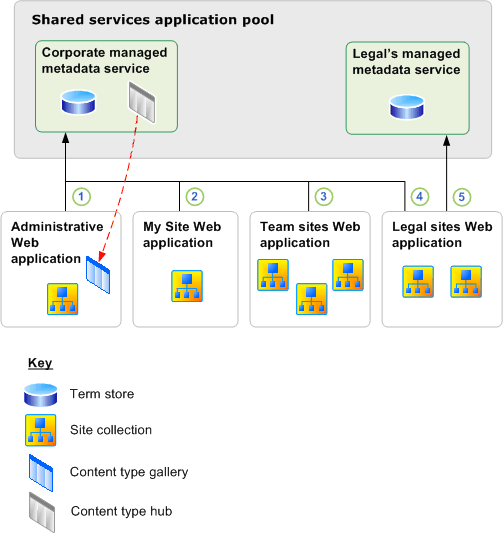
The Managed metadata service application overview on Technet used to have a nice example scenario of managed metadata term store and content type syndication across multiple departments in a company, in the page published on April 16th. As the example scenario has been removed in the page published on May 12th, the following figure shows the MMS syndication example:


For those of you who speak Spanish, or want to run it through Google translate, the managed metadata syndication example is still available here: http://technet.microsoft.com/es-es/library/ee424403.aspx

The salient point of the example is that the HR, IT, Products and Legal departments all share a common base term store and content type hub, allowing for the Products department to extend the base with its own term store and content types, and allowing the Legal department to have its own private term store while syndicating both the Global and Products managed metadata services.

An important detail in the example is that the Legal department uses term sets to represent confidential information. Therefore, it requires its own term store that prohibits other departments from seeing the confidential terms, even as new terms and term sets are added. Thus, the Legal department requires its own default term set location to prevent new confidential terms being added to the Global and Products managed metadata services.


This scenario is quite possible to realize as the two managed metadata service connection setting Default keyword location and Default term set location allows for specifying per MMS connection if this is the MMS term store where new keywords and column specific term sets will be added. However, as these options are set on the "Managed Metadata Service Connection" proxy itself rather than on the web-application "Service Application Associations" settings, there is a problem for the example scenario.

All web-applications in a farm share all service applications, connection proxies and proxy groups defined in the farm. The example scenario requires the IT, HR, Products and Legal web-applications to all be connected to the "Global Managed Metadata" service. As indicated by the red markup in the above figure, the web-apps require a different setting for default term set location - Legal requires "no", the others "yes". Thus, they cannot use the same MMS connection, a second connection is needed. However, you cannot add another local service application connection from Manage Service Applications, only cross-farm connections can be created from Central Admin .

The solution is to use PowerShell to add a new Managed Metadata Service Connection with the command New-SPMetadataServiceApplicationProxy using the -ServiceApplication parameter, rather than the -Uri parameter used for cross-farm connections.

 New-SPMetadataServiceApplicationProxy -Name "MMS_PX001" -ServiceApplication "MMS2" 

Some other parameters are:
-DefaultKeywordTaxonomy: This service application is the default storage location for keywords.
-DefaultSiteCollectionTaxonomy: This service application is the default storage location for column specific term sets.
-ContentTypeSyndicationEnabled: Publish content types from the content type hub.
-ContentTypePushdownEnabled: Push-down updates from the content type hub to subscribers.
-DefaultProxyGroup: Add this connection to the service application associations [default] proxy group.

Don't add your custom MMS syndication connections to the default proxy group as you will need to configure the service application associations per web-application that subscribes to a syndicated set of managed metadata services, typically using the [custom] proxy group. Additional custom proxy groups can be created in the farm using the New-SPServiceApplicationProxyGroup PowerShell cmdlet.


Note that as there are two term set "default" settings, there are four possible combination of MMS connection configurations for terms. Thus, four MMS connection variants must be created to cover all possible scenarios per managed metadata service instance. Then, each web-application can use its own service application associations [custom] proxy group to pick the applicable set of MMS connections.

Make sure that each proxy group has only zero or one default keyword location and default term set location. Having zero for either will prevent users from adding new keywords or new term sets. Having multiple defaults for either will cause an error as SharePoint cannot know in which of the locations to add new keywords and new term sets.

A final note about term store permissions: Access to the term store is granted per web-application using the app-pool account, not per user or group.  In addition, you can control permissions on each term group using the "contribute" and "manage" settings for granting rights to users and groups. If users are not granted contribute rights, they will be restricted to read even if the web-application's MMS connection permissions allows for more than just read.

[UPDATE] This scenario will make incremental crawl of friendly URLs (FURL) fail in SP2013; and if you contact Microsoft Support you will get help from people who don't understand proxy groups, default proxy/MMS connection, default keyword location and default column-specific term set location settings, who will tell you that the product group confirms that the documented scenario on Technet is in fact not supported. Stay away from using SharePoint for anything else than a single department collaboration scenario, SP2013 is not built for real-life enterprise usage.
Thursday, April 15, 2010

SharePoint 2010 Open-Closed Taxonomy

A taxonomy is realized in SharePoint using content types for information asset types and term sets for coherent tagging of information. Content types defines the static classification hierarchy of the information managed in SharePoint. A content type is built from a set of fields defining the metadata of the content type, further detailing the classification of the information. Some metadata fields require the use of a controlled vocabulary, realized in SharePoint 2010 as term sets defined in the managed metadata service.

A central design recommendation for both content types and term sets is the Open-Closed principle: open for extension, closed for modification. The Open-Closed principle states "software entities (content types, term sets) should be open for extension, but closed for modification"; that is, such an entity can allow its configuration to be modified through extension without altering the core base entity definition. This is especially valuable in a production environment, where changes to base definitions will necessitate code reviews, unit tests, and other such procedures to qualify those changes. The principle isolates the changes to the extension entity definitions, because the core base entities are immutable. This makes it simpler to evolve the entities in a controlled manner while keeping a common, consistent core base definition.

SharePoint is restrictive on what changes can be made when evolving or specializing content types, with very limited support for modifying existing content type definitions. The recommended practice is to use a base set of core content types (the closed part) and then perform all specialization and variations on content types inheriting from the base content types (the open part). Evolving term sets is less restrictive than content types and allows for much more flexibility in changes to their definition, including renaming and merging terms.


New in SharePoint 2010 is the capability to share content types and term sets across multiple site-collections and even across farms. These enterprise content types and term sets can be combined with local site content types and local term sets, the giving a combined syndication effect. The Open-Closed principle can be applied also to this syndicated taxonomy: use the enterprise content type inventory and the enterprise term set inventory as the core taxonomy base (the closed part), and use the site inventories to extend the taxonomy with local specializations (the open part).

In technical SharePoint 2010 service application terms: create a primary term store and a primary content type hub, then extend those locally with additional local term sets and local content type inventories subscribing to the primary core taxonomy.

Applying the Open-Closed principle both for content type and term set definitions, and for content type and term set syndication, allows for defining and enforcing governance policies that makes it possible to have centrally controlled lifecycle management of the core base definitions of your SharePoint taxonomy, while still allowing local extension and adaptation of the taxonomy.

See SharePoint 2010 Intra-Farm Term Store Syndication for details on realizing taxonomy syndication, including configuration of permissions per web-app, user or group for adding or modifying term sets.