Showing posts with label IA. Show all posts

Wednesday, October 23, 2013

Roadmap for Responsive Design and Dynamic Content in SharePoint 2013

Responsive design combined with dynamic user-driven content and mobile first seems to be the main focus everywhere these days. The approach outlined in Optimizing SharePoint 2013 websites for mobile devices by Waldek Mastykarz and his How we did it series show how it can be achieved using SharePoint 2013.

But what if you have thousands of pages with good content that you want make resposive? What approach will you use to adapt all those articles after migrating the content over from SharePoint 2010? This post suggests a roadmap for gradually transforming your static content to become dynamic content.

First of all, the metadata of your content types must be classified so that you know the ranking of the metadata within a content type, so that it can be used in combination with device channel panels and resposive web design (RWD) techniques to prioritize what to show on what devices. This will most likely introduce more specialized content types with more granular metadata fields. All your content will need to be edited to fit the new content classification, at least the most important content you have. By edited, I mean that the content type of articles must be changed and the content adapted to the new metadata; in addition, selecting a new content type will also cause a new RWD page layout to be used for the content. These new RWD page layouts and master pages are also something you need to design and implement, as part of your new user experience (UX) concept.

While editing all the (most important) existing content, it is also a good time to ensure that the content gets high quality tagging according to your information architecture (IA), as tagging is the cornerstone of a good, dynamic user experience provided by term-driven navigation and search-driven content. Editing the content is the most important job here, tagging the content is not required to enable RWD for your pages.

Doing all of this at once as part of migrating to SP2013 is by experience too much to be realistic, so this is my recommended roadmap:

Phase 1
- Focus on RWD based on the new content types and their new prioritized metadata and new responsive master pages and page layouts
- Quick win: revise the search center to exploit the new search features, even if tagging is postponed to a later phase (IA: findability and search experience)
- Keep the existing information architecture structure, and thus the navigation as-is
- Keep the page content as-is, do not add search-driven content to the pages yet, focus on making the articles responsive
- Most time-consuming effort: adapting the content type of all articles, cutting and pasting content within each article to fit the new prioritized metadata structure

Phase 2
- Focus on your new concept for structure and navigation in SP2013 (IA: content classification and structure, browse and navigate UX)
- Tagging of the articles according to the new IA-concept for dynamic structuring of the content (IA: term sets for taxonomy)
- Keep the page content as-is, no new search-driven UX in this phase, just term-driven navigation
- Most time-consuming effort: tagging all of your articles, try scripting some auto-tagging based on the existing structure of the content

Phase 3
- Focus on search-driven content in the pages according to the new concept  (IA: discover and explore UX)
- New routines and processes for authors, approvers and publishers based on new SP2013 capabilities (IA: content contributor experience)
- Most time-consuming effort: tune and tag the content of all your articles to drive the ranking of the search-driven content according to the new concept

Phase 4
- Content targeting in the pages based on visitor profile segmentation, this kind of user-driven content is also search-driven content realized using query rules (and some code)

The IA aspects in the roadmap are taken from my SharePoint Information Architecture from the Field article.

Saturday, March 16, 2013

Controlling Content Database Size in SharePoint


A SharePoint content database can be up to 4TB with data (max 200GB is recommended). However, storage size is not the problem; it is the recovery time to restore all that data that is the availability problem. The recovery time decides for how long your business critical solution will be down. As SharePoint can spread its content across multiple databases, it is recommended that your architecture segments different content across different databases based on IA and other user experience aspects, plus business requirements for availability and recovery time. Plan for structuring your solutions with a strong focus on your information architecture (IA).

Here are some options for how to control the size of the content databases, without disposing and deleting content:

A) Use an ootb Record Center as an archive for old content: The users must manually send each document to the RC using e.g. move and leave a link; note that only the latest major version with metadata is kept – all version history is lost. The information management policies supported by SharePoint for retention and disposition can be used to automate the cleanup.
As the RC has its own content databases, the live collaboration databases will grow slower or even shrink as outdated information is moved to the archive. Keeping the live databases small ensures shorter recovery time; while the recovery time for the archived content can be considerable, but not business critical.
Search must be configured appropriately to cover both live and archived content.

B) Use a third-party archiving solution for SharePoint from e.g. MetaLogix or AvePoint. This has the same pros & cons as in option A, but the functionality is probably better in relation to keeping version history and batch management of outdated content.
Search must be configured appropriately to cover both live and archived content.

C) Use a third-party remote blob storage (RBS) solution for SharePoint, such as MetaLogix StoragePoint, so that documents are registered in the database, but not stored there. This gives smaller content databases, but more complicated backup and recovery as the content now resides both in databases and on disk. Provided that you don’t lose both at the same time, the recovery time should be shorter.
Search will work as before, as all content is still logically in the “database”.

D) Use powershell scripts or other code to implement the disposition of outdated content. The script can e.g. copy old documents to disk and delete old versions from the content database; the drawback being that all metadata will be lost and there is no link left in SharePoint.
The databases size will shrink as data is actually deleted, and backup and recovery is more complicated as content is now both in the database and on disk (same as for option C).
Search can be configured to also crawl and index the files on disk, but content ranking will suffer as the valuable metadata is lost.

My recommendation is to consider option A first, especially if you are able to define automated rules and exploit the built-in information management policies in SharePoint. The keyword is *able* - in my experience, everyone is positive to having automated retention and disposition, but noone even at large banks and law firms are able to come up with the policies.

Always consider using RBS for databases larger than 200GB, and note that RBS also helps you meet the disk IOPS requirements of SharePoint.


Tuesday, November 01, 2011

SharePoint Information Architecture from the Field

Over the years, I've written quite a few articles on how to technically structure your SharePoint solutions into web-apps, sites, subsites, lists and document libraries. All based on having a defined Information Architecture (IA) as a basis for the solution design, or at least being able to reason about your content management using my "chest of drawers" and "news paper" analogies. The latter is based on my experiences from the field as most companies don't have a well-defined IA in place.

Common questions from customers are "what is Information Architecture?" and "what is the value of having an IA for SharePoint, can't we just create sites and doc-libs on the fly as needed?". Not to forget "how do we go about creating an Information Architecture for SharePoint?". So here are some IA advice from Puzzlepart projects:

In short, Information Architecture defines how to classify and structure your content so that it is easy for content consumers to find and explore relevant content, while making it simple for workers to contribute and manage content in an efficient manner.

The business goal of having an Information Architecture for your SharePoint solution is enabling workers to contribute, store and mange content in a manner that is simple and efficient, enabling more content sharing; and at the same time making it easy for workers to browse and find content they need, while also making it easy for workers to discover and explore relevant content they didn't know of. The outcome is more knowledgeable workers that are better informed about what’s going on in the company and about the range of intellectual property possessed by other employees, while also saving time wasted on finding information, and time wasted on incorrect or outdated information.

An outcome is a metric that customers use to define the successful realization of the objectives and goals. Outcomes happens after the project has delivered on its objectives and goals, and the customers must themselves work against securing the outcomes to achieve the desired business value.

The business value of having a working IA is capturing company knowledge from employees with better quality of shared content, which combined with good findability drive more knowledgeable workers that make better decisions and better faster processes. In addition, more and better content sharing helps user not only discover and explore content, but also people such as subject matter experts, allowing employees to build and expand their network throughout the company, helping the company to retain talented employees through social ties and communities. Access to discover more and better content and people expertise is central to enabling innovation and process improvement, as new knowledge is a trigger for new ideas and for identifying new opportunities.

The process of defining your IA for your SharePoint solution should focus on these objectives and goals:
  • Analyze and define the content classification and structure for the solution 
    • goal: identify what content to manage and plan how to store it in SP, leading to sites, subsites and doc-lib structure organized into SP web-apps
  • Analyze and define how to browse and navigate the content
    • goal: make it simple and efficient for users to find and use known content that they need in their daily work to drive better faster processes
  • Analyze and define how to discover and explore the content
    • goal: make it easy for users to stumble upon novel shared knowledge based on "common focus" to trigger innovation and build social ties
  • Provide simple and efficient content contributor experience with liberal appliance of default metadata values, storing content close to the authors 
    • goal: make workers contributors, not knowledge management grunts, and help them store content correctly with better metadata and tagging, driving findability and "common focus" content discovery; drive better sharing and collaboration
  • Analyze and define the starter content types with metadata and term set taxonomy based on the defined site and doc-lib architecture, with a strong focus on needed search experience capabilities
    • goal: enable content management and support both search-driven and "common focus" content; drive findability, sharing and innovation
  • Analyze and define the policies for social tagging and rating in the solution, also in relation to user profile interests, skills and responsibility tagging
    • goal: drive "common focus" content discovery, drive findability, drive social communities, drive innovation
  • Analyze and define the search experience, focusing on both search-driven content and on search center scopes and refiners
    • goal: drive findability and provide both search-driven and "common focus" content
  • Enable disposition of redundant and irrelevant content 
    • goal: provide users with better, correct and up-to-date information, drive findability, save storage cost, save process cost
Including the search experience helps you avoid an initial version of your IA with a too narrow scope, which is easy to do for a starter IA when e.g. analyzing only project collaboration needs or just the document types of an attachment-based intranet. It makes you focus on what you get out, not only what you put in.

Note that navigation is not IA, its just one way to explore the content. Using navigation to structure your content is just reapplying the fileshare folder approach, which we all know doesn't work too good for findability and discovery. Navigation should not define the statical IA structure for the content, do a LATCH analysis to model the possible IA structures, and choose one of them to define the statical IA structure. The site map is closer to define statical IA structure than navigation, still it is only good for logical IA structure and cannot be expected to be used directly as the physical IA structure in SharePoint.

In an upcoming article I will give some practical advice from the field on how to define and realize the Information Architecture for your SharePoint solution in an agile fashion.

Thursday, October 27, 2011

SharePoint is like a Chest of Drawers

I often get asked "how many document libraries and sites will we need?" in SharePoint, followed by "how will we know whether we should use more doc-libs in a site or just throw it all in there?" and "where should content be stored? we need to show it on the intranet home page, but it is really edited and owned by HR in region Gokk". Well, SharePoint is like a chest of drawers.

To answer such questions, you need to know how to classify and structure your content; ideally you should have an Information Architecture for all your different kinds of data. If you are like most others, you don't. This is where the "chest of drawers" analogy might help you reason about your content.


Whether you need many doc-libs or subsites or not depends on your IA policies for information management. Still don't have an IA? Think of a chest of drawers for you clothes: it makes it easier to manage different types of clothes in different ways at different schedules, by e.g. separating t-shirts from trousers. Maybe even handle different kinds of t-shirts differently, such as your precious Maiden t-shirts. It also allows for delegating a few drawers to be managed by your wife; maybe you even want to have some locked drawers with more privacy :)

Your content are the clothes, the drawers are doc-libs or even subsites; and depending on the variety of clothes you have, you might need quite a sophisticated chest of drawers. Throw in all your other stuff, and you might need a bigger closet or a garage!

So now all your content is stored into nicely separated drawers, with delegated and secure handling where needed. But is is not so easy to see what is in the drawers without actually opening and browsing the content of each drawer. Until we get one of those science fiction closets that knows whats in the drawers and let us explore what trendy outfits we can wear today, its time for another analogy: the good old news paper, even in its modern online incarnation.

Think of a news paper with a front page and then multiple sections, such as domestic, foreign, sports, economics, etc. The front page and section front pages are used to show the (elsewhere) stored content to readers, helping them quicly browse the content at wellknow locations in the paper. The shown stories are typically rollup content stored elsewhere, typically where maintained, close to the content editors.

So a paper is built from dispersed storage of content that can be rolled up and targeted to readers multiple places. The home page and section pages rollup content "teasers" and allows the user to browse the content stored elsewhere in the paper and decide whether to explore it further.

The front page is the home page of your SharePoint site, the sections are subsites and the section pages are the subsite welcome pages in SharePoint parlance. As for the drawers, there might be different management policies and different people handling the different sections, and this helps you decide when subsites are needed. The rollup, or cross publishing if you like, is achieved using the content by query web-part or search-driven content based on content types, tagging and metadata.

Controlled and secure management of content according to different policies and schedules is much simpler when using subsites as compared to throwing it all into one site. Store the content close to the producers, show it everywhere the users expect to find it - and also where *you* want them to discover and explore knowledge new to them.

Wednesday, August 04, 2010

Five Steps to Structure Your SharePoint Sites (Part III)

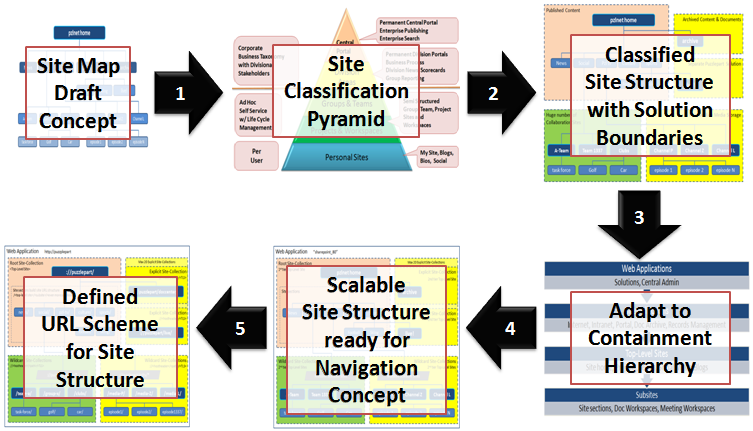
At every SharePoint customer and in every SharePoint project, the issue of how to realize a future-proof, working site structure arise. I've written a few blog posts on classification and structuring of SharePoint sites before (part 1 and part 2), focusing on scalable site structure design within the SharePoint system boundaries. This post is about getting from a classic site map based approach to a methodology driven by Information Architecture and the site classification pyramid, combined with the SharePoint containment hierarchy and SharePoint governance best practices. The latter is important as the management and usage of a site, and the service level agreement for the site, strongly influence how the overall SharePoint solution should be partitioned to adhere to architecture best practices.

Most information architects come up with a content organization model like a site map with hierarchical URL scheme. "This is the draft model, and we want the URL structure to be like this in our SharePoint solution" they say. "That's a very useful mental model of the site" I respond, "but what you really want is a good, intuitive navigation concept, helping users find what they need - like an invisible guiding hand; not that specific URL structure". Having a simple and easy mental model for the site structure is important, as it makes it easy to both contribute and find content, driving findability when the amount of information stored and managed in SharePoint grows.

Alas, that is not the primary issue with the site map approach for designing SharePoint site structures. The site map is closer to define statical IA structure than navigation, still it is only good for logical IA structure and cannot be expected to be used directly as the physical IA structure in SharePoint.


Using a site map approach to design a SharePoint site structure will only work in simple scenarios with homogenous solution domains, such as a publishing portal or a collaboration solution with limited document storage and versioning. It will fail when the SharePoint solution domains and their usage, governance and service level agreements differ, not to forget when the overall amount of data stored in SharePoint surpasses the 100GB limit per content database. The wanted URL structure might not be possible to realize in most cases anyhow when adhering to SharePoint architecture best practices.


A more structured approach is needed to design a SharePoint site structure according to architectural and governance best practices. My methodology involves a process with these five steps:

  1. Review your site map draft model against the SharePoint site classification pyramid and your governance plan for each of your identified site types.
  2. Partition your sites into solution domains based on site type and governance policies aspects such as business purpose, usage patterns, storage requirements, management boundaries, information security and isolation, operations and service level agreements.
  3. Adapt the site structure to the SharePoint containment hierarchy, adhering to limits and best practices based on the partitioned solution domains.
  4. Use the main SharePoint architectural components explicit and wildcard site-collections to ensure a scalable design that allows for future growth and expansion into new business domains. Use wildcard site-collections by default as these are super scalable. Adapt or customize SharePoint global menu and current menu to your navigation concept, to hide the solution partitioning.
  5. Define your URL scheme using host headers, manage paths and site provisioning policies.
Following these five steps is a top-down approach that is more understandable for non-techies. However, from step 3 onwards, good technical knowledge of SharePoint architecture is required.


To successfully design a working and scalable SharePoint site structure, you need a site classification scheme. I recommend the classic site classification pyramid as it outlines typical solution domains with governance and site types, helping you classify sites and draw domain boundaries in your site model.


Then, after identifying the different solution domains that make up your overall SharePoint solution, you must map the identified solution domains to the SharePoint containment hierarchy. It is imperative that you understand the containment hierarchy and its boundaries, otherwise your solution will slowly stop working as more and more users create more and more sites and fill them with more and more information.


Site-collections is the main architectural component of SharePoint, in combination with the content database that stores the site-collection's content and documents. A web-application always have a single root (1st tier) site-collection, which is the home site of the web-application. A 2nd tier of site-collections can be added to the web-application as needed to scale the application, using SharePoint managed paths. A typical scenario is to add a new solution domain. Another typical scenario is to add room for more content and documents; because a site-collection cannot span content databases and adding more space thus requires a new site-collection. Use subsites for anything that is just a section of an existing solution domain or site. See the golf and car communities in the example, which functionally are "sites" in their own right. Read my post Classification and Structuring of SharePoint Sites (Part I) to learn more.


It's easy to choose what solution goes into the root site-collection of a web-application, typically this is the portal to the overall solution. As there is a limited set of explicit site-collections per SharePoint web-application, these should be reserved for a planned, wellknown small number of predefined sites. Use the limited set of available explicit site-collections for the top two types in the site classification pyramid. Note that root and explicit site-collection storage cannot be scaled as you cannot add another content database to a site collection. Use as few explicit site-collection as possible, stay well below the limit of 20 managed paths. Expect everybody to require vanity URLs such as ://puzzlepart/HR/ for their site, so a strict governance policy for 'explicit' is required.

Use wildcard site-collections when the predictable number of sites is too large for explicit, typically for the bottom three types in the site classification pyramid. Also use wildcard site-collections even for central portals and division areas when there is no absolute requirement for an 'explicit' 2nd tier top-level site. See Puzzlepart TV in the example; even if the channel sites are classified as 'division area' (yellow color code) they do not need to be 'explicit'. In fact, due to their massive storage requirements for rich media content, best practices dictate the use of 'wildcard'. Always use wildcard site-collections for solutions have a limited life span such as projects.


Finally, after composing your scalable site structure design from root, explicit and wildcard site-collections, define the URL scheme that underlies the site structure. Use short descriptive URL elements for web-applications, managed paths and site-collections. The combination of these elements become the URL of the top-level sites that are what the users actually interacts with when using SharePoint. Note how the URL structure is affected by the SharePoint containment hierarchy. Compare ://puzzlepart/pzl-tv/ and ://puzzlepart/pzltv/ in the example, the latter contains child sites of the former in the overall navigation concept. In addition, I recommend defining and enforcing policies for all URL elements that users can provision, such as subsites, lists and libraries, to avoid non-friendly URLs with anything from spaces to special characters.

It is very likely that you will need to customize the ootb SharePoint navigation provider and menu rendering to have a consistent navigation experience across sites, sections and pages. Users get very confused and annoyed when the content of the top menu changes as they navigate from site to site, which is very understandable. There are several ways to implement common menu and navigation across site-collections, but that's left as an exercise for my readers.

The capacity and planning boundaries are mostly the same in SharePoint 2010 as in SharePoint 2007 for web-applications, site-collections and content databases. The most significant change is that SharePoint 2010 now supports max 250 000 site-collections per web-application, five times the limit for 2007. The max number of content databases per web-application has increased from 100 to 300, on the other hand the max number of site-collections per content database have been reduced from 50 000 to max 5000 with a recommendation of 2000 site-collections per content database. None of these numbers are hard limits, these are numbers for acceptable SharePoint performance.

Friday, July 02, 2010

Scalable SharePoint 2010 Farm & Services Architecture

This post describes a proposed solution design for providing an intranet collaboration farm capable to scale out to support a publishing portal and extranet collaboration with partners and suppliers. The design is based on a set of diverese sites types identified in an Information Architecture analysis, and the general planning recommendations for these types. In addition, several non-functional requirements is accounted for in the design, such as farm security, robustness and availability.

The SharePoint 2010 farm is designed with scale out support for different future solution areas. The initial farm architecture will be designed to support collaboration for internal users only, with an option to also add an intranet publishing solution. The long term goal of the farm is to eventually support collaboration with external users also, such as partners an suppliers.

All SharePoint 2010 solutions are built from a set of elements ranging from the farm hosting the solutions down to sites that contains the actual functionality and information of the solutions.


SharePoint solutions are deployed into SharePoint web-applications in a SharePoint farm. Web-applications are management containers for site collections. SharePoint uses site collections to structure the sites and subsites that implements the actual functionality of SharePoint solutions.

Site collections bridge logical architecture and information architecture (IA). The design goals for site collections in the model are to create logical divisions of content and functionality, in addition to satisfy requirements for URL design. To satisfy the requirements for URL design, each web application includes a single root-level site collection, such as ://portal/. In addition, a set of managed paths are used to incorporate a second tier of site collections, such as ://portal/HR/ and ://portal/sites/***.

All web-applications in a farm share a group of common SharePoint 2010 service applications that provide shared services such as indexing & search to the farm. I use the term “shared services provider” (SSP) in this post for such a group of service applications. A farm can contain multiple groups of shared services, such as an intranet SSP and an extranet SSP.

The overall SharePoint farm architecture for internal collaboration can be summarized like this (click to enlarge):


The initial SharePoint 2010 farm will be configured to support two solutions: providing team-sites for internal collaboration in groups or projects, and for providing My Sites for employees. These two web-applications will share a group of shared service applications (“default group”) for search, user profiles and enterprise taxonomy.

The User Profile service is required to provide My Sites. In addition, this service application is what provides all social features such as tagging, rating and social bookmarking.

Note that a search service application is needed for more than just crawling and queries, the social tagging functionality in SP2010 also requires search. The reason is that several web-parts such as Note Board, Tag Cloud and Tagged Items in some modes depends on the search service to do security trimming to provide their content. This includes the tag profile page, which use such web-parts. You can also use the search service and the content search, people search and social search capabilities when customizing the user experience of your solutions. A typical example is creating a tag cloud web-part for managed metadata and enterprise keywords columns for lists and libraries, not just for social bookmarking (it is not really social tagging that is implemented in SP2010) with the standard "Tags & Notes" ribbon.

If you use FAST Search for SharePoint 2010 (FS4SP) then the FAST Content SSA will provide the content sources that are crawled for search results, except for people search. The FAST Query SSA has a different set of content sources, including the one feeding the people scope. Only one Search Service Application (SSA) should be associated with your web-application, either FAST or standard SharePoint 2010 Server search. Note that FAST doesn't index the social tags, which affects those social tagging web-parts that depends on search (see above).

The intranet will use Active Directory as the identity provider for authentication in classic mode. The web-application authentication mode can later on be switched from classic to claims-based as needed. Note that it is not recommended to switch the mode from claims-based to classic.

The farm is also designed to scale-out to support future SharePoint 2010 solutions such as a publishing intranet (://puzzlepart). Note that other service applications not shown here might be required to support the functional solution design and future solutions.

The different web-applications in the farm runs in separate application pools to achieve process isolation. This way an error or crash in one application will be isolated and not affect the other web-applications in the farm.

Anywhere access for mobile employees to the intranet sites is provided using Forefront Unified Access Gateway (UAG). This supports a wide range of locations such as at home or on the road, and a wide range of devices from laptops to smart phones.

The overall SharePoint farm architecture target for collaboration with external partners and suppliers can be summarized like this (click to enlarge):


The extended 2011+ version of the farm is scaled-out to support two new solutions; one is the ://puzzlepart web-application for intranet publishing, the other is an extranet web-application for collaboration with external users such as partners and suppliers. The former connects to the intranet shared services provider (“default group”) and will as such reuse and share search, user profiles, and the enterprise taxonomy (metadata and content types) with the existing solutions for team-sites and my sites.

The extranet collaboration solution must not be connected to the intranet SSP for information security reasons. Using a separate group of shared services for all service applications that may contain or expose confidential information is strongly recommended – an extranet SSP (“custom group”). A typical service application of this kind is search. Using separate service applications prevents accidental information exposure due to e.g. misconfiguration of a service application.

The User Profile service application is included in the extranet SSP even if the extranet will not provide My Sites at all. This service is what enables user to do social tagging and bookmarking, and must thus be part of the extranet SSP to provide social features. It is not recommended to connect the extranet to the intranet User Profile service for the same reasons as for the Search service.

Still, some service applications are typically shared across both the intranet and the extranet web-applications. This includes the enterprise taxonomy – you need to provide for consistent classification and tagging of content across all solutions to drive findability. The managed metadata service, including content type hubs, is specifically built for the purpose of being both shared and syndicated across multiple solutions.

Another security aspect is access control; the extranet must use a separate claims-based authentication provider, that can be federated with external identity providers. The intranet and extranet web-applications must trust different providers for authorization. Using separate providers prevents accidental information exposure due to e.g. misconfiguration of site access control and group memberships. Note that multi-mode authentication is preferred over mixed mode for extranet collaboration.

A final aspect of the extended farm design is that the extranet web-application and shared services are run in separate application pools from the intranet. This ensures process isolation to prevent errors and crashes in the extranet processes to affect the intranet solutions. It also isolates malicious use of the extranet process resources from affecting the intranet processes, such as denial of service attacks.

Remote access for external users to the extranet collaboration web-application is provided using Forefront Unified Access Gateway (UAG) combined with ADFS for federated identity and access management (IAM). Using UAG saves you from setting up and managing a separate extranet farm in a DMZ perimeter zone; instead you give a controlled set of external users secure anywhere access to a controlled set of internal applications hosted on the intranet farm.

Wednesday, May 12, 2010

Minimal SharePoint Governance Plan - Part III

This is part III in a mini-series about the Minimal SharePoint Governance Plan needed to get you started with your SharePoint governance efforts.This part gives a more detailed overview of the mininal governance plan. The overview comprises operational and functional areas from SharePoint architecture, via site, user and information lifecycle management, to realization of SharePoint solutions. As you will see, there is a multitude of governance aspects, even if just focusing on the technical aspects. Executing on all governance aspects from day one is not viable, that is why I recommend to start with simple governance.

The is no one governance plan to rule them all. Governance is too multi-faceted for a single set of policies to fit all the different site types across diverse business areas. Governance for controlled publishing sites will be very different from Enterprise 2.0 pull-style situational solutions, as will it differ for management of project sites and team sites, and as for community, social and personal sites. Adapt your governance plan according to the targeted solution.


The site classification scheme shown here is from the Technet SharePoint Governance Checklist Guide, refer to page 20 for more details.

Architectural Governance

The governance plan for the SharePoint solution must define a logical architecture model based on your Information Architecture analysis, adhering to architectural components, farm deployment, capacity and planning recommendations on Technet.

• Farm design policies for a robust and flexible platform
• Sharing and isolation policies for applications and information
• Site-collection structure policies to drive overall solution architecture & governance
• Information asset structure policies to ensure classification, management and findability

The objective of having architectural policies is to create a workable farm and solution design considering hard and soft SharePoint limits.

Site Lifecycle Management

The governance plan for site lifecycle management (SLM) must specify policies for managing sites from creation to disposition. Define a classification scheme for site types and adapt your governance plan to each site type. It is recommended to develop timer jobs to automate and enforce SLM policies.

You need a site sweeper job that disposes expired, abandoned and useless sites from your solution to ensure that the overall effect produces useful business results. Make sure that knowledge captured in obsolete sites are retained through information management tasks before permanently disposing the sites. Alas, don't be afraid of self-service provisioning, after all more is different.

• SLM policies must be defined and enforced
• Site Provisioning
    o Implement custom provisioning if ootb functionality is not sufficient
    o Provisioning policy per site type defines level of automation and self-service
    o Use provisioning wizard to collection data related to SLM
    o Store SLM data in site properties or a site inventory list
• Site Retention
    o Do not rely on database backup for retention, backup retention might be shorter than site retention
    o Prepare to restore sites deleted by users
• Site Disposition
    o Implement custom site sweeper if ootb functionality is not sufficient
    o Standard site sweeper is only for site-collections (site use confirmation)
    o Define a procedure for information management when disposing a site

Note that there is no ootb site directory in SharePoint 2010. Still, just create a shared custom list and use it for inventory management of sites as part of your SLM implementation.

DocAve Backup & Recovery a recommended 3rd-party tool, it provides capabilities beyond ootb SharePoint 2010, such as item-level recovery. For site retention, the CodePlex MSIT Site Delete Capture tool is an option.

User Lifecycle Management / Identity & Access Management

The governance plan for user lifecycle management (ULM) must specify policies for managing users from onboarding to termination. ULM is directly related to information security (access and auditing), information management, and Identity & Access Management (IAM). Employees come and go, resulting in SharePoint data that nobody manages, or in worst case, lost knowledge.

Implementing good site disposition policies and good information management policies will reduce the efforts required for user lifecycle management, as obsolete sites and information then will be disposed of in a timely manner - keeping the quantity of orphaned data down.

• ULM policies must be defined and enforced
• Site memberships and permissions must be assigned for new users
• Site and information asset permissions & ownership must be handled when
    o Account is terminated
    o User transfers to another business role or department
• A policy for reassignment of ownership must be defined

Having tools for management of user permissions, ownership and lifespan is nice, but no prerequisite. LigthningTools DeliverPoint or Axceler ControlPoint are recommended partner solutions for user management.

Content Type Governance / Information Management

The governance plan must specify policies for content management according to your Information Architecture analysis and taxonomy. A taxonomy is realized in SharePoint using Site Content Types for information asset types and Term Sets for coherent tagging of information. Content types combined with metadata tagging is essential for information classification and for driving findability.

Content types defines the static classification hierarchy of the information managed in SharePoint. A content type is built from a set of fields defining the metadata of the content type, further detailing the classification of the information. Some metadata fields require the use of a controlled vocabulary for content tagging.

Information management policies can be assigned to content types. The most important are for retention and disposition of content, helping you manage e.g. outdated content to ensure the relevance and timeliness of your information.

• Reuse the Open-Closed Enterprise Taxonomy across web-applications and site-collections
• Always use a core Content Type Hub store for the enterprise taxonomy
• The core content type store defines company specific immutable base content types
• Ensure that all additional content types derives from the core content types, by extending the immutable base
• Use few required metadata fields, max 3-5 per content type
• Use sensible default values where possible
• Define polices for
    o Reusable content (document repository)
    o Retention of outdated content / historical archive (document repository)
    o Retention of expired content (records repository or disposition)
    o Regulatory compliance records (records management)
    o Disposition of content
• Retention policies are important for driving findability, use them to prevent irrelevant search results
• Define and enforce behavior using
    o Information Management policies
    o Workflows / Event receivers
• Use Information Management policies for
    o Retention, disposition, auditing, labeling / barcodes
• Ensure that content types are evolved according to best practices

The new SharePoint 2010 multi-stage retention support, combined with workflow and document /records repositories allows for implementing and enforcing sophisticated content management policies. Note that the new SharePoint 2010 Content Organizer only supports Document-based content types, in addition to e-mail messages.

Managed Metadata Governance

The governance plan must specify policies for management of the managed metadata used when tagging content in SharePoint. Managed metadata is a controlled vocabulary defined in the corporate taxonomy, realized in SharePoint 2010 as term sets defined in the Managed Metadata Service.

• Reuse the Open-Closed Enterprise Taxonomy across web-applications and site-collections
• Always use a core Managed Metadata Service term store for the enterprise taxonomy
• Allow local Managed Metadata Services for isolated, locally managed term stores
• Always use synonyms when defining terms, consistent content tagging is essential for content management and for driving findability
• Use term translation to support other languages for the term
• Avoid random or haphazard tagging due to unintelligible terms
• Enable managed keywords for user-driven freeform tagging of content
• Ensure that term sets are evolved according to best practices
• Define and enforce a policy for reviewing open term sets for improper usage

Note that search do not comprise term synonyms or translations when searching, it only finds the stored key term. The same applies to faceted search – or 'refinement panels' as they are called.

You can have multiple Term Set stores and Content Type Hub inventories in SharePoint 2010. This allows for combining both enterprise definitions and local definitions to support both shared and isolated taxonomy configurations. See Plan to share terminology and content types on Technet.

Social Tagging Governance

The governance plan must specify policies for management of the social tagging features

• Use managed keywords to enable folksonomy for content (list items)
• Use social tagging to enable folksonomy for "anything with an URL"
• Allow for managed metadata and managed keywords to be included in social tags
• Define and enforce a policy for reviewing the folksonomy tags for improper usage

Note that the social tagging of "anything with an URL" is provided by the SharePoint2010 User Profile Service application, not the Managed Metadata Service application. Thus, social tags have no explicit relation to the term store at all. The same applies to other SharePoint2010 social features such as ranking and social bookmarking.

Document Template Governance

The governance plan must specify policies for using Office templates in content types.

• Use a shared set of enterprise Office templates
• Manage and store templates in a SharePoint document library at a central location
• Do not store templates directly in content types, always reference the central shared templates
• Make use of the Office 2010 Backstage or the document information panel for managing metadata directly in Office

Office 2010 now has support for storing templates in a SharePoint repository. Use AD group policies to populate 'File > Save As' and to lock down storage locations such as file shares and local disk.

List & Library Definition Governance

The governance plan must specify policies for managing content in lists and libraries. It is strongly recommended to use only lists based on site content types, rather than directly customizing list definitions. Enforcement of consistent classification and information management policies depends on using site content types.

• List content
    o Use only a few content types per list
    o Content types in a list must be cohesive
    o Prefer list views over "dumb" folders
    o Use SharePoint 2010 folders when appropriate
• List permissions
    o Prefer using inherited permissions
    o Avoid user item level permissions
• Enforce content management policies using
    o Versioning, check-in/out, workflows / event receivers
• Information Rights Management (IRM)
    o Policies for document access and usage restrictions
    o Applies IRM policies when document is downloaded from library
    o Enable by installing Active Directory Rights Management Services (AD RMS)
• Information management policies
    o Prefer implementing IM policies on content types rather than on lists or libraries

Note that some of the new SharePoint 2010 features work only for document libraries, such as the Unique Document ID, Document Set and Content Organizer features.

Permissions Governance

The governance plan must specify policies for how to manage access to sites and information assets, including which permissions users and groups have. All experience shows that simple permission policies are more secure. The more intricate and fine-grained permissions assignments you have, the harder it is to know who has access to what – and the more likely it is that there will be information security breaches exposing confidential information.

• Use SP groups to manage user group memberships
• Build your SP groups from AD security groups
    o Management of AD group members is typically a bottleneck, thus avoid it
• Do not assign permissions to single users, always assign to SP groups
• Prefer inherited groups (role assignments)
• Prefer inherited permission levels (role definitions)
• Use unique permissions at site level (favored) or list/library level only when absolutely required
• Avoid assigning item level permissions
• Site-collections are preferred security management boundaries

The visibility into what a user has access to has improved a bit in SharePoint 2010, so has the usage reporting capabilities. Still, 3rd-party tools such as LigthningTools DeliverPoint or Axceler ControlPoint might be required for professional permissions management beyond the built-in SharePoint 2010 Permissions Tool.

Search Governance

The governance plan must specify policies for driving findability through indexing and search. The Information Architecture analysis defines the information taxonomy and organization blueprint realized in a SharePoint site structure capable of storing and managing your content. The site structure combined with content types enables findability through consistent classification and tagging of content.

• Ensure ease of adding information assets to correct location
    o Users should not have to enter a lot of required metadata
    o Users should not have to browse/navigate extensively to store content
    o Task context should deduce location, e.g. CRM client document store
• Metadata tagging through content types for all findable assets
• Use content type retention policies to prevent irrelevant, outdated search results
• Use search scopes to provide search context: people, tasks, articles, project, archive, etc.
• Use faceted search (refinement panel)
• Ensure and enforce information isolation
    o Farm design must prevent configuration mistakes from exposing confidential information by accident
    o Use separate service application groups or even separate shared services farms

The most valuable search is the one that connects a user to other people, as people are often the best sources of information and knowledge, especially tacit knowledge – know-how relating to new better business performance or to novel information that generate flow of new knowledge – in short, that ignites innovation. A former CEO of Hewlett Packard famously observed: "If HP knew what HP knows, we would be three times as profitable".

Findability is more than just search capabilities, it also includes the SharePoint 2010 social computing features such as “Tags & Notes” for tagging and social bookmarking. Tag clouds, metadata-based navigation and filtering, and even the My Site activity feed are all enablers of driving findability.

Note how I say "driving findability"; findability is not something you just enable, you have to actively manage and adapt the Search Service application settings according to your business needs. Just enabling search is just as bad as not managing your user's expectations for what to expect from enterprise search.

All parts of this mini-series:
Part I - SharePoint Governance - Eating an Elephant
Part II - Start with Simple Governance
Part III - Minimal Governance Plan (this post)

Tuesday, May 11, 2010

Start with Simple Governance - Part II

This is part II in a mini-series about the Minimal SharePoint Governance Plan needed to get you started with your SharePoint governance efforts. The objective is to create a simple and viable plan that covers the core governance aspects for operations and solution management. The plan comprises the functional areas of textbook enterprise governance plans, skipping organizational aspects to focus on technical aspects. The focus is on lifecycle management of SharePoint sites and users, classification and management of content, and on driving findability, all hosted on a robust SharePoint farm.

Required Operational Governance

The governance plan for the SharePoint environments must specify policies for both farm infrastructure and operations. The architecture of the farm must be adequate for hosting the planned solutions within defined service level agreements (SLA), and at the same time be positioned for future expansion into other solution areas.

Operational aspects that must be covered by the governance plan:

• Availability
    o Farm with redundancy
    o Monitoring
• Backup and Recovery
    o Retention and disposition policies must be defined and enforced
    o Restore specific information assets
    o Tested disaster recovery plan
    o Complete solution can be restored within allowed time limit

Usage of SCOM SharePoint management packs is recommended. For recovery is DocAve Backup & Recovery a recommended 3rd-party tool, it provides capabilities beyond ootb SharePoint 2010, such as item-level recovery.

Required Solution Governance

The governance plan for the SharePoint solution must specify policies for governing the sites and information assets that make up the solution. This especially applies to how to manage solutions over time as they evolve in response to changed business requirements.

Solution aspects that must be covered by the governance plan:

• Site Lifecycle Management (SLM)
    o Policies for provisioning, retention and disposition must be defined
    o Automation of SLM through site provisioning forms and timer jobs
    o Site delete capture for retention beyond database backups
• Content Type and metadata definitions (taxonomy)
    o Policies for retention and disposition, including archival and records, must be defined
    o Classification of all information assets, from sites to documents and items
    o Cover the core content types for your company (the immutable base content types)
    o Enable findability through consistent classification and tagging of content

SharePoint has little built-in support for SLM, but most SharePoint workflow tools provides support for user input forms and site creation and management. For site retention, the CodePlex MSIT Site Delete Capture tool is an option.

There is good taxonomy support in SharePoint 2010 provided by the Managed Metadata Service and the Content Type Hub mechanism. Note that neither managed metadata nor social tagging is included in SharePoint Foundation 2010, these are SharePoint Server 2010 service applications.

Optional Solution Governance

In addition to the above aspects, governance policies for how to manage users, their permissions and their ownership of sites and data should be defined. Employees come and go, resulting in SharePoint data that nobody manages, or in worst case, lost knowledge.

Solution aspects that should be covered by the governance plan:

• User Lifecycle Management (ULM)
    o Manage the lifecycle of accounts due to onboarding, transfering, and termination of users
    o Policies for permissions and ownership of sites and information assets
    o Automation of ULM though partner/open solutions
• Visibility into usage
• Visibility into permissions

The visibility into what a user has access to has improved a bit in SharePoint 2010, so has the usage reporting capabilities. Still, 3rd-party tools such as LigthningTools DeliverPoint or Axceler ControlPoint might be required dependent on needs.

SharePoint Governance Checklist

Microsoft provides a SharePoint governance checklist guide whitepaper that my customers find very useful. The checklist covers important governance and lifecycle management aspects that must be included in a governance plan. It is strongly recommended to review all areas of your governance plan against this checklist.

Aspects covered includes:
• Design-time and run-time governance
• Roles and ownership
• Information architecture, navigation and findability
• Branding
• Infrastructure and operations
• Testing and development

Each checklist has a related tips & information section, effectively making this a pocket governance guide.

All parts of this mini-series:
Part I - SharePoint Governance - Eating an Elephant
Part II - Start with Simple Governance (this post)
Part III - Minimal Governance Plan

Monday, May 10, 2010

SharePoint Governance - Part I - Eating an Elephant

As part of my work doing SharePoint architecture & design at different Puzzlepart customers, the governance aspect always comes up. Everybody seems to know the issues with uncontrolled site sprawl in SharePoint and want a way to manage their SharePoint solution in a controlled manner. I usually refer them to the SharePoint Products and Technologies Governance Checklist Guide and the authoratitive Sample SharePoint Governance Plan by Joel Oleson and Mark Wagner at Technet. The latter plan also available in a revised, shorter SharePoint Collaboration Service Governance Plan variant.

I have to tell you, my customers are always baffled by the size of the plan (33 pages) and the diverse and detailed set of governance areas covered by the plan:
  • Resources: people, teams, roles, technical
  • Governance hierarchy
  • Operational policies
  • Application usage policies
  • Communication plan
  • Training plan
  • Support plan
They understand that all the areas have their importance, but feel that the plan is too comprehensive for their planned initial usage of SharePoint. I agree, it is better to start with a simple viable governance plan covering core governace aspects, rather than taking the big bang enterprise governance plan approach and fail on its execution.

In my consulting knowledge arsenal, I have a leaner governance plan adapated to getting started with SharePoint, focusing on the minimal level of governance needed. The next two posts in this mini-series covers this minimal governance plan:

Part I - Eating an Elephant (this post)
Part II - Start with Simple Governance
Part III - Minimal Governance Plan

The Minimal SharePoint Governance Plan has a functional focus, and do not cover organizational aspects at all. You will need to cover more and more areas in your governance plan as SharePoint grows enterprise on you. Just eat the elephant one bite at a time.

Most importantly, make sure that the governance plan is understood pragmatically, adopted consistently, applied productively, and managed sustainably. Realizing the plan is the daunting task of the organization, and it is your task to make them realize that.

Thursday, April 15, 2010

SharePoint 2010 Open-Closed Taxonomy

A taxonomy is realized in SharePoint using content types for information asset types and term sets for coherent tagging of information. Content types defines the static classification hierarchy of the information managed in SharePoint. A content type is built from a set of fields defining the metadata of the content type, further detailing the classification of the information. Some metadata fields require the use of a controlled vocabulary, realized in SharePoint 2010 as term sets defined in the managed metadata service.

A central design recommendation for both content types and term sets is the Open-Closed principle: open for extension, closed for modification. The Open-Closed principle states "software entities (content types, term sets) should be open for extension, but closed for modification"; that is, such an entity can allow its configuration to be modified through extension without altering the core base entity definition. This is especially valuable in a production environment, where changes to base definitions will necessitate code reviews, unit tests, and other such procedures to qualify those changes. The principle isolates the changes to the extension entity definitions, because the core base entities are immutable. This makes it simpler to evolve the entities in a controlled manner while keeping a common, consistent core base definition.

SharePoint is restrictive on what changes can be made when evolving or specializing content types, with very limited support for modifying existing content type definitions. The recommended practice is to use a base set of core content types (the closed part) and then perform all specialization and variations on content types inheriting from the base content types (the open part). Evolving term sets is less restrictive than content types and allows for much more flexibility in changes to their definition, including renaming and merging terms.


New in SharePoint 2010 is the capability to share content types and term sets across multiple site-collections and even across farms. These enterprise content types and term sets can be combined with local site content types and local term sets, the giving a combined syndication effect. The Open-Closed principle can be applied also to this syndicated taxonomy: use the enterprise content type inventory and the enterprise term set inventory as the core taxonomy base (the closed part), and use the site inventories to extend the taxonomy with local specializations (the open part).

In technical SharePoint 2010 service application terms: create a primary term store and a primary content type hub, then extend those locally with additional local term sets and local content type inventories subscribing to the primary core taxonomy.

Applying the Open-Closed principle both for content type and term set definitions, and for content type and term set syndication, allows for defining and enforcing governance policies that makes it possible to have centrally controlled lifecycle management of the core base definitions of your SharePoint taxonomy, while still allowing local extension and adaptation of the taxonomy.

See SharePoint 2010 Intra-Farm Term Store Syndication for details on realizing taxonomy syndication, including configuration of permissions per web-app, user or group for adding or modifying term sets.

Friday, September 18, 2009

SharePoint Site Structuring: Wide vs Deep (Part II)

In my last post, I presented a SharePoint site classification & structuring scheme for realizing the information architecture (IA) structural design of your information space to facilitate content organization. SharePoint has five main content containers that can be combined to best structure the content according to your IA:
  • Root site collection: container for portal, home sites
  • Explicit site collection: container for department, services, regional sites
  • Wildcard site collection: container for team, community, project sites
  • Top-level site (site home): container for content and subsites and channels
  • Subsite (site section): container for content and even more subsites and channels
Sites always belong to one site-collection. A site-collection is just that, a collection of sites. A site-collection contains one top-level site (TLS), that again can contain a hierarchy of subsites. Hence site-collection.


Structures of top-level sites and subsites are generally labeled as wide or deep. A wide site structure uses multiple TLS sites (and hence multiple site-collections), while a deep site structure rather uses a single TLS site with multiple subsites with even more subsites. See the SharePoint site classification & structuring post for more details on this and the above five containers.

However, not all combinations are viable due to SharePoint software boundaries for the containers. This especially applies to how to combine managed site-collections with wide and deep site structures. As outlined in my last post, each major category gives a recommendation on the usage of wide and deep site structures based on the site classification. The recommendation on how to combine wide/deep with explicit/wildcard site collections is shown here (click to enlarge):


As you can see, it is not recommended to combine explicit site-collections with a wide site structure due to the limited set of explicit site-collections per SharePoint web-application. Using wildcard site-collections give the most flexibility as there is almost no limit on the number of site structures wildcard can hold. If you need a new top-level site, just create a new site-collection.

The SharePoint software boundaries on site structures per web-application is shown here (click to enlarge):


Each SharePoint web-application can hold about 20 explicit site-collections and about 50000 wildcard site-collections. About, as these boundaries are not hard limits - but performance will suffer significantly should your site structure push beyond them. The recommended limits on subsite structures is about 125 second level subsites under a top-level site, each with about 2000 third level subsites, for a theoretical maximum of 250000 subsites per site collection. Theoretical, as the maximum recommended database size per site-collection is 100GB and with hundred thousand subsites there will be little room for content in each subsite.

Note that root or explicit site-collection storage cannot be scaled as you cannot add another content database to a site collection. If scalable storage is a requirement, using wildcard site-collections is best practice.

Respect the SharePoint boundaries, and I recommend your never get close to pushing them. I once broke these recommendations myself for a wide site structure; a couple of years later the "client site" solution started behaving erroneously (mainly timeouts) because of more than 60000 clients being provisioned by then, pushing the 50000 TLS limit. The next time I designed a site structure to hold a million client sites, we did a proper information architecture LATCH (Location, Alphabet, Time, Category, Hierarchy) analysis. This resulted in a deep+wide site structure with the one million subsites (deep) hierarchically distributed based on the 9-digit customer number, across multiple site-collections (wide).

Steve Goodyear's decision diagram in the Determining Between SharePoint Site Collections and Sub-Sites post shows other important technical aspects when deciding between wide and deep.

Sunday, September 06, 2009

Classification and Structuring of SharePoint Sites (Part I)

As part of my work as a SharePoint architect, I almost always run into poorly designed and structured SharePoint solutions. Mostly because consultants hardly ever seems to read and really understand the Technet SharePoint Site Structure Planning and the SharePoint Logical Design and Architecture guidelines or do any information architecture (IA) analysis. What is needed is a site classification scheme based on solution domains, usage, management and governance as shown in this article with structuring guidelines for each site category.

This post and the next is targeted at a technical audience; if back-end architecture details is not for you, jump straight to part III for a simple five step process aimed at business users, analysts and information architects.

IA defines the structural design of your information space to facilitate content organization, realized in a SharePoint site structure to store and manage your content. Skipping the IA and site structure planning will work for some time, perhaps forever, but eventually most SharePoint solutions grows into the software boundaries of the platform. The effect will be poor performance and frustrating user experience due to the unmanageable number of sites popping up everywhere.


SharePoint supports a flexible IA structure by providing several types of content containers, and you really need to understand how to use them:
  • Root site collection: container for portal, home sites
  • Explicit site collection: container for department, services, regional sites
  • Wildcard site collection: container for team, community, project sites
  • Top-level site (site home): container for content and subsites and channels
  • Subsite (site section): container for content and even more subsites and channels
Note that it is a best practice to not use the terms "site" or "web" when classifying and structuring sites. Experience shows that these terms are so overloaded that is just causes confusion. Even the latest SharePoint guidance makes a classical MSDN mess using the term "root site" in some parts when referring to top-level sites. Also stay away from using site-definition names such as team-sites and workspaces.

In addition, I use "managed site-collection" instead of the term "managed path" to get consistent naming in my site taxonomy. Managed paths are central when constructing your URL space, but thats a secondary goal and only important as part of your IA structural design to facilitate content organization and driving findability. It is the site-collections held at managed path explicit and wildcard inclusion URLs that is the primary goal, plus of course that held at the root path.

It is important that you look at your diverse set of information and develop a classification scheme for the content that will go into your SharePoint solution. Develop a classification of sites and follow the planning guidelines on how to structure your sites according to SharePoint recommended practices. I like to classify sites into four major categories as shown here (click to enlarge):


Sites are classified into the four major categories based on the management policies (corporate to community, controlled to uncontrolled) and the life-cycle policies (predefined and planned, predictable and ad-hoc) of the site content. The four categories are numbered 1 to 4 ranging from most specific to very generic classification of sites.

Sites always belong to one site-collection. A site-collection is just that, a collection of sites. A site-collection contains one top-level site, that again can contain a hierarchy of subsites. Hence site-collection. As there is a limited set of explicit site-collections per SharePoint web-application, these should be reserved for a planned, wellknown small number of predefined sites. Use wildcard site-collections when the predictable number of sites is too large for explicit, and for ad-hoc sites that come and go in unknown numbers. Finally, there can be only one root site-collection per SharePoint web-application.

The following figure applies the SharePoint site structure design limits to my site classification scheme:


The major categories provide a recommendation of the type of site-collection to use; and for each category and site-collection type, the site classification scheme provides a recommendation for how to use top-level sites (TLS) and subsites to provide the structural IA design. There are two major ways to structure content within a site-collection: wide and deep. A wide site structure uses multiple TLS sites (and hence multiple site-collections), while a deep site structure rather uses a single TLS site with multiple subsites with even more subsites. Both approaches can be combined to best structure the content according to your IA.

Using a wide site structure is applicable for sites like projects and team-sites, as this gives the best control over site configuration, administration and management in SharePoint. Each TLS is a separate site-collection, and each site-collection is a management boundary for users and groups, access control, content taxonomy, navigation, branding, SLA, all in all sites are separated from each other and each have their own life-cycle and governance policies.

Using a deep site structure is applicable for sites like portals, departmental or regional content, and shared communities. All subsites with the TLS site-collection share the same navigation and content taxonomy, the same members and groups, the same branding, all in all the same configuration and administration and the same governing policies and life-cycles.

You will of course also need to consider the site-definition type that you plan to apply to each site, as this will influence what should be structured together to create a well planned user experience. E.g. within a internet "Publishing portal" TLS you would most likely not add a "Team-site" subsite.

Note that root or explicit site-collection storage cannot be scaled as you cannot add another content database to a site collection. If scalable storage is a requirement, using wildcard site-collections is best practice.

I recommend making a SharePoint site diagram like this to vizualize how your site structure is built by combining root, explicit and wildcard site-collections (click to enlarge):


I hope this site classification scheme will help you understand how to plan and design your next SharePoint site structure. At least it should make planning workshops more focused and less confusing, both for you and your customers.

Read part II for more details on wide vs deep site structures, including SharePoint system boundaries.

Read part III Five Steps to Structure Your SharePoint Sites if you're unsure of where to start your site classification and structuring efforts.

Wednesday, July 01, 2009

Review: Building the SharePoint User Experience

Lately I've been reading Building the SharePoint User Experience by fellow Norwegian Bjørn Furuknap, and it is an easy read even if it covers "under the hood" aspects of SharePoint UX such as list definitions, site definitions, content types, custom fields, features, stapling, onet.xml, and the beast itself: CAML. Don't be fooled by the term UX, this book is not about doing SharePoint design using Photoshop or design as in interaction design (master pages, navigation, CSS, etc). In fact, the book covers content types at great length without ever mentioning search and findability at all. This is indeed a hardcore book for SharePoint developers.

I absolutely recommend reading this book. Part 1 and 2 covers the basics of the SharePoint building blocks and a thorough walk-through of these artifacts. The nice thing in part 2 is that the text is based on actually using the stuff, as opposed to the documentation at MSDN which is rather poor when it comes to real life aspects.

What I liked the most is part 3, which is a series of exercises that builds a complete feature based site definition. Doing these exercises will help you really learn the quirks of the covered SharePoint aspects; things that seems easy when reading about it, but that has a lot of gotchas in practice. Don't just read the book, do the exercises! Get the companion eBook (PDF format) to avoid all the mindless typing.

Chapter 15 contains a rather lame way of configuring the site's navigation aspects using code. Your information architect and not least, your interaction designer, will cringe at the tought of such a central aspect being buried inside code instead of designer friendly XML.

Side note on feature based site definitions: have a look on the SharePoint Site Configurator at CodePlex made by the MCS IW-team in Norway.

There are some quirks in the exercises which can cause you some grief. The errata page for the book is rather thin, so here is an errata list from my walkthrough:
  • Exercise 11-2, step 3: Note the TypeName here, it will bite you in exercise 11-7.
  • Exercise 11-7, step 3: Here the @Type value of the site column is not the same as the TypeName in the custom field. This wil cause the general "the given key was not present in the dictionary" CreateSPField error when activating the feature. Use SPM2007 to diagonse the problem by clicking on the site's Fields node, this will tell you that “Field type ‘TimesFieldType’ is not installed properly” as there is no such custom field.
  • Chapter 11, page 253: The feature Categories list will not be created until chapter 13, so manually create a Categories custom list for use in chapter 12.
  • Exercise 11-9, step 1: The lookup column @List attribute must be removed before running the code in step 2, otherwise you will get the "Cannot change the lookup list of the lookup field" error activating the feature.
  • Exercise 11-9, step 2: Out of the blue, a reference to TimesSiteColumns.cs and some FeatureActivated code that does not exist yet. To make this code snippet work for this site scoped feature, you need code from exercise 13-5 to set the "web" C# local member.
  • Exercise 11-9, step 2: If you removed both @List and @ShowField in step 1, the you must add this code to set the show field: categoriesField.LookupField = "Title";
  • Exercise 12-5, step 8: The 20002 download is empty.
  • Exercise 12-6, step 4: You will only get the content type's defined NewForm because you manually added the list content types using the UI, this will not work in e.g. exercise 13-6. More on this later.
  • Exercise13-1, step 1: Make this feature web scoped, not site scoped - or you will get an error in exercise 15-2.
  • Exercise13-5, step 1: The file name should be TimesContentType.cs.
  • Exercise13-5, step 2: The name of the content type shoud be "News Article" (with a space).
  • Exercise13-5: The <MetaData> <ContentTypeRef> elements must be in the list template Schema.xml file to add the content types as list content types. In addition, the <List> element's EnableContentTypes attribute should be included and true. Note that this is not sufficient to get a fully working list instance. More on this later.
  • Exercise 13-6, step 3: The 20003 download is empty.
  • Exercise13-6, step 5: The NewForm of the "News article" child list content types will not show the custom columns added in exercise 13-5 by forcing updated inheritance. Only the standard "Item" fields are shown. More on this later.
  • Exercise 14-2, step 2: There cannot be multiple <asp:Content> controls in an .ASPX page that target the same @ContentPlaceHolderID, here "PlaceHolderMain"
  • Exercise 15-2, step 1: Using the ExecuteUrl element does not work when creating a site-collection from Central Admin.
  • Exercise 15-2, step 2: Refers to a mystery FeatureAdded method and a TimesSetup.cs file, and the code refers to a missing "web" C# local member. Put this code after the code in step 4.
  • Exercise 15-3, step 2: Using "/" as the URL will cause the "Cannot open /: no such file or folder" error. This applies to the rest of the navigation exercises.
  • Exercise 15-5, step 1: Remember to add the <WebFeatures> <Feature> from the above text to the onet.xml file first.
In addition, it seems that parts of chapter 14 is missing; the title says "creating custom editing ... pages", but there is no such lessons there.

Now to the "More on this later" references: In exercise 13-3 you learned that list content types do not correctly relate to child site content types when defined in CAML. In exercise 13-5, this was corrected using code. However, the same problem applies to provisioning list columns, they do not correctly inherit the site columns if not repeated in the list's CAML definition; see the note in How to add a content type to a list.

This typically results in missing fields in new form, edit form, etc. See the comments on the MSDN How to create a custom list definition article for links to several blog posts, but don't blindly follow their advice of adding the fields explicitly to the list Schema.xml.

There is a much simpler solution to the NewForm/EditForm/ViewForm problem by using FeatureActivated code for the list. And that is the topic of my next post.