Showing posts with label Search. Show all posts

Sunday, June 21, 2015

SP2013 MMS Example Scenario Not Supported

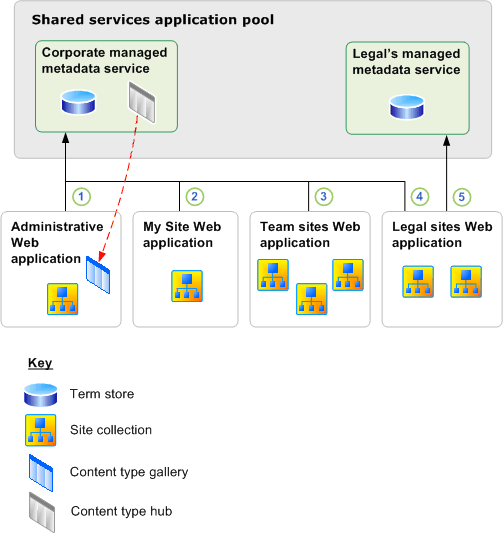
If you need to implement a multi-department solution like the documented example scenario at Overview of managed metadata service applications in SharePoint Server 2013, it will work fine except it will break the incremental crawl of friendly URLs (FURL).


Microsoft support will tell you that using more than one proxy (connection) for a specific MMS is not supported, even if this scenario is documented and even if you can create more that one proxy and use each MMS proxy in two different proxy groups to have different default storage location settings for two web-applications.


Microsoft support will tell you that the product group says that the documented scenario on Technet is not supported. Using two connections (MMS proxy) would be required as the "column-specific term set location" needs to be different for the two web-apps, thus they cannot share/reuse a single MMS proxy.

According to MSFT support, the documentation on Technet is "not very accurate".

Thursday, May 08, 2014

Getting SSL Termination to work for HNSC in SP2013

We have been struggling a bit with getting off-box SSL termination to work properly for SharePoint 2013 host-named site collections (HNSC). We had issues with the ribbon, with admin pages like "manage content and structure", and with the term picker. Sure signs that some JavaScript files did not load. Users could not edit the terms in managed metadata fields, that is, terms could be selected, but clicking "ok" to save would just hang forever. A lot of scripts and links would not load, showing mixed content warnings in IE9 - and nothing at all in Chrome and Firefox, which both just blocks HTTP content on secure HTTPS pages.

To cut to the chase, this setup for SSL offloading is what worked for us:
  • create the web-app on port 80 (not 443), do not use the -SecureSocetsLayer switch
  • do not use the server name as the web-app name, you have a farm - don't you?
  • always extend the web-app to other zones before starting to create HNSC sites; leave one zone unextended, e.g. the "custom" zone
  • create a classic root site-collection with the same HTTP name as the web-app, do not use a HNSC for this
  • a site template is not required for the root site-collection
  • alternate access mapping (AAM) is used for load balancing even for HNSC, but HNSCs can't use AAM for host name aliases
  • create the HNSC using an internal HTTP URL in New-SPSite for the default zone, remember that crawling must always use the default zone
  • create a public URL alias for the default zone by mapping an unextended zone using a HTTPS URL in Set-SPSiteUrl, such as the "custom" zone
  • create public HNSC mappings using HTTPS URL in Set-SPSiteUrl for the other zones
  • ensure that your gateway adds the custom header "front-end-https: on" for all your public URLs secured using SSL
  • note that using just "front-end-https: on" and HTTP in the public URL will not correctly rewrite all links in the returned pages

In short, the salient point is to use HTTPS in the public URLs even if the web-app zone does not use the SecureSocetsLayer switch nor any SSL certificates. The default zone of the web-application must be configured for crawling - either no SSL or full SSL with certificates assigned in IIS. With no SSL you have to simulate AAM by mapping two URLs to the HNSC default zone. Using Set-SPSiteUrl on an unextended zone is like creating an alias for the default zone.

We had to use HTTP on the default zone to crawl the content of the published pages. It seems that if the web-application does not use SSL and your site default zone uses a HTTPS host header, then only the friendly URLs (FURL) will be crawled while the content will generate a lot of "This item comprises multiple parts and/or may have attachments. Not all of these parts were indexed." warnings. The result of the warning is no metadata being indexed, thus no search results - not good for a search-driven solution.

Note that SSL is recommended for all web-applications in SP2013 also inside the firewall, especially if you use apps - as the OAuth tokens otherwise will be exposed in the HTTP traffic, just as classic IIS basic authentication is not recommended without SSL. We wanted to do SSL bridging with BigIP due to this, but could not get SSL server name indication (SNI) configured successfully in BigIP v11 to allow us to have SSL certificates bound to two different IIS web-sites, even if IIS8 supports SNI.

SNI is required when the shared wildcard certificate or SAN certificate approach cannot be used for your SP2013 web-application setup, i.e. when binding to host names in multiple IIS web-sites at the web-application level. SNI is required when you need to use more than one web-application or more than one zone (extended web-app), even if you could bind your one-SAN-to-rule-them-all certificate to multiple IIS web-sites. IIS cannot route the request based on the host header until the request has been decrypted - SNI allows the request to be routed to the correct IIS web-site.

Remember that this is the path the HTTP(S) request travels from the browser:

 browser >
  host header >
   DNS A-record >
    virtual IP-address (VIP) in gateway > SSL off-box termination here
     load balancing >
      IIS server configured with IP-address >
       IIS web-site bound to IP-address (or host header) > normal SSL termination here
        SP web-application >
         site-collection bound to host header (HNSC)

Keeping tabs on this will help you understand the Technet guide to HNSC, which has some room for improvements. See this article by jasonth for a step-by-step guide for HNSC and SSL. Note that binding to host names in IIS rather than to IP-addresses for HNSCs at the SP2013 web-application level is supported, just as it was for SP2010.

Wednesday, October 23, 2013

Roadmap for Responsive Design and Dynamic Content in SharePoint 2013

Responsive design combined with dynamic user-driven content and mobile first seems to be the main focus everywhere these days. The approach outlined in Optimizing SharePoint 2013 websites for mobile devices by Waldek Mastykarz and his How we did it series show how it can be achieved using SharePoint 2013.

But what if you have thousands of pages with good content that you want make resposive? What approach will you use to adapt all those articles after migrating the content over from SharePoint 2010? This post suggests a roadmap for gradually transforming your static content to become dynamic content.

First of all, the metadata of your content types must be classified so that you know the ranking of the metadata within a content type, so that it can be used in combination with device channel panels and resposive web design (RWD) techniques to prioritize what to show on what devices. This will most likely introduce more specialized content types with more granular metadata fields. All your content will need to be edited to fit the new content classification, at least the most important content you have. By edited, I mean that the content type of articles must be changed and the content adapted to the new metadata; in addition, selecting a new content type will also cause a new RWD page layout to be used for the content. These new RWD page layouts and master pages are also something you need to design and implement, as part of your new user experience (UX) concept.

While editing all the (most important) existing content, it is also a good time to ensure that the content gets high quality tagging according to your information architecture (IA), as tagging is the cornerstone of a good, dynamic user experience provided by term-driven navigation and search-driven content. Editing the content is the most important job here, tagging the content is not required to enable RWD for your pages.

Doing all of this at once as part of migrating to SP2013 is by experience too much to be realistic, so this is my recommended roadmap:

Phase 1
- Focus on RWD based on the new content types and their new prioritized metadata and new responsive master pages and page layouts
- Quick win: revise the search center to exploit the new search features, even if tagging is postponed to a later phase (IA: findability and search experience)
- Keep the existing information architecture structure, and thus the navigation as-is
- Keep the page content as-is, do not add search-driven content to the pages yet, focus on making the articles responsive
- Most time-consuming effort: adapting the content type of all articles, cutting and pasting content within each article to fit the new prioritized metadata structure

Phase 2
- Focus on your new concept for structure and navigation in SP2013 (IA: content classification and structure, browse and navigate UX)
- Tagging of the articles according to the new IA-concept for dynamic structuring of the content (IA: term sets for taxonomy)
- Keep the page content as-is, no new search-driven UX in this phase, just term-driven navigation
- Most time-consuming effort: tagging all of your articles, try scripting some auto-tagging based on the existing structure of the content

Phase 3
- Focus on search-driven content in the pages according to the new concept  (IA: discover and explore UX)
- New routines and processes for authors, approvers and publishers based on new SP2013 capabilities (IA: content contributor experience)
- Most time-consuming effort: tune and tag the content of all your articles to drive the ranking of the search-driven content according to the new concept

Phase 4
- Content targeting in the pages based on visitor profile segmentation, this kind of user-driven content is also search-driven content realized using query rules (and some code)

The IA aspects in the roadmap are taken from my SharePoint Information Architecture from the Field article.

Saturday, March 16, 2013

Controlling Content Database Size in SharePoint


A SharePoint content database can be up to 4TB with data (max 200GB is recommended). However, storage size is not the problem; it is the recovery time to restore all that data that is the availability problem. The recovery time decides for how long your business critical solution will be down. As SharePoint can spread its content across multiple databases, it is recommended that your architecture segments different content across different databases based on IA and other user experience aspects, plus business requirements for availability and recovery time. Plan for structuring your solutions with a strong focus on your information architecture (IA).

Here are some options for how to control the size of the content databases, without disposing and deleting content:

A) Use an ootb Record Center as an archive for old content: The users must manually send each document to the RC using e.g. move and leave a link; note that only the latest major version with metadata is kept – all version history is lost. The information management policies supported by SharePoint for retention and disposition can be used to automate the cleanup.
As the RC has its own content databases, the live collaboration databases will grow slower or even shrink as outdated information is moved to the archive. Keeping the live databases small ensures shorter recovery time; while the recovery time for the archived content can be considerable, but not business critical.
Search must be configured appropriately to cover both live and archived content.

B) Use a third-party archiving solution for SharePoint from e.g. MetaLogix or AvePoint. This has the same pros & cons as in option A, but the functionality is probably better in relation to keeping version history and batch management of outdated content.
Search must be configured appropriately to cover both live and archived content.

C) Use a third-party remote blob storage (RBS) solution for SharePoint, such as MetaLogix StoragePoint, so that documents are registered in the database, but not stored there. This gives smaller content databases, but more complicated backup and recovery as the content now resides both in databases and on disk. Provided that you don’t lose both at the same time, the recovery time should be shorter.
Search will work as before, as all content is still logically in the “database”.

D) Use powershell scripts or other code to implement the disposition of outdated content. The script can e.g. copy old documents to disk and delete old versions from the content database; the drawback being that all metadata will be lost and there is no link left in SharePoint.
The databases size will shrink as data is actually deleted, and backup and recovery is more complicated as content is now both in the database and on disk (same as for option C).
Search can be configured to also crawl and index the files on disk, but content ranking will suffer as the valuable metadata is lost.

My recommendation is to consider option A first, especially if you are able to define automated rules and exploit the built-in information management policies in SharePoint. The keyword is *able* - in my experience, everyone is positive to having automated retention and disposition, but noone even at large banks and law firms are able to come up with the policies.

Always consider using RBS for databases larger than 200GB, and note that RBS also helps you meet the disk IOPS requirements of SharePoint.


Monday, May 07, 2012

Exploring Search Results Step-by-Step in SharePoint 2010

Using search to provide a news archive in SharePoint 2010 is a wellknown solution. Just add the core results web-part to a page and configure it to query for your news article content type and sort it in descending order. Then customize the result XSLT to tune the content and layout of the news excerpts to look like a new archive. Add also the search box, the search refiners and the results paging web-parts and you have a functional news archive in no time.

This post is about providing contextual navigation by adding "<< previous", "next >>" and "result" links to the article pages, to allow users to explore the result set in a step-by-step manner. Norwegians will reckognize this way of exploring results from finn.no.


For a user or visitor to be able to navigate the results, the result set must be cached per user. The search results are in XML format, and it contains a sequential id and the URL for each hit. This allows the navigation control to use XPath to locate the current result by id, and get the URLs for the previous and next results. The user query must also be cached so that clicking the "result" link will show the expected search results.

Override the CoreResultsWebPart as shown in my Getting Elevated Search Results in SharePoint 2010 post to add per-user caching of the search results. If your site allows for anonymous visitors, you need to decide on how to keep tab on them. In the code I've used the requestor IP address, which is not 100% foolproof, but this allows me to avoid using cookies for now.

namespace Puzzlepart.SharePoint.Presentation
{
    [ToolboxItemAttribute(false)]
    public class NewsArchiveCoreResultsWebPart : CoreResultsWebPart
    {
        public static readonly string ScopeNewsArticles 
            = "Scope=\"News Archive\"";
 
        private static readonly string CacheKeyResultsXmlDocument 
            = "Puzzlepart_CoreResults_XmlDocument_User:";
        private static readonly string CacheKeyUserQueryString 
            = "Puzzlepart_CoreResults_UserQuery_User:";
        private int _cacheUserQueryTimeMinutes = 720;
        private int _cacheUserResultsTimeMinutes = 30;
 
        protected override void CreateChildControls()
        {
            try
            {
                base.CreateChildControls();
            }
            catch (Exception ex)
            {
                var error = SharePointUtilities.CreateErrorLabel(ex);
                Controls.Add(error);
            }
        }
 
        protected override XPathNavigator GetXPathNavigator(string viewPath)
        {
            //return base.GetXPathNavigator(viewPath);
 
            SetCachedUserQuery();
            XmlDocument xmlDocument = GetXmlDocumentResults();
            SetCachedResults(xmlDocument);
 
            XPathNavigator xPathNavigator = xmlDocument.CreateNavigator();
            return xPathNavigator;
        }
 
 
        private XmlDocument GetXmlDocumentResults()
        {
            XmlDocument xmlDocument = null;
 
            QueryManager queryManager = 
            SharedQueryManager.GetInstance(Page, QueryNumber).QueryManager;
 
            Location location = queryManager[0][0];
            string query = location.SupplementaryQueries;
            if (query.IndexOf(ScopeNewsArticles, 
                StringComparison.CurrentCultureIgnoreCase) < 0)
            {
                string userQuery = 
                    queryManager.UserQuery + " " + ScopeNewsArticles;
                queryManager.UserQuery = userQuery.Trim();
            }
 
            xmlDocument = queryManager.GetResults(queryManager[0]);
            return xmlDocument;
        }
 
        private void SetCachedUserQuery()
        {
            var qs = HttpUtility.ParseQueryString
                    (Page.Request.QueryString.ToString());
            if (qs["resultid"] != null)
            {
                qs.Remove("resultid");
            }
            HttpRuntime.Cache.Insert(UserQueryCacheKey(this.Page), 
               qs.ToString(), null
               Cache.NoAbsoluteExpiration, 
               new TimeSpan(0, 0, _cacheUserQueryTimeMinutes, 0));
        }
 
        private void SetCachedResults(XmlDocument xmlDocument)
        {
            HttpRuntime.Cache.Insert(ResultsCacheKey(this.Page), 
               xmlDocument, null
               Cache.NoAbsoluteExpiration, 
               new TimeSpan(0, 0, _cacheUserResultsTimeMinutes, 0));
        }
 
        private static string UserQueryCacheKey(Page page)
        {
            string visitorId = GetVisitorId(page);
            string queryCacheKey = String.Format("{0}{1}"
                CacheKeyUserQueryString, visitorId);
            return queryCacheKey;
        }
 
        private static string ResultsCacheKey(Page page)
        {
            string visitorId = GetVisitorId(page);
            string resultsCacheKey = String.Format("{0}{1}"
                CacheKeyResultsXmlDocument, visitorId);
            return resultsCacheKey;
        }
 
        public static string GetCachedUserQuery(Page page)
        {
            string userQuery = 
                (string)HttpRuntime.Cache[UserQueryCacheKey(page)];
            return userQuery;
        }
 
        public static XmlDocument GetCachedResults(Page page)
        {
            XmlDocument results = 
                (XmlDocument)HttpRuntime.Cache[ResultsCacheKey(page)];
            return results;
        }
 
        private static string GetVisitorId(Page page)
        {
            //TODO: use cookie for anonymous visitors
            string id = page.Request.ServerVariables["HTTP_X_FORWARDED_FOR"
                ?? page.Request.ServerVariables["REMOTE_ADDR"];
            if(SPContext.Current.Web.CurrentUser != null)
            {
                id = SPContext.Current.Web.CurrentUser.LoginName;
            }
            return id;
        }
    }
}

I've used sliding expiration on the cache to allow for the user to spend some time exploring the results. The result set is cached for a short time by default, as this can be quite large. The user query text is, however, small and cached for a long time, allowing the users to at least get their results back after a period of inactivity.

As suggested by Mikael Svenson, an alternative to caching would be running the query again using the static QueryManager page object to get the result set. This would require using another result key element than the dynamic <id> number to ensure that the current result lookup is not scewed by new results being returned by the search. An example would be using a content type field such as "NewsArticlePermaId" if it exists.

Overriding the GetXPathNavigator method gets you the cached results that the navigation control needs. In addition, the navigator code needs to know which is the result set id of the current page. This is done by customizing the result XSLT and adding a "resultid" parameter to the $siteUrl variable for each hit.

. . . 
 <xsl:template match="Result">
    <xsl:variable name="id" select="id"/>
    <xsl:variable name="currentId" select="concat($IdPrefix,$id)"/>
    <xsl:variable name="url" select="url"/>
    <xsl:variable name="resultid" select="concat('?resultid=', $id)" />
    <xsl:variable name="siteUrl" select="concat($url, $resultid)" />
. . . 

The result set navigation control is quite simple, looking up the current result by id and getting the URLs for the previous and next results (if any) and adding the "resultid" to keep the navigation logic going forever.

namespace Puzzlepart.SharePoint.Presentation
{
    public class NewsArchiveResultsNavigator : Control
    {
        public string NewsArchivePageUrl { get; set; }
 
        private string _resultId = null;
        private XmlDocument _results = null;
 
        protected override void CreateChildControls()
        {
            base.CreateChildControls();
 
            _resultId = Page.Request.QueryString["resultid"];
            _results = NewsArchiveCoreResultsWebPart.GetCachedResults(this.Page);
 
            if(_results == null || _resultId == null)
            {
                //render nothing
                return;
            }
 
            AddResultsNavigationLinks();
        }
 
        private void AddResultsNavigationLinks()
        {
            string prevUrl = GetPreviousResultPageUrl();
            var linkPrev = new HyperLink()
            {
                Text = "<< Previous",
                NavigateUrl = prevUrl
            };
            linkPrev.Enabled = (prevUrl.Length > 0);
            Controls.Add(linkPrev);
 
            string resultsUrl = GetSearchResultsPageUrl();
            var linkResults = new HyperLink()
            {
                Text = "Result",
                NavigateUrl = resultsUrl
            };
            Controls.Add(linkResults);
 
            string nextUrl = GetNextResultPageUrl();
            var linkNext = new HyperLink()
            {
                Text = "Next >>",
                NavigateUrl = nextUrl
            };
            linkNext.Enabled = (nextUrl.Length > 0);
            Controls.Add(linkNext);
        }
 
        private string GetPreviousResultPageUrl()
        {
            return GetSpecificResultUrl(false);
        }
 
        private string GetNextResultPageUrl()
        {
            return GetSpecificResultUrl(true);
        }
 
        private string GetSpecificResultUrl(bool useNextResult)
        {
            string url = "";
 
            if (_results != null)
            {
                string xpath = 
                    String.Format("/All_Results/Result[id='{0}']", _resultId);
                XPathNavigator xNavigator = _results.CreateNavigator();
                XPathNavigator xCurrentNode = xNavigator.SelectSingleNode(xpath);
                if (xCurrentNode != null)
                {
                    bool hasNode = false;
                    if (useNextResult)
                        hasNode = xCurrentNode.MoveToNext();
                    else
                        hasNode = xCurrentNode.MoveToPrevious();
 
                    if (hasNode && 
                        xCurrentNode.LocalName.Equals("Result"))
                    {
                        string resultId = 
                        xCurrentNode.SelectSingleNode("id").Value;
                        string fileUrl = 
                        xCurrentNode.SelectSingleNode("url").Value;
                        url = String.Format("{0}?resultid={1}"
                           fileUrl, resultId);
                    }
                }
            }
 
            return url;
        }
 
        private string GetSearchResultsPageUrl()
        {
            string url = NewsArchivePageUrl;
 
            string userQuery = 
                NewsArchiveCoreResultsWebPart.GetCachedUserQuery(this.Page);
            if (String.IsNullOrEmpty(userQuery))
            {
                url = String.Format("{0}?resultid={1}", url, _resultId);
            }
            else
            {
                url = String.Format("{0}?{1}&resultid={2}"
                    url, userQuery, _resultId);
            }
 
            return url;
        }
 
    }
}

Note how I use the "resultid" URL parameter to discern between normal navigation to a page and result set navigation between pages. If the resultid parameter is not there, then the navigation controls are hidden. The same goes for when there are no cached results. The "result" link could always be visible for as long as the user's query text is cached.

You can also provide this result set exploration capability for all kinds of pages, not just for a specific page layout, by adding the result set navigation control to your master page(s). The result set <id> and <url> elements are there for all kind of pages stored in your SharePoint solution.
Monday, April 30, 2012

Almost Excluding Specific Search Results in SharePoint 2010

Sometimes you want to hide certain content from being exposed through search in certain SharePoint web-applications, even if the user really has access to the information in the actual content source. A scenario is intranet search that is openly used, but in which you want to prevent accidental information exposure. Think of a group working together on reqruiting, where the HR manager use the search center looking for information - you wouldn't want even excerpts of confidential information to be exposed in the search results.

So you carefully plan your content sources and crawl rules to only index the least possible amount of information. Still, even with crawl rules you will often need to tweak the query scope rules to exclude content at a more fine-grained level, or even add new scopes for providing search-driven content to users. Such configuration typically involves using exclude rules on content types or content sources. This is a story of how SharePoint can throw you a search results curveball, leading to accidental information disclosure.

In this scenario, I had created a new content source JobVault for crawling the HR site-collection in another SharePoint web-application, to be exposed only through a custom shared scope. So I tweaked the rules of the existing scopes such as "All Sites" to exclude the Puzzlepart JobVault content source, and added a new JobReqruiting scope that required the JobVault content source and included the content type JobHired and excluded the content type JobFired.

So no shared scopes defined in the Search Service Application (SSA) included JobFired information, as all scopes either excluded the HR content source or excluded the confidential content type. To my surprise our SharePoint search center would find and expose such pages and documents when searching for "you're fired!!!".

Knowing that the search center by default uses the "All Sites" scope when no specific scope is configured or defined in the keyword query, it was back to the SSA to verify the scope. It was all in order, and doing a property search on Scope:"All Sites" got me the expected results with no confidential data in it. The same result for Scope:"JobReqruiting", no information exposure there either. It looked very much like a best bet, but there where no best bet keywords defined for the site-collection.


The search center culprit was the Top Federated Results web-part in our basic search site, by default showing results from the local search index very much like best bets. That was the same location as defined in the core results web-part, so why this difference?

Looking into the details of the "Local Search Results" federated location, the reason became clear: "This location provides unscoped results from the Local Search index". The keyword here is "unscoped".


The solution is to add the "All Sites" scope to the federated location to ensure that results that you want to hide are also excluded from the federated results web-part. Add it to the "Query Template" and optionally also to the "More Results Link Template" under the "Location Information" section in "Edit Federated Location".


Now the content is hidden when searching. Not through query security trimming, but through query filtering. Forgetting to add the filter somewhere can expose the information, but then only to users that have permission to see the content anyway. The results are still security trimmed, so this no actual information disclosure risk.

Note that this approach is no replacement for real information security; if that is what you need, don't crawl confidential information from an SSA that is exposed through openly available SharePoint search, even on your intranet.

Monday, April 16, 2012

Getting Elevated Search Results in SharePoint 2010

I often use the SharePoint 2010 search CoreResultsWebPart in combination with scopes, content types and managed properties defined in the Search Service Application (SSA) for having dynamic search-driven content in pages. Sometimes the users might need to see some excerpt of content that they really do not have access to, and that you don't want to grant them access to either; e.g. to show a summary to anonymous visitors on your public web-site from selected content that is really stored in the extranet web-application in the SharePoint farm.

What is needed then is to execute the search query with elevated privileges using a custom core results web-part. As my colleague Mikael Svenson shows in Doing blended search results in SharePoint–Part 2: The Custom CoreResultsWebPart Way, it is quite easy to get at the search results code and use the SharedQueryManager object that actually runs the query. Create a web-part that inherits the ootb web-part and override the GetXPathNavigator method like this:

namespace Puzzlepart.SharePoint.Presentation
{
    [ToolboxItemAttribute(false)]
    public class JobPostingCoreResultsWebPart : CoreResultsWebPart
    {
        protected override void CreateChildControls()
        {
            base.CreateChildControls();
        }
 
        protected override XPathNavigator GetXPathNavigator(string viewPath)
        {
            XmlDocument xmlDocument = null;
            QueryManager queryManager = 
              SharedQueryManager.GetInstance(Page, QueryNumber)
                .QueryManager;
            SPSecurity.RunWithElevatedPrivileges(delegate()
            {
                xmlDocument = queryManager.GetResults(queryManager[0]);
            });
            XPathNavigator xPathNavigator = xmlDocument.CreateNavigator();
            return xPathNavigator;
        }
    }
}

Running the query with elevated privileges means that it can return any content that the app-pool identity has access to. Thus, it is important that you grant that account read permissions only on content that you would want just any user to see. Remember that the security trimming is done at query time, not at crawl time, with standard SP2010 server search. It is the credentials passed to the location's SSA proxy that is used for the security trimming. Use WindowsIdentity.GetCurrent() from the System.Security.Principal namespace if you need to get at the app-pool account from your code.

You would want to add a scope and/or some fixed keywords to the query in the code before getting the results, in order to prevent malicious or accidental misuse of the elevated web-part to search for just anything in the crawled content of the associated SSA that the app-pool identity has access to. Another alternative is to run the query under another identity than the app-pool account by using real Windows impersonation in combination with the Secure Store Service (see this post for all the needed code) as this allows for using a specific content query account.

The nice thing about using the built-in query manager this way, rather than running your own KeywordQuery and providing your own result XML local to the custom web-part instance, is that the shared QueryManager's Location object will get its Result XML document populated. This is important for the correct behavior for the other search web-parts on the page using the same QueryNumber / UserQuery, such as the paging and refiners web-parts.

The result XmlDocument will also be in the correct format with lower case column names, correct hit highlighting data, correct date formatting, duplicate trimming, getting <path> to be <url> and <urlEncoded>, have the correct additional managed and crawled properties in the result such as <FileExtension> and <ows_MetadataFacetInfo>, etc, in addition to having the row <id> element and <imageUrl> added to each result. If you override by using a replacement KeywordQuery you must also implement code to apply appended query, fixed query, scope, result properties, sorting and paging yourself to gain full fidelity for your custom query web-part configuration.

If you don't get the expected elevated result set in your farm (I've only tested this on STS claims based web-apps; also see ForceClaimACLs for the SSA by my colleague Ole Kristian Mørch-Storstein), then the sure thing is to create a new QueryManager instance within the RWEP block as shown in How to: Use the QueryManager class to query SharePoint 2010 Enterprise Search by Corey Roth. This will give you correctly formatted XML results, but note that the search web-parts might set the $ShowMessage xsl:param to true, tricking the XSLT rendering into show the "no results" message and advice texts. Just change the XSLT to call either dvt_1.body or dvt_1.empty templates based on the TotalResults count in the XML rather than the parameter. Use the <xmp> trick to validate that there are results in the XML that all the search web-parts consumes, including core results and refinement panel.

The formatting and layout of the search results is as usual controlled by overriding the result XSLT. This includes the data such as any links in the results, as you don't want the users to click on links that just will give them access denied errors.

When using the search box web-part, use the contextual scope option for the scopes dropdown with care. The ContextualScopeUrl (u=) parameter will default to the current web-application, causing an empty result set when using the custom core results web-part against a content source from another SharePoint web-application.

Thursday, February 16, 2012

Reusable SPGridView with Multiple Filter and Sort Columns

The venerable SPGridView still has its use in SharePoint 2010 when your data is not stored in a list or accessible as an external content type through BCS. A typical example is when using a KeywordQuery to build a search-driven web-part feeding on results as DataTable as show in How to: Use the SharePoint 2010 Enterprise Search KeywordQuery Class by Corey Roth. Another example is cross-site queries using SPSiteDataQuery.

The SPGridView can use a DataTable as its data source, but several things from sorting arrows to filtering don't work as expected when not using an ObjectDataSource. As Shawn Kirby shows in SPGridView WebPart with Multiple Filter and Sort Columns it is quite easy to implement support for such features.

In this post, I show how to generalize Shawn's web-part code into a SPGridView derived class and a data source class wrapping a DataTable, isolating this functionality from the web-part code itself, for both better reusability and separation of concerns.

First the simple abstract data source class that you must implement to populate your data set:

namespace Puzzlepart.SharePoint.Core
{
    public abstract class SPGridViewDataSource
    {
        public abstract DataTable SelectData(string sortExpression);
 
        protected void Sort(DataTable dataSource, string sortExpression)
        {
            //clean up the sort expression if needed - the sort descending 
            //menu item causes the double in some cases 
            if (sortExpression.ToLowerInvariant().EndsWith("desc desc"))
                sortExpression = sortExpression.Substring(0, sortExpression.Length - 5);
 
            //need to handle the actual sorting of the data
            if (!string.IsNullOrEmpty(sortExpression))
            {
                DataView view = new DataView(dataSource);
                view.Sort = sortExpression;
                DataTable newTable = view.ToTable();
                dataSource.Clear();
                dataSource.Merge(newTable);
            }
        }
    }
}

The SPGridViewDataSource class provides the SelectData method that you must override, and a completed Sort method that allows the SPGridView to sort your DataTable. Note that this class must be stateless as required by any class used as an ObjectDataSource. Its logic cannot be combined with the grid view class, as it will get instantiated new every time the ObjectDataSource calls SelectData.

Then the derived grid view with support for filtering and sorting, including the arrows and filter images:

namespace Puzzlepart.SharePoint.Core
{
    public class SPGridViewMultiSortFilter : SPGridView
    {
        public SPGridViewMultiSortFilter()
        {
            this.FilteredDataSourcePropertyName = "FilterExpression";
            this.FilteredDataSourcePropertyFormat = "{1} = '{0}'";            
        }
 
        private ObjectDataSource _gridDS;
        private char[] _sortingSeparator = { ',' };
        private string[] _filterSeparator = { "AND" };
 
        public ObjectDataSource GridDataSource
        {
            get { return _gridDS; }
            private set
            {
                _gridDS = value;
                this.DataSourceID = _gridDS.ID;
            }
        }
 
        public bool AllowMultiSorting { get; set; }
        public bool AllowMultiFiltering { get; set; }
 
        string FilterExpression
        {
. . .
        }
 
        string SortExpression
        {
. . .
        }
 
        protected override void CreateChildControls()
        {
            base.CreateChildControls();
 
            this.Sorting += new GridViewSortEventHandler(GridView_Sorting);
            this.RowDataBound += new GridViewRowEventHandler(GridView_RowDataBound);
        }
 
        protected void GridView_Sorting(object sender, GridViewSortEventArgs e)
        {
            EnsureChildControls();
            string direction = e.SortDirection.ToString();
            direction = (direction == "Descending") ? " DESC" : "";
 
            SortExpression = e.SortExpression + direction;
            e.SortExpression = SortExpression;
 
            //keep the object dataset filter
            if (!string.IsNullOrEmpty(FilterExpression))
            {
                _gridDS.FilterExpression = FilterExpression;
            }
        }
 
        protected void GridView_RowDataBound(object sender, GridViewRowEventArgs e)
        {
            EnsureChildControls();
            if (sender == null || e.Row.RowType != DataControlRowType.Header)
            {
                return;
            }
 
            BuildFilterView(_gridDS.FilterExpression);
            SPGridView grid = sender as SPGridView;
 
            // Show icon on filtered and sorted columns 
            for (int i = 0; i < grid.Columns.Count; i++)
            {
. . .
            }
        }
 
        void BuildFilterView(string filterExp)
        {
. . .
 
            //update the filter
            if (!string.IsNullOrEmpty(lastExp))
            {
                FilterExpression = lastExp;
            }
 
            //reset object dataset filter
            if (!string.IsNullOrEmpty(FilterExpression))
            {
                _gridDS.FilterExpression = FilterExpression;
            }
        }
 
        public ObjectDataSource SetObjectDataSource(string dataSourceId, SPGridViewDataSource dataSource)
        {
            ObjectDataSource gridDS = new ObjectDataSource();
            gridDS.ID = dataSourceId;
            gridDS.SelectMethod = "SelectData";
            gridDS.TypeName = dataSource.GetType().AssemblyQualifiedName;
            gridDS.EnableViewState = false;
            gridDS.SortParameterName = "SortExpression";
            gridDS.FilterExpression = FilterExpression;
            this.GridDataSource = gridDS;
 
            return gridDS;
        }
    }
}

Only parts of the SPGridViewMultiSortFilter code is shown here, see download link below for the complete code. Note that I have added two properties that controls whether multi-column sorting and multi-column filtering are allowed or not.

This is an excerpt from a web-part that shows search results using the grid:

namespace Puzzlepart.SharePoint.Presentation
{
    [ToolboxItemAttribute(false)]
    public class JobPostingRollupWebPart : WebPart
    {
        protected SPGridViewMultiSortFilter GridView = null;
 
        protected override void CreateChildControls()
        {
            try
            {
                CreateJobPostingGrid();
            }
            catch (Exception ex)
            {
                Label error = new Label();
                error.Text = String.Format("An unexpected error occurred: {0}", ex.Message);
                error.ToolTip = ex.StackTrace;
                Controls.Add(error);
            }
        }
 
        private void CreateJobPostingGrid()
        {
            //add to control tree first is important for view state handling  
            Panel panel = new Panel();
            Controls.Add(panel);

            GridView = new SPGridViewMultiSortFilter();
 
  . . .
 
            GridView.AllowSorting = true;
            GridView.AllowMultiSorting = false;
            GridView.AllowFiltering = true;
            GridView.FilterDataFields = "Title,Author,Write,";
 
  . . .
 
            panel.Controls.Add(GridView) 

            //set PagerTemplate after adding grid to control tree

 
            PopulateGridDataSource();
 
            //must bind in OnPreRender
            //GridView.DataBind();  
        }
 
        protected override void OnPreRender(EventArgs e)
        {
            GridView.DataBind();
        }
 
        private void PopulateGridDataSource()
        {
            var dataSource = new ApprovedJobPostingDataSource();
            var gridDS = GridView.SetObjectDataSource("gridDS", dataSource);
            //add the data source
            Controls.Add(gridDS);
        }
    }
}

Note how the data source is created and assigned to the grid view, but also added to the control set of the web-part itself. This is required for the grid's DataSourceId binding to find the ObjectDataSource at run-time. Also note that data binding cannot be triggered from CreateChildControls as it is too early in the control's life cycle. The DataBind method must be called from OnPreRender to allow for view state and child controls to load before the sorting and filtering postback events

Finally, this is an example of how to implement a search-driven SPGridViewDataSource:

namespace Puzzlepart.SharePoint.Presentation
{
    public class ApprovedJobPostingDataSource : SPGridViewDataSource
    {
        private string _cacheKey = "Puzzlepart_Godkjente_Jobbannonser";
 
        public override DataTable SelectData(string sortExpression)
        {
            DataTable dataTable = (DataTable)HttpRuntime.Cache[_cacheKey];
            if (dataTable == null)
            {
                dataTable = GetJobPostingData();
                HttpRuntime.Cache.Insert(_cacheKey, dataTable, null
DateTime.Now.AddMinutes(1), Cache.NoSlidingExpiration);
            }
 
            this.Sort(dataTable, sortExpression);
 
            return dataTable;
        }
 
        private DataTable GetJobPostingData()
        {
            DataTable results = new DataTable();
            string jobPostingManager = "Puzzlepart Jobbannonse arbeidsleder";
            string jobPostingAssistant = "Puzzlepart Jobbannonse assistent";
            string approvedStatus = "0";
 
            SPSite site = SPContext.Current.Site;
            KeywordQuery query = new KeywordQuery(site);
            query.QueryText = String.Format(
"ContentType:\"{0}\" ContentType:\"{1}\" ModerationStatus:\"{2}\""
jobPostingManager, jobPostingAssistant, approvedStatus);
            query.ResultsProvider = SearchProvider.Default;
            query.ResultTypes = ResultType.RelevantResults;
 
            ResultTableCollection resultTables = query.Execute();
            if (resultTables.Count > 0)
            {
                ResultTable searchResults = resultTables[ResultType.RelevantResults];
                results.Load(searchResults, LoadOption.OverwriteChanges);
            }
 
            return results;
        }
    }
}

That was not too hard, was it? Note that SearchProvider Default work for both FAST (FS4SP) and a standard SharePoint 2010 Search Service Application (SSA).

All the code can be downloaded from here.

Tuesday, November 01, 2011

SharePoint Information Architecture from the Field

Over the years, I've written quite a few articles on how to technically structure your SharePoint solutions into web-apps, sites, subsites, lists and document libraries. All based on having a defined Information Architecture (IA) as a basis for the solution design, or at least being able to reason about your content management using my "chest of drawers" and "news paper" analogies. The latter is based on my experiences from the field as most companies don't have a well-defined IA in place.

Common questions from customers are "what is Information Architecture?" and "what is the value of having an IA for SharePoint, can't we just create sites and doc-libs on the fly as needed?". Not to forget "how do we go about creating an Information Architecture for SharePoint?". So here are some IA advice from Puzzlepart projects:

In short, Information Architecture defines how to classify and structure your content so that it is easy for content consumers to find and explore relevant content, while making it simple for workers to contribute and manage content in an efficient manner.

The business goal of having an Information Architecture for your SharePoint solution is enabling workers to contribute, store and mange content in a manner that is simple and efficient, enabling more content sharing; and at the same time making it easy for workers to browse and find content they need, while also making it easy for workers to discover and explore relevant content they didn't know of. The outcome is more knowledgeable workers that are better informed about what’s going on in the company and about the range of intellectual property possessed by other employees, while also saving time wasted on finding information, and time wasted on incorrect or outdated information.

An outcome is a metric that customers use to define the successful realization of the objectives and goals. Outcomes happens after the project has delivered on its objectives and goals, and the customers must themselves work against securing the outcomes to achieve the desired business value.

The business value of having a working IA is capturing company knowledge from employees with better quality of shared content, which combined with good findability drive more knowledgeable workers that make better decisions and better faster processes. In addition, more and better content sharing helps user not only discover and explore content, but also people such as subject matter experts, allowing employees to build and expand their network throughout the company, helping the company to retain talented employees through social ties and communities. Access to discover more and better content and people expertise is central to enabling innovation and process improvement, as new knowledge is a trigger for new ideas and for identifying new opportunities.

The process of defining your IA for your SharePoint solution should focus on these objectives and goals:
  • Analyze and define the content classification and structure for the solution 
    • goal: identify what content to manage and plan how to store it in SP, leading to sites, subsites and doc-lib structure organized into SP web-apps
  • Analyze and define how to browse and navigate the content
    • goal: make it simple and efficient for users to find and use known content that they need in their daily work to drive better faster processes
  • Analyze and define how to discover and explore the content
    • goal: make it easy for users to stumble upon novel shared knowledge based on "common focus" to trigger innovation and build social ties
  • Provide simple and efficient content contributor experience with liberal appliance of default metadata values, storing content close to the authors 
    • goal: make workers contributors, not knowledge management grunts, and help them store content correctly with better metadata and tagging, driving findability and "common focus" content discovery; drive better sharing and collaboration
  • Analyze and define the starter content types with metadata and term set taxonomy based on the defined site and doc-lib architecture, with a strong focus on needed search experience capabilities
    • goal: enable content management and support both search-driven and "common focus" content; drive findability, sharing and innovation
  • Analyze and define the policies for social tagging and rating in the solution, also in relation to user profile interests, skills and responsibility tagging
    • goal: drive "common focus" content discovery, drive findability, drive social communities, drive innovation
  • Analyze and define the search experience, focusing on both search-driven content and on search center scopes and refiners
    • goal: drive findability and provide both search-driven and "common focus" content
  • Enable disposition of redundant and irrelevant content 
    • goal: provide users with better, correct and up-to-date information, drive findability, save storage cost, save process cost
Including the search experience helps you avoid an initial version of your IA with a too narrow scope, which is easy to do for a starter IA when e.g. analyzing only project collaboration needs or just the document types of an attachment-based intranet. It makes you focus on what you get out, not only what you put in.

Note that navigation is not IA, its just one way to explore the content. Using navigation to structure your content is just reapplying the fileshare folder approach, which we all know doesn't work too good for findability and discovery. Navigation should not define the statical IA structure for the content, do a LATCH analysis to model the possible IA structures, and choose one of them to define the statical IA structure. The site map is closer to define statical IA structure than navigation, still it is only good for logical IA structure and cannot be expected to be used directly as the physical IA structure in SharePoint.

In an upcoming article I will give some practical advice from the field on how to define and realize the Information Architecture for your SharePoint solution in an agile fashion.

Saturday, May 07, 2011

Site Lifecycle Management using Retention Policies

The ootb governance tools for site lifecycle management (SLM) in SharePoint 2010 have not improved from the previous version. You're still stuck with the Site Use Confirmation and Deletion policies that will just periodically e-mail site owners and ask them to confirm that their site is still in use. There is no check for the site or its content actually being used, it is just a dumb timer job. If the site is not confirmed as still being active, the site will then be deleted - even if it is still in use. As deleting a site is not covered by any SharePoint recycle bin mechanism (coming in SP1), Microsoft also provides the site deletion capture tool on CodePlex.

Wouldn't it be nice if we could apply the information management policies for retention and disposition of content also for SharePoint 2010 sites? Yes we can :) By using a content type to identify and keep metadata for a site, the standard information management policies for content expiration can be configured to implement a recurring multistage retention policy for site disposition.

Create a site information content type and bind it to a list or library in your site definition, and ensure that this list contains one SiteInfo item with the metadata of the site. Typical metadata are site created date, site contact, site type, cost center, unit and department, is restricted site flag, last review date, next review date, and last update timestamp. Restrict edit permissions for this list to just site owners or admins.

Enable retention for the SiteInfo content type to configure your site lifecycle management policy as defined in your governance plan.


Add one or more retention stages for the SiteInfo content type as needed by your SLM policy. You will typically have a first stage that will start a workflow to notify the site owner of site expiration and ask for disposition confirmation. Make sure that the site owner knows about and enacts on your defined governance policies for manual information management, such as sending valuable documents to records management. Then there will be a second stage for performing the site disposition steps triggered by the confirmation.

You can also implement custom information management policy expiration formula or expiration action for use when configuring your retention policy. You typically do this when your policy requires retention events that are not based on date fields only. See Sahil Malik's Authoring custom expiration policies and actions in SharePoint 2007 which is still valid for SharePoint 2010.


Use a custom workflow or custom expiration action to implement the site disposition steps: user removal, automated content clean-up and archiving, and finally trigger deletion of the site. If the site is automatically deleted by a custom workflow, or marked for deletion to be processed by a custom timer job, or a custom action just sends an e-mail to the site-admin, is up to your SLM policy.

If you need to keep the site in a passive state for e.g. 6 months before deleting it, you can use a delegate control in your site master pages to prevent access to passive sites or you can move the site to an archive web-app that use a "deny write" / "deny all" access policy to prevent access. Note that the former is not real security, just content targeting for the site. The latter is real security, as "deny" web-app policies overrides site specific access rights granted to SharePoint groups and users. This allows for keeping the site users and groups "as-is" in case the site can be reactivated again according to your SLM policies. If site owners can do housekeeping on a site while passive, then grant them access by creating extra "steward" accounts that are not subject to being denied access.

I recommend removing all users from the default site members group before deleting the site, otherwise the site will not be deleted from the site memberships list in the user's my site.

The astute reader may wonder how the content type retention policy knows if the site is actually in use. The answer is quite simple; each SPWeb object provides a LastItemModifiedDate property. This timestamp is also stored in the SharePoint property bag. Use a delegate control in your site's master page to check and push the timestamp to a date-time field the SiteInfo item, so that the rentention policy can trigger on it. Remember to use SystemUpdate when updating the SiteInfo, otherwise you will change the site's LastItemModifiedDate to now. You can also use a custom expiration formula that inspects the last modified timestamp for the site when the information management policy timer job runs.

We also use the site information content type in our Puzzlepart projects to provide a search-driven site directory. It is quite simple to make a nicely categorized and searchable site catalog by simply using one or more customized the search results web-parts. This search-driven catalog can of course be sorted by the search result 'write' managed property, which must be mapped to the crawled property field that contains the LastItemModifiedDate of a site.


Using a search-driven approach makes it unnecessary to have a classic site directory list. The site metadata is simply stored directly in a list within each site, managed by the respective site owners. This is more likely to keep the site metadata up-to-date rather than going stale in a central site directory list that no one maintains.

I hope this post have given you some new ideas on how to store, manage and use site metadata both for site lifecycle management and for providing a relevant search-driven site directory.

Tuesday, September 28, 2010

Customizing the Search Action Links in SharePoint 2010

The SharePoint 2010 Search Action Links web-part is really just the Search Core Results web-part with the 'Show search results' settings set to false. Some of the action links have configurable captions such as the 'Show more results' link, while the 'Alert me' and 'RSS feed' link captions are not exposed in the web-part settings. However, it is quite easy to customize the layout, styling, links and content of the Search Action Links web-part - you can even add custom action links.

This example shows a searchable site directory built from customized standard SharePoint 2010 search web-parts:


Customizing the Search Action Links web-part is done exactly like for the Search Core Results web-part: you customize the embedded XSL or provide a custom XSL file using the hidden XslLink setting in the .webpart file. The following example shows how to customize the caption of the alerts and RSS links:


The example XSL shows how to set an <xsl:variable> field based on different conditions using <xsl:choose>. XSL don't have variables like in programming languages; they behave like C# const or read-only fields, they cannot be changed when first set.

The example XSL also shows how to fix an error with the RSS feed link when using a 'Fixed query' in your search page, or when using a specific search 'Scope' and no user query keyword by default, to show all results from that scope. The RSS link do not pick up these settings from the web-part, and the query RSS feed will generate the "Search RSS feed generation failed" error message. This error is caused by there being no keyword, which is fixed by adding a keyword to the URL using the k= querystring key. Just add the fixed query or the scope as the keyword:

/_layouts/srchrss.aspx?k=scope:"Puzzlepart"

Note that the 'Alert me' link don't have the k= RSS feed issue, rather it uses JavaScript and the hidden <input name="P_Query"> field on the page. This field is emitted by the Search Core Result web-part and contains the complete keyword query including the user query and the Scope, FixedQuery and AppendedQuery property settings.

Add custom parameters to the XSL when you need to have extra web-part configuration options beyond the provided standard parameters. For example, to simulate the P_Query mechanism, pass the query keywords as custom parameters. The example XSL shows how to use the custom parameter, along with the standard parameters. Use the 'Parameters Editor' in the web-part tool pane to configure your custom web-part setting:

<ParameterBinding Name="AppendedFilter" Location="None" DefaultValue="scope:&qout;Puzzlepart&qout;" />

Pass your configuration value using the DefaultValue attribute, using "None" as the Location. You can of course also set the 'alert me' and 'RSS feed' link captions using parameters.

I use code like this in a FeatureActivated event receiver to configure and add the customized web-part to our custom web part pages:

private static void AddWebPartResultsActionLinks(SPLimitedWebPartManager lwpm, string title, string siteTemplate)
{
    string xslParams = "";
    if(!String.IsNullOrEmpty(siteTemplate))
        xslParams = String.Format("<ParameterBinding Name='AppendedFilter' Location='None' DefaultValue='SiteInfoSiteTemplate:\"{0}\"' />", siteTemplate);

    CoreResultsWebPart ralwp = new CoreResultsWebPart()
    {
        Title = title,
        ChromeType = PartChromeType.None,
        QueryNumber = QueryId.Query1, //must be UserQuery because user can search the SiteInfoScope
        ShowActionLinks = true,
        ShowSearchResults = false, //this makes it an "action links" web-part
        ShowWindowsSearch = false,
        DisplayRSSLink = true,
        DisplayAlertMeLink = true,
        XslLink = "/CenterPages/XSL/SearchActionLinks.xsl",
        ParameterBindings = xslParams,
        UseLocationVisualization = false,
        ShowMessages = false
    };
    lwpm.AddWebPart(ralwp, "MiddleRightZone", 1);
}


You can of course export the customized Search Action Links web-part and use <AllUsersWebPart> in a file module to provision the web-part to a page, but the elements.xml file quickly gets huge and unmanageable. In addition, you'll have to encode any CDATA sections embedded in the exported web-part XML, as CDATA sections cannot be nested. That's why I recommend using XslLink rather than embedded XSL, and then code to provision the customized web-parts.