Showing posts with label Navigation. Show all posts

Thursday, May 01, 2014

Managed Metadata Navigation, Anonymous Users in SP2013

The new term-driven navigation in SP2013 has some gotchas for anonymous users, resulting in them not seeing a full navigation menu. These are some things to check:
Finally, remember that you have to publish a major version for each page that you link to from the navigation node, otherwise anonymous users won't see the page, and neither the term. This includes all items on the page that also requires approval, such as images. An easy thing to forget, if you've been so stupid as not to use the simple publishing configuration for your site. If you as an admin or logged in user can see terms and view a page, while visitors can not - you forgot to publish. An empty page or no term is a sure sign.

Related to the managed navigation is the friendly URL (FURL) mechanism, which uses the term set structure to build the FURL from the linked-to term. To prevent broken links when moving a term, SP2013 stores links using the FIXUPREDIRECT.ASPX page, with params such as the termID, which will be resolved server-side into a friendly URL when rendered (see navigation term GetResolvedDisplayUrl). Do not render RichHtmlField using the simple "SPWC:FieldValue" web-control, as this will not resolve the fixup-links. In addition, having the same control both in an edit mode panel and in a display mode panel might cause problems.

This all applies to author-in-place (AIP) usage of term-driven navigation and friendly URLs; cross-site publishing (XSP) have different kind of issues.

Note that the managed navigation term set is stored in the default MMS of the hosting web-application. It uses the local term store for the site-collection it belongs to (IsSiteCollectionGroup). This will affect your backup/restore procedure as not only the content database or the site-collection backup will be needed for a restore, the MMS database or tenant backup is also needed. As all host-named site-collections (HNSC) share a web-application, restoring the MMS with it's term stores will affect the navigation term set of all site-collections. Take care.

Wednesday, October 23, 2013

Roadmap for Responsive Design and Dynamic Content in SharePoint 2013

Responsive design combined with dynamic user-driven content and mobile first seems to be the main focus everywhere these days. The approach outlined in Optimizing SharePoint 2013 websites for mobile devices by Waldek Mastykarz and his How we did it series show how it can be achieved using SharePoint 2013.

But what if you have thousands of pages with good content that you want make resposive? What approach will you use to adapt all those articles after migrating the content over from SharePoint 2010? This post suggests a roadmap for gradually transforming your static content to become dynamic content.

First of all, the metadata of your content types must be classified so that you know the ranking of the metadata within a content type, so that it can be used in combination with device channel panels and resposive web design (RWD) techniques to prioritize what to show on what devices. This will most likely introduce more specialized content types with more granular metadata fields. All your content will need to be edited to fit the new content classification, at least the most important content you have. By edited, I mean that the content type of articles must be changed and the content adapted to the new metadata; in addition, selecting a new content type will also cause a new RWD page layout to be used for the content. These new RWD page layouts and master pages are also something you need to design and implement, as part of your new user experience (UX) concept.

While editing all the (most important) existing content, it is also a good time to ensure that the content gets high quality tagging according to your information architecture (IA), as tagging is the cornerstone of a good, dynamic user experience provided by term-driven navigation and search-driven content. Editing the content is the most important job here, tagging the content is not required to enable RWD for your pages.

Doing all of this at once as part of migrating to SP2013 is by experience too much to be realistic, so this is my recommended roadmap:

Phase 1
- Focus on RWD based on the new content types and their new prioritized metadata and new responsive master pages and page layouts
- Quick win: revise the search center to exploit the new search features, even if tagging is postponed to a later phase (IA: findability and search experience)
- Keep the existing information architecture structure, and thus the navigation as-is
- Keep the page content as-is, do not add search-driven content to the pages yet, focus on making the articles responsive
- Most time-consuming effort: adapting the content type of all articles, cutting and pasting content within each article to fit the new prioritized metadata structure

Phase 2
- Focus on your new concept for structure and navigation in SP2013 (IA: content classification and structure, browse and navigate UX)
- Tagging of the articles according to the new IA-concept for dynamic structuring of the content (IA: term sets for taxonomy)
- Keep the page content as-is, no new search-driven UX in this phase, just term-driven navigation
- Most time-consuming effort: tagging all of your articles, try scripting some auto-tagging based on the existing structure of the content

Phase 3
- Focus on search-driven content in the pages according to the new concept  (IA: discover and explore UX)
- New routines and processes for authors, approvers and publishers based on new SP2013 capabilities (IA: content contributor experience)
- Most time-consuming effort: tune and tag the content of all your articles to drive the ranking of the search-driven content according to the new concept

Phase 4
- Content targeting in the pages based on visitor profile segmentation, this kind of user-driven content is also search-driven content realized using query rules (and some code)

The IA aspects in the roadmap are taken from my SharePoint Information Architecture from the Field article.

Wednesday, September 12, 2012

Migrated Content Database gives Unexpected Error for all Publishing Pages

Today I migrated a SharePoint 2010 publishing site content database to our Azure staging farm. All went smooth after using sp_changedbowner on the restored database before adding the content database to the web-application using Central Admin. However, when I tried to browse the publishing site, I got the "an unexpected error has occurred" message. Browsing /_layouts/settings.aspx worked fine and so did browsing "all site content" and the /pages/ list settings.

Using the correlation ID in combination with the ULS viewer lead me to this infamous portal sitemap provider exception:

DelegateControl: Exception thrown while adding control 'ASP._controltemplates_publishingconsole_ascx': Object reference not set to an instance of an object.

PortalSiteMapProvider was unable to fetch current node, request URL: /Pages/Forsiden.aspx, message: Object reference not set to an instance of an object., stack trace:   
 at Microsoft.SharePoint.SPField.GetTypeOrBaseTypeIfTypeIsInvalid(SPFieldCollection fields, String strType)    
 at Microsoft.SharePoint.SPFieldCollection.GetViewFieldsForContextualListItem()    
 at Microsoft.SharePoint.SPContext.get_Item()    
 at Microsoft.SharePoint.SPContext.get_ListItem()    
 at Microsoft.SharePoint.Publishing.Navigation.PortalSiteMapProvider.get_CurrentNode()

Googling a "PortalSiteMapProvider was unable to fetch current node" exception is no fun. You will typically get it in relation to top navigation and related site map providers. I've chased the cause of that error before, and sometimes had to resort to iisreset each night due to the publishing cache going corrupt over time.

This time, luckily, the exception details indicated a problem with the /pages/ list item definition, which led me to How to fix "System.NullReferenceException: Object reference not set to an instance of an object. at Microsoft.SharePoint.SPField.GetTypeOrBaseTypeIfTypeIsInvalid" that helped me solve my problem. By looking closer at the list settings for the pages list, I could see that a list column was flagged as invalid (look for the text "Delete this invalid field").

Trying to browse to Site Settings > Site Columns didn't work, but it gave me the enough information to find out what caused the issue and helped me solve it:

Field type AdvancedCalculated is not installed properly. Go to the list settings page to delete this field.

Deploying the missing feature to the staging farm solved the problem. Now it only remains to fix all those absolute URLs entered by the content authors.

Saturday, June 23, 2012

SharePoint Publishing Site Map Providers and Navigation

Configuring the navigation of SharePoint 2010 publishing sites and subsites can be a bit confusing, also when configuring the navigation from code or from your web templates (or even old school site definitions). Add to that the UI that changes based on which settings you chose combined with what site or subsite context you're currently in. Plus the quite large number of site map providers defined in the web.config when using the PortalSiteMapProvider from code.

This post is about how the UI settings can be repeated in your site provisioning code, that is: first configure the navigation settings in your prototype to make it work according to your navigation concept, then package the settings into feature code.

The PortalSiteMapProvider works in combination with the PublishingWeb navigation settings, and of course with the top and current navigation controls used to render the navigation as HTML. The latter needs to look at the publishing web's PortalNavigation settings when querying the portal site map provider for the CurrentNode or when getting a set of navigation nodes to render. The navigation controls' code use the PortalSiteMapProvider properties IncludeSubSites, IncludePages, IncludeAuthoredLinks and IncludeHeadings to set the filtering applied to GetChildNodes when rendering nodes. These filter properties are typically set to IncludeOption.PerWeb to reflect the navigation settings of the current site or subsite.

The navigation settings UI tries to show the effects of your navigation settings (upper half) by rendering a preview of what nodes GetChildNodes would return for the *current* site (lower half) from the applicable site map provider. The PortalSiteMapProvider exposes several of the providers defined in web.config as static properties, but only two of them are typically used: CombinedNavSiteMapProvider and CurrentNavSiteMapProvider. The former is what feeds the top navigation, the latter feeds the current (left, local) navigation.


Note that when inheriting global navigation, the UI won't show the global navigation container as it only supports configuring the navigation of the current site. The term "parent site" in the UI refers to the top-level site of the site-collection, which is not the direct parent of a subsite beyond level 1 children.


Configuring the navigation settings from your site provisioning feature is quite simple once you've got a working prototype of your navigation concept. Use the mapping shown in the above figure to program the configuration settings for both global navigation (InheritGlobal, GlobalIncludeSubSites, GlobalIncludePages) and current navigation (InheritCurrent, CurrentIncludeSubSites, CurrentIncludePages, ShowSiblings).

The only little pitfall is for "Display the current site, the navigation items below the current site, and the current site's siblings" which requires a combination of InheritCurrent = false and ShowSiblings = true. Use this setting to show the same local navigation for a section of your web-site and all its child sites. A typical example is for the Quality Management section (level 1 subsite) and its QMS areas (level 2 subsites) to have a shared navigation experience. The QMS section would not use ShowSiblings while all the child areas would have ShowSiblings turned on.

Implementing a custom navigation concept is as simple as writing your own navigation rendering controls, and inheriting the PortalSiteMapProvider to override the logic for CurrentNode and GetChildNodes to suit your needs by applying the applicable node filtering properties to control which nodes are returned and rendered in which context. I've also used this approach for reading the navigation items from a central SharePoint list to get common cross site-collection top-navigation.

I hope this helped you understand how to realize your navigation concept from code, and that you're not totally confused by all the available site map providers and how they are used anymore.

Wednesday, August 04, 2010

Five Steps to Structure Your SharePoint Sites (Part III)

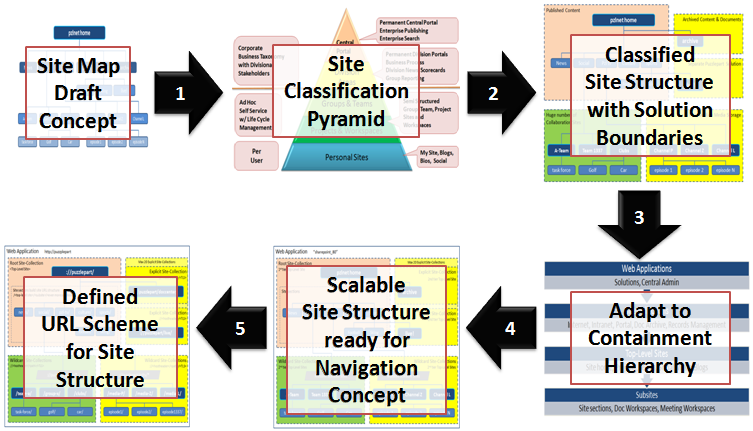
At every SharePoint customer and in every SharePoint project, the issue of how to realize a future-proof, working site structure arise. I've written a few blog posts on classification and structuring of SharePoint sites before (part 1 and part 2), focusing on scalable site structure design within the SharePoint system boundaries. This post is about getting from a classic site map based approach to a methodology driven by Information Architecture and the site classification pyramid, combined with the SharePoint containment hierarchy and SharePoint governance best practices. The latter is important as the management and usage of a site, and the service level agreement for the site, strongly influence how the overall SharePoint solution should be partitioned to adhere to architecture best practices.

Most information architects come up with a content organization model like a site map with hierarchical URL scheme. "This is the draft model, and we want the URL structure to be like this in our SharePoint solution" they say. "That's a very useful mental model of the site" I respond, "but what you really want is a good, intuitive navigation concept, helping users find what they need - like an invisible guiding hand; not that specific URL structure". Having a simple and easy mental model for the site structure is important, as it makes it easy to both contribute and find content, driving findability when the amount of information stored and managed in SharePoint grows.

Alas, that is not the primary issue with the site map approach for designing SharePoint site structures. The site map is closer to define statical IA structure than navigation, still it is only good for logical IA structure and cannot be expected to be used directly as the physical IA structure in SharePoint.


Using a site map approach to design a SharePoint site structure will only work in simple scenarios with homogenous solution domains, such as a publishing portal or a collaboration solution with limited document storage and versioning. It will fail when the SharePoint solution domains and their usage, governance and service level agreements differ, not to forget when the overall amount of data stored in SharePoint surpasses the 100GB limit per content database. The wanted URL structure might not be possible to realize in most cases anyhow when adhering to SharePoint architecture best practices.


A more structured approach is needed to design a SharePoint site structure according to architectural and governance best practices. My methodology involves a process with these five steps:

  1. Review your site map draft model against the SharePoint site classification pyramid and your governance plan for each of your identified site types.
  2. Partition your sites into solution domains based on site type and governance policies aspects such as business purpose, usage patterns, storage requirements, management boundaries, information security and isolation, operations and service level agreements.
  3. Adapt the site structure to the SharePoint containment hierarchy, adhering to limits and best practices based on the partitioned solution domains.
  4. Use the main SharePoint architectural components explicit and wildcard site-collections to ensure a scalable design that allows for future growth and expansion into new business domains. Use wildcard site-collections by default as these are super scalable. Adapt or customize SharePoint global menu and current menu to your navigation concept, to hide the solution partitioning.
  5. Define your URL scheme using host headers, manage paths and site provisioning policies.
Following these five steps is a top-down approach that is more understandable for non-techies. However, from step 3 onwards, good technical knowledge of SharePoint architecture is required.


To successfully design a working and scalable SharePoint site structure, you need a site classification scheme. I recommend the classic site classification pyramid as it outlines typical solution domains with governance and site types, helping you classify sites and draw domain boundaries in your site model.


Then, after identifying the different solution domains that make up your overall SharePoint solution, you must map the identified solution domains to the SharePoint containment hierarchy. It is imperative that you understand the containment hierarchy and its boundaries, otherwise your solution will slowly stop working as more and more users create more and more sites and fill them with more and more information.


Site-collections is the main architectural component of SharePoint, in combination with the content database that stores the site-collection's content and documents. A web-application always have a single root (1st tier) site-collection, which is the home site of the web-application. A 2nd tier of site-collections can be added to the web-application as needed to scale the application, using SharePoint managed paths. A typical scenario is to add a new solution domain. Another typical scenario is to add room for more content and documents; because a site-collection cannot span content databases and adding more space thus requires a new site-collection. Use subsites for anything that is just a section of an existing solution domain or site. See the golf and car communities in the example, which functionally are "sites" in their own right. Read my post Classification and Structuring of SharePoint Sites (Part I) to learn more.


It's easy to choose what solution goes into the root site-collection of a web-application, typically this is the portal to the overall solution. As there is a limited set of explicit site-collections per SharePoint web-application, these should be reserved for a planned, wellknown small number of predefined sites. Use the limited set of available explicit site-collections for the top two types in the site classification pyramid. Note that root and explicit site-collection storage cannot be scaled as you cannot add another content database to a site collection. Use as few explicit site-collection as possible, stay well below the limit of 20 managed paths. Expect everybody to require vanity URLs such as ://puzzlepart/HR/ for their site, so a strict governance policy for 'explicit' is required.

Use wildcard site-collections when the predictable number of sites is too large for explicit, typically for the bottom three types in the site classification pyramid. Also use wildcard site-collections even for central portals and division areas when there is no absolute requirement for an 'explicit' 2nd tier top-level site. See Puzzlepart TV in the example; even if the channel sites are classified as 'division area' (yellow color code) they do not need to be 'explicit'. In fact, due to their massive storage requirements for rich media content, best practices dictate the use of 'wildcard'. Always use wildcard site-collections for solutions have a limited life span such as projects.


Finally, after composing your scalable site structure design from root, explicit and wildcard site-collections, define the URL scheme that underlies the site structure. Use short descriptive URL elements for web-applications, managed paths and site-collections. The combination of these elements become the URL of the top-level sites that are what the users actually interacts with when using SharePoint. Note how the URL structure is affected by the SharePoint containment hierarchy. Compare ://puzzlepart/pzl-tv/ and ://puzzlepart/pzltv/ in the example, the latter contains child sites of the former in the overall navigation concept. In addition, I recommend defining and enforcing policies for all URL elements that users can provision, such as subsites, lists and libraries, to avoid non-friendly URLs with anything from spaces to special characters.

It is very likely that you will need to customize the ootb SharePoint navigation provider and menu rendering to have a consistent navigation experience across sites, sections and pages. Users get very confused and annoyed when the content of the top menu changes as they navigate from site to site, which is very understandable. There are several ways to implement common menu and navigation across site-collections, but that's left as an exercise for my readers.

The capacity and planning boundaries are mostly the same in SharePoint 2010 as in SharePoint 2007 for web-applications, site-collections and content databases. The most significant change is that SharePoint 2010 now supports max 250 000 site-collections per web-application, five times the limit for 2007. The max number of content databases per web-application has increased from 100 to 300, on the other hand the max number of site-collections per content database have been reduced from 50 000 to max 5000 with a recommendation of 2000 site-collections per content database. None of these numbers are hard limits, these are numbers for acceptable SharePoint performance.