Showing posts with label SiteStructure. Show all posts

Saturday, March 16, 2013

Controlling Content Database Size in SharePoint


A SharePoint content database can be up to 4TB with data (max 200GB is recommended). However, storage size is not the problem; it is the recovery time to restore all that data that is the availability problem. The recovery time decides for how long your business critical solution will be down. As SharePoint can spread its content across multiple databases, it is recommended that your architecture segments different content across different databases based on IA and other user experience aspects, plus business requirements for availability and recovery time. Plan for structuring your solutions with a strong focus on your information architecture (IA).

Here are some options for how to control the size of the content databases, without disposing and deleting content:

A) Use an ootb Record Center as an archive for old content: The users must manually send each document to the RC using e.g. move and leave a link; note that only the latest major version with metadata is kept – all version history is lost. The information management policies supported by SharePoint for retention and disposition can be used to automate the cleanup.
As the RC has its own content databases, the live collaboration databases will grow slower or even shrink as outdated information is moved to the archive. Keeping the live databases small ensures shorter recovery time; while the recovery time for the archived content can be considerable, but not business critical.
Search must be configured appropriately to cover both live and archived content.

B) Use a third-party archiving solution for SharePoint from e.g. MetaLogix or AvePoint. This has the same pros & cons as in option A, but the functionality is probably better in relation to keeping version history and batch management of outdated content.
Search must be configured appropriately to cover both live and archived content.

C) Use a third-party remote blob storage (RBS) solution for SharePoint, such as MetaLogix StoragePoint, so that documents are registered in the database, but not stored there. This gives smaller content databases, but more complicated backup and recovery as the content now resides both in databases and on disk. Provided that you don’t lose both at the same time, the recovery time should be shorter.
Search will work as before, as all content is still logically in the “database”.

D) Use powershell scripts or other code to implement the disposition of outdated content. The script can e.g. copy old documents to disk and delete old versions from the content database; the drawback being that all metadata will be lost and there is no link left in SharePoint.
The databases size will shrink as data is actually deleted, and backup and recovery is more complicated as content is now both in the database and on disk (same as for option C).
Search can be configured to also crawl and index the files on disk, but content ranking will suffer as the valuable metadata is lost.

My recommendation is to consider option A first, especially if you are able to define automated rules and exploit the built-in information management policies in SharePoint. The keyword is *able* - in my experience, everyone is positive to having automated retention and disposition, but noone even at large banks and law firms are able to come up with the policies.

Always consider using RBS for databases larger than 200GB, and note that RBS also helps you meet the disk IOPS requirements of SharePoint.


Tuesday, November 01, 2011

SharePoint Information Architecture from the Field

Over the years, I've written quite a few articles on how to technically structure your SharePoint solutions into web-apps, sites, subsites, lists and document libraries. All based on having a defined Information Architecture (IA) as a basis for the solution design, or at least being able to reason about your content management using my "chest of drawers" and "news paper" analogies. The latter is based on my experiences from the field as most companies don't have a well-defined IA in place.

Common questions from customers are "what is Information Architecture?" and "what is the value of having an IA for SharePoint, can't we just create sites and doc-libs on the fly as needed?". Not to forget "how do we go about creating an Information Architecture for SharePoint?". So here are some IA advice from Puzzlepart projects:

In short, Information Architecture defines how to classify and structure your content so that it is easy for content consumers to find and explore relevant content, while making it simple for workers to contribute and manage content in an efficient manner.

The business goal of having an Information Architecture for your SharePoint solution is enabling workers to contribute, store and mange content in a manner that is simple and efficient, enabling more content sharing; and at the same time making it easy for workers to browse and find content they need, while also making it easy for workers to discover and explore relevant content they didn't know of. The outcome is more knowledgeable workers that are better informed about what’s going on in the company and about the range of intellectual property possessed by other employees, while also saving time wasted on finding information, and time wasted on incorrect or outdated information.

An outcome is a metric that customers use to define the successful realization of the objectives and goals. Outcomes happens after the project has delivered on its objectives and goals, and the customers must themselves work against securing the outcomes to achieve the desired business value.

The business value of having a working IA is capturing company knowledge from employees with better quality of shared content, which combined with good findability drive more knowledgeable workers that make better decisions and better faster processes. In addition, more and better content sharing helps user not only discover and explore content, but also people such as subject matter experts, allowing employees to build and expand their network throughout the company, helping the company to retain talented employees through social ties and communities. Access to discover more and better content and people expertise is central to enabling innovation and process improvement, as new knowledge is a trigger for new ideas and for identifying new opportunities.

The process of defining your IA for your SharePoint solution should focus on these objectives and goals:
  • Analyze and define the content classification and structure for the solution 
    • goal: identify what content to manage and plan how to store it in SP, leading to sites, subsites and doc-lib structure organized into SP web-apps
  • Analyze and define how to browse and navigate the content
    • goal: make it simple and efficient for users to find and use known content that they need in their daily work to drive better faster processes
  • Analyze and define how to discover and explore the content
    • goal: make it easy for users to stumble upon novel shared knowledge based on "common focus" to trigger innovation and build social ties
  • Provide simple and efficient content contributor experience with liberal appliance of default metadata values, storing content close to the authors 
    • goal: make workers contributors, not knowledge management grunts, and help them store content correctly with better metadata and tagging, driving findability and "common focus" content discovery; drive better sharing and collaboration
  • Analyze and define the starter content types with metadata and term set taxonomy based on the defined site and doc-lib architecture, with a strong focus on needed search experience capabilities
    • goal: enable content management and support both search-driven and "common focus" content; drive findability, sharing and innovation
  • Analyze and define the policies for social tagging and rating in the solution, also in relation to user profile interests, skills and responsibility tagging
    • goal: drive "common focus" content discovery, drive findability, drive social communities, drive innovation
  • Analyze and define the search experience, focusing on both search-driven content and on search center scopes and refiners
    • goal: drive findability and provide both search-driven and "common focus" content
  • Enable disposition of redundant and irrelevant content 
    • goal: provide users with better, correct and up-to-date information, drive findability, save storage cost, save process cost
Including the search experience helps you avoid an initial version of your IA with a too narrow scope, which is easy to do for a starter IA when e.g. analyzing only project collaboration needs or just the document types of an attachment-based intranet. It makes you focus on what you get out, not only what you put in.

Note that navigation is not IA, its just one way to explore the content. Using navigation to structure your content is just reapplying the fileshare folder approach, which we all know doesn't work too good for findability and discovery. Navigation should not define the statical IA structure for the content, do a LATCH analysis to model the possible IA structures, and choose one of them to define the statical IA structure. The site map is closer to define statical IA structure than navigation, still it is only good for logical IA structure and cannot be expected to be used directly as the physical IA structure in SharePoint.

In an upcoming article I will give some practical advice from the field on how to define and realize the Information Architecture for your SharePoint solution in an agile fashion.

Thursday, October 27, 2011

SharePoint is like a Chest of Drawers

I often get asked "how many document libraries and sites will we need?" in SharePoint, followed by "how will we know whether we should use more doc-libs in a site or just throw it all in there?" and "where should content be stored? we need to show it on the intranet home page, but it is really edited and owned by HR in region Gokk". Well, SharePoint is like a chest of drawers.

To answer such questions, you need to know how to classify and structure your content; ideally you should have an Information Architecture for all your different kinds of data. If you are like most others, you don't. This is where the "chest of drawers" analogy might help you reason about your content.


Whether you need many doc-libs or subsites or not depends on your IA policies for information management. Still don't have an IA? Think of a chest of drawers for you clothes: it makes it easier to manage different types of clothes in different ways at different schedules, by e.g. separating t-shirts from trousers. Maybe even handle different kinds of t-shirts differently, such as your precious Maiden t-shirts. It also allows for delegating a few drawers to be managed by your wife; maybe you even want to have some locked drawers with more privacy :)

Your content are the clothes, the drawers are doc-libs or even subsites; and depending on the variety of clothes you have, you might need quite a sophisticated chest of drawers. Throw in all your other stuff, and you might need a bigger closet or a garage!

So now all your content is stored into nicely separated drawers, with delegated and secure handling where needed. But is is not so easy to see what is in the drawers without actually opening and browsing the content of each drawer. Until we get one of those science fiction closets that knows whats in the drawers and let us explore what trendy outfits we can wear today, its time for another analogy: the good old news paper, even in its modern online incarnation.

Think of a news paper with a front page and then multiple sections, such as domestic, foreign, sports, economics, etc. The front page and section front pages are used to show the (elsewhere) stored content to readers, helping them quicly browse the content at wellknow locations in the paper. The shown stories are typically rollup content stored elsewhere, typically where maintained, close to the content editors.

So a paper is built from dispersed storage of content that can be rolled up and targeted to readers multiple places. The home page and section pages rollup content "teasers" and allows the user to browse the content stored elsewhere in the paper and decide whether to explore it further.

The front page is the home page of your SharePoint site, the sections are subsites and the section pages are the subsite welcome pages in SharePoint parlance. As for the drawers, there might be different management policies and different people handling the different sections, and this helps you decide when subsites are needed. The rollup, or cross publishing if you like, is achieved using the content by query web-part or search-driven content based on content types, tagging and metadata.

Controlled and secure management of content according to different policies and schedules is much simpler when using subsites as compared to throwing it all into one site. Store the content close to the producers, show it everywhere the users expect to find it - and also where *you* want them to discover and explore knowledge new to them.

Wednesday, August 04, 2010

Five Steps to Structure Your SharePoint Sites (Part III)

At every SharePoint customer and in every SharePoint project, the issue of how to realize a future-proof, working site structure arise. I've written a few blog posts on classification and structuring of SharePoint sites before (part 1 and part 2), focusing on scalable site structure design within the SharePoint system boundaries. This post is about getting from a classic site map based approach to a methodology driven by Information Architecture and the site classification pyramid, combined with the SharePoint containment hierarchy and SharePoint governance best practices. The latter is important as the management and usage of a site, and the service level agreement for the site, strongly influence how the overall SharePoint solution should be partitioned to adhere to architecture best practices.

Most information architects come up with a content organization model like a site map with hierarchical URL scheme. "This is the draft model, and we want the URL structure to be like this in our SharePoint solution" they say. "That's a very useful mental model of the site" I respond, "but what you really want is a good, intuitive navigation concept, helping users find what they need - like an invisible guiding hand; not that specific URL structure". Having a simple and easy mental model for the site structure is important, as it makes it easy to both contribute and find content, driving findability when the amount of information stored and managed in SharePoint grows.

Alas, that is not the primary issue with the site map approach for designing SharePoint site structures. The site map is closer to define statical IA structure than navigation, still it is only good for logical IA structure and cannot be expected to be used directly as the physical IA structure in SharePoint.


Using a site map approach to design a SharePoint site structure will only work in simple scenarios with homogenous solution domains, such as a publishing portal or a collaboration solution with limited document storage and versioning. It will fail when the SharePoint solution domains and their usage, governance and service level agreements differ, not to forget when the overall amount of data stored in SharePoint surpasses the 100GB limit per content database. The wanted URL structure might not be possible to realize in most cases anyhow when adhering to SharePoint architecture best practices.


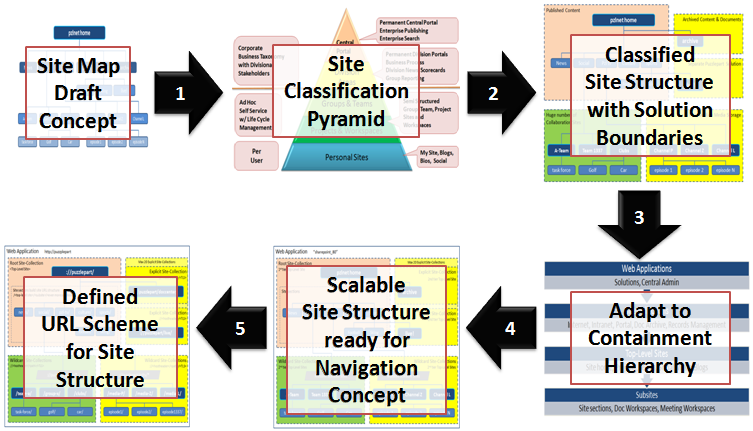
A more structured approach is needed to design a SharePoint site structure according to architectural and governance best practices. My methodology involves a process with these five steps:

  1. Review your site map draft model against the SharePoint site classification pyramid and your governance plan for each of your identified site types.
  2. Partition your sites into solution domains based on site type and governance policies aspects such as business purpose, usage patterns, storage requirements, management boundaries, information security and isolation, operations and service level agreements.
  3. Adapt the site structure to the SharePoint containment hierarchy, adhering to limits and best practices based on the partitioned solution domains.
  4. Use the main SharePoint architectural components explicit and wildcard site-collections to ensure a scalable design that allows for future growth and expansion into new business domains. Use wildcard site-collections by default as these are super scalable. Adapt or customize SharePoint global menu and current menu to your navigation concept, to hide the solution partitioning.
  5. Define your URL scheme using host headers, manage paths and site provisioning policies.
Following these five steps is a top-down approach that is more understandable for non-techies. However, from step 3 onwards, good technical knowledge of SharePoint architecture is required.


To successfully design a working and scalable SharePoint site structure, you need a site classification scheme. I recommend the classic site classification pyramid as it outlines typical solution domains with governance and site types, helping you classify sites and draw domain boundaries in your site model.


Then, after identifying the different solution domains that make up your overall SharePoint solution, you must map the identified solution domains to the SharePoint containment hierarchy. It is imperative that you understand the containment hierarchy and its boundaries, otherwise your solution will slowly stop working as more and more users create more and more sites and fill them with more and more information.


Site-collections is the main architectural component of SharePoint, in combination with the content database that stores the site-collection's content and documents. A web-application always have a single root (1st tier) site-collection, which is the home site of the web-application. A 2nd tier of site-collections can be added to the web-application as needed to scale the application, using SharePoint managed paths. A typical scenario is to add a new solution domain. Another typical scenario is to add room for more content and documents; because a site-collection cannot span content databases and adding more space thus requires a new site-collection. Use subsites for anything that is just a section of an existing solution domain or site. See the golf and car communities in the example, which functionally are "sites" in their own right. Read my post Classification and Structuring of SharePoint Sites (Part I) to learn more.


It's easy to choose what solution goes into the root site-collection of a web-application, typically this is the portal to the overall solution. As there is a limited set of explicit site-collections per SharePoint web-application, these should be reserved for a planned, wellknown small number of predefined sites. Use the limited set of available explicit site-collections for the top two types in the site classification pyramid. Note that root and explicit site-collection storage cannot be scaled as you cannot add another content database to a site collection. Use as few explicit site-collection as possible, stay well below the limit of 20 managed paths. Expect everybody to require vanity URLs such as ://puzzlepart/HR/ for their site, so a strict governance policy for 'explicit' is required.

Use wildcard site-collections when the predictable number of sites is too large for explicit, typically for the bottom three types in the site classification pyramid. Also use wildcard site-collections even for central portals and division areas when there is no absolute requirement for an 'explicit' 2nd tier top-level site. See Puzzlepart TV in the example; even if the channel sites are classified as 'division area' (yellow color code) they do not need to be 'explicit'. In fact, due to their massive storage requirements for rich media content, best practices dictate the use of 'wildcard'. Always use wildcard site-collections for solutions have a limited life span such as projects.


Finally, after composing your scalable site structure design from root, explicit and wildcard site-collections, define the URL scheme that underlies the site structure. Use short descriptive URL elements for web-applications, managed paths and site-collections. The combination of these elements become the URL of the top-level sites that are what the users actually interacts with when using SharePoint. Note how the URL structure is affected by the SharePoint containment hierarchy. Compare ://puzzlepart/pzl-tv/ and ://puzzlepart/pzltv/ in the example, the latter contains child sites of the former in the overall navigation concept. In addition, I recommend defining and enforcing policies for all URL elements that users can provision, such as subsites, lists and libraries, to avoid non-friendly URLs with anything from spaces to special characters.

It is very likely that you will need to customize the ootb SharePoint navigation provider and menu rendering to have a consistent navigation experience across sites, sections and pages. Users get very confused and annoyed when the content of the top menu changes as they navigate from site to site, which is very understandable. There are several ways to implement common menu and navigation across site-collections, but that's left as an exercise for my readers.

The capacity and planning boundaries are mostly the same in SharePoint 2010 as in SharePoint 2007 for web-applications, site-collections and content databases. The most significant change is that SharePoint 2010 now supports max 250 000 site-collections per web-application, five times the limit for 2007. The max number of content databases per web-application has increased from 100 to 300, on the other hand the max number of site-collections per content database have been reduced from 50 000 to max 5000 with a recommendation of 2000 site-collections per content database. None of these numbers are hard limits, these are numbers for acceptable SharePoint performance.