Wednesday, April 05, 2006

VSMDI file - The weak spot of the VSTS test system

The Visual Studio Test Metadata File (.VSMDI) has caused some grief in our ongoing project, in which we use Team Foundation Version Control (TFVC) also. We have a solution with six projects for the application layer, including one common test project.

What typically happens is that VS2005 automatically checks-out the metadata file even when a developer do not work on a unit test, or touch the test project or the test manager. As the check-out is silent, the developer does not notice this. After doing some coding, the developer will try to check in the pending changes. In the meantime, other developers will also have done some unit tests, coding and check-ins, causing a conflict on the .VSMDI file. At this point, VSMDI is a disaster waiting to happen...

Never ever use 'auto merge' to resolve check-in conflicts on the .VSMDI file. The chances are that the file will get corrupted. If you have a conflict, I recommend discarding your local changes, get the latest version of the .VSMDI file from TFVC (use 'force get...' and 'overwrite...' if necessary), then re-apply your changes to the tests and test lists, and check the file in immediately. Do not keep the .VSMDI file checked out longer than strictly necessary.

A sure sign of a corrupted VSMDI file is a Test Manager that never stops loading, the progress bar teasing you at "almost there" forever.

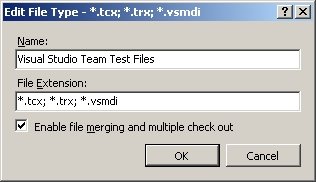
[UPDATE] I recommend that you reconfigure the .VSMDI file TFVC settings to not allow merging or multiple check-out. This is done in the 'Edit File Type' (see image above), which is available at 'Team-Team Foundation Server Settings-Source Control File Types' in VSTS.

VSTS will also check-out .VSMDI even when doing a get latest on the whole solution. I recommend my developers to immediately do a 'undo pending changes' on the file when this happens. The check-out seems to be quite unnecessary, why can't VSTS leave the file as-is until I touch the test system ? I know that VSTS monitors the disk for changes to relevant files, but I would prefer that the test metadata only got updated when building the solution.

Due to the VSTS test system's unreliable handling of the metadata file, we from time to time get "The test 'TestName' does not exist in the test list. It may have been moved, renamed or deleted". Yesterday, the 'Test Manager' showed all tests duplicated in the test lists. Today, another developer saw just some chinese characters when opening the metadata file. Sometimes we even get a second VSMDI file (e.g. Application2.vsmdi) in our solution, or no VSMDI file at all.

Some of my Objectware co-workers have given up TFS for unit testing due to this, and are using NUnit and CruiseControl.NET in their projects instead.

Published at MSDN - InfoPath Developer Home

My blog post 'Using XPath preceding-sibling in InfoPath rules' is published on the InfoPath Developer Portal. Nice to get noticed over at MSDN.

Sunday, April 02, 2006

System.Transactions - Nesting Scopes, Enlist Connection in Transaction

In a previous post I decribed how the Lightweight Transaction Manager (LTM) of System.Transactions has the bad habit of "promoting" to full-blown MS DTC transactions even when using a single SQL Server 2005 database. You can use the .Suppress option to exclude some code from being part of a transaction and thus stay LTM even when using multiple open connections against the SS2K5 database.

To circumvent this limitation (feature), I have implemented a data session object used to pass an open SqlConnection object around my biz logic and data access logic. Last week, when implementing a unit test for some logic involving a method in the call stack using the .Suppress option, I noted that changes made to the data was not rolled back when the error I was debugging, occurred.

Some experimentation with nested transaction scopes lead me to conclude that I needed to open the common, shared connection within a TransactionScopeOption.Required using block before passing it around to get the correct behavior (rollback on error, etc). It seemed that opening the connection in a .Suppress block would suppress transactions even in nested 'required' scopes.

I posted my findings at forums.microsoft.com and got an "expected behavior" from Alazel Acheson of the ADO.NET team. The explanation is that the connection will enlist in a transaction only when opened, thus when opened in a suppress block, the connection will never use a transaction. To ensure that a connection gets enlisted in a transaction, you need to actually open the connection within each using TransactionScope block.

The need to stay LTM is a very common requirement in the System.Transactions community, and Acheson has implemented a DbConnectionScope class that simplifies the process of using a common connection in nested transaction scopes. The DbConnectionScope class has been further refined to include nesting options to provide detailed connection reuse control. Good work, Alazel!

I recommend anyone who has implemented their own LTM data session object to switch to the DbConnectionScope. I strongly advice never to roll your own transaction management mechanism, the chances are that you will not be able to make it 100% bulletproof.

Thursday, March 23, 2006

SS2K DTS: Write File Task, Dynamic Properties

In this post I will explain why using a 'Dynamic Properties Task' in a SQL Server 2000 DTS package helps you centralize the definition and management of parameters needed in several tasks and connections (data stores) in the package. The alternative to using dynamic properties is to "hard code" property values all over the package, which makes maintaining the package harder and more error prone. Most articles about dynamic properties shows how to use an external INI-file as the source of the parameters, but I rather prefer DTS global variables as this makes the package self-contained.

I will use a 'Transform Data Task' of type 'Write File' as an example, as this task contains a (output) FilePath property that is likely to change when the package is deployed to another server. In addition, any package that writes files, will most likely require some existing file cleanup mechanism. Deleting existing files is important to ensure that the package can be rerun in the event of a failure, and still produce the same results over and over (reliability).

The 'write file' task type is a special transformation that requires two source columns in the input, one for the target filename and one for the actual data to write to the file. In addition, the properties of the 'write file' task must be edited to specify the output path of the transformation, the file type, options such as overwrite existing files, append to existing files, etc.

If you use the property dialog of the transformation, you are effectively hard coding the property values deep inside the each task. As the package grows bigger, it becomes harder and harder to remeber all the places that contains values that need to be re-configured when deploying to another server or changing the server setup. The documentation of how to configure the package will also become a real mess, as you need to describe how to configure every single element of the package.

Whenever you are about to change a default property value of a DTS element (object), you should consider if the value is subject to requiring re-configuration dependent on the deployment environment. Such values are good candidates for becoming configuration parameters of the DTS package. There are several mechanisms in DTS for storing common configuration values, I prefer using global variables as they are an integral part of the package and easy to administer using the DTS designer.

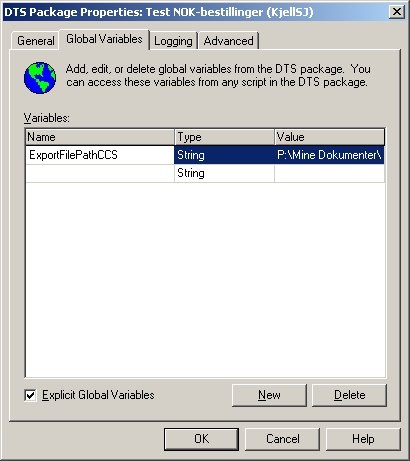
Use the 'Global Variables' folder in the 'DTS Package Properties' dialog to define the set of configuration parameters and their initial value. You must define the variables before using them as dynamic property values.

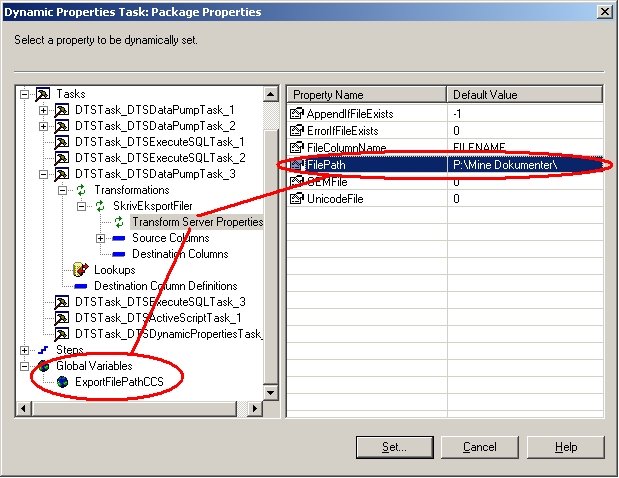
Add a 'Dynamic Properties Task' as the first task in your package. Then add an 'On Success' workflow link to the rest of package steps to ensure that the package gets correctly configured before execution. Open the properties dialog of he dynamic properties object, then click 'Add' to open the window showing all package elements and their settable properties (see screenshot below).


Browse to find the applicable 'write file' task and select the transformation properties node in the treeview. The right panel of the window will show the same properties as can be set directly on the task object, except that when setting the values from this window will make them configuration parameters instead of hard coded values. Select the property that you want to convert into a dynamic property, click 'Set' and then connect the property to the applicable global variable. Repeat for all properties that should be parameter based.

The configured output folder of the 'write file' task is also used in an 'ActiveX Script Task' that deletes all existing output files to make the DTS package process repeatable. The script uses the same global variable that was used in the 'write file' task:

Function Main()

path = DTSGlobalVariables("ExportFilePathCCS").Value

filemask = path & "export_file_mask_here"

Set fso = CreateObject("Scripting.FileSystemObject")
'NOTE: fso throws an error if no files match the mask on .DeleteFile
if fso.FileExists(filemask & ".000") = true then
fso.DeleteFile filemask & ".*"
end if

Main = DTSTaskExecResult_Success

End Function

Read more about DTS best practices at Vyas' site.

You will find a good introduction to SQL Server 2000 DTS and to SQL Server 2005 SSIS at Database Journal.