Showing posts with label SqlServer. Show all posts

Saturday, August 25, 2012

Use Azure VMs with On Premises Gateway as SP2010 Branch Office Farm

Here are some notes from my ongoing experience of setting up a SharePoint 2010 "branch office" farm in Azure using the current preview of persistent Azure virtual machines in a Azure virtual network connected to the on premises Active Directory using an Azure gateway to a Juniper VPN device.
Useful TechEd Europe 2012 web-casts that show how things work in general:
VM+VNET in Azure: http://channel9.msdn.com/Events/TechEd/Europe/2012/AZR208
AD in Azure: http://channel9.msdn.com/Events/TechEd/Europe/2012/SIA205
SP in Azure: http://channel9.msdn.com/Events/TechEd/Europe/2012/OSP334

Step by step instructions that I followed:
How to Create a Virtual Network for Cross-Premises Connectivity using the Azure gateway.
How to Install a Replica Active Directory Domain Controller in Windows Azure Virtual Networks.

Creating a virtual network (vnet) is easy and simple using the Azure preview management portal. I recommed creating the local network first, as the vnet wizard otherwise might fail - without giving any useful exception message. We had an issue caused by naming the local network "6sixsix" which didn't work due to the name starting with a digit. Also note that the VPN gateway only supports one LAN subnet in the current preview.

Plan your subnets upfront and make sure that they don't overlap with the on premises subnets. Register both the existing on premises DNS server and the planned vnet DNS server when configuring the vnet. A tip here is that the first VM created in a subnet will get .4 as the last part of the IP address, so if your ADDNSSubnet is 10.3.4.0/24, then the vnet DNS will get 10.3.4.4 as its IP address. Note that you can't change the DNS configuration after adding the first VM to the network, this includes creating the Azure gateway which adds devices to the gateway subnet.

After creating the Azure virtual network, we created and started the Azure gateway for connecting to the on premises LAN using a Site-to-Site VPN tunnel using a secure IPSec connection. Creating the gateway takes some time as some devices or VMs are provisioned in the gateway subnet you specified. We then sent the public IP address of the gateway, plus the shared key and the configuration script for the Juniper VPN device to our network admin. The connection wouldn't come up, and to make a long story short, the VPN configuration needs the 'peerid' to be set to an IP address of a device in the gateway subnet. Our gateway subnet was 10.3.1.0/24 and after trying 10.3.1.4 first (see above tip), the network admin tried 10.3.1.5 and that worked. I'll come back to this below when telling you about our incident when our trial Azure account was deactivated by Microsoft.

With the Azure virtual network up and running and connected to the on premises LAN, I created the AD DNS virtual machine using the preview portal "create from gallery" option. As SP2010 is not supported on WS2012 yet, I decided to use the WS2008R2 server image in this Azure server farm. Note that you should use size "large" for hosting AD as you need to attach two data disks for storing the AD database, log files and system state backup.

I did not use powershell for creating this first VM, instead I manually changed the DNS setting on the network adapter (both IPv4 and IPv6) and then manually joined the to-be AD DNS VM to the existing domain. Note that while you're at it, also set the advanced DNS option "Use this connection's DNS suffix in DNS registration" for both network adapters. Otherwise you will get the "Changing the Primary Domain DNS name of this computer to "" failed" error when trying to join the domain.

Following the how-to for setting up a replica AD in Azure work fine, we only had some minor issues due to the existing AD being on WS2003. For instance, we found no DEFAULTIPSITELINK when creating a new site in AD, so we had to create a new site link first, then create the site and finally modify the site link so that it linked the Azure "CloudSite" and the LAN site. Then the dcpromo wizard step for AD site detection didn't manage to resolve against our WS2003 domain controller, just click "ok" on the error message and manually select the "CloudSite" in the "Select a site" page.


I really wanted to set up a read-only domain controller (RODC) to save some outgoing (egress) traffic and thus save some money, as this branch farm don't need a full fidelity domain controller. However, it is not possible to create a RODC when the existing DC is on WS2003, because RODC is a WS2008 feature. So for "Additional Domain Controller Options" we went with DNS and "Global Catalog" (GC). GC isn't required, but if not installed then all authentication traffic on login need to go all the way to the on premises DC. So to save some traffic (and money), and get faster authN in the branch farm, we added the GC - even if the extra data will drive up Azure storage cost.

The next servers in the farm were added using powershell to ensure that 1) the VM is domain joined on boot, and 2) that the DNS settings for the VM is automatically configured.

Here are some tips for using New-AzureDNS, New-AzureVMConfig and New-AzureVM:
  • You can use the Azure vnet DNS server or the on premises DNS server with New-AzureDNS. I used the former.
  • The New-AzureVMConfig Name parameter is used when naming and registering the server in AD and DNS. Make sure that the full computer name is unique across the domain.
  • The New-AzureVM ServiceName parameter is used for the cloud DNS name prefix in the .cloudapp.net domain. It is also used to provision a "Cloud Service" in the Azure preview management portal. Even if multiple VMs can be added to the same service name (shared workload), I used uniqe names for the farm VMs (standalone virtual machine), connected using the vnet for load balancing.
  • To get the built-in Azure image names, use this powershell to go through the images in the gallery until you find the one you're looking for:
           (Get-AzureVMImage)[1].ImageName
After adding the SQL Server 2012, web server and application server VMs using powershell, I logged in using RDP and verified that each server was up and running, domain joined and registered in the DNS. Note that the SQL Server image is not by default configured with separate data disks for data and log files. This means that the SQL Server 2012 master database etc is stored on the OS disk in this preview. You need to add data disks and then change the SQL Server file location configuration your self. Adding two data disks will require that the SQL Server VM is of size "large".

The next step was to intall SharePoint 2010 on the farm the next day. Thats when the trial account was deactivated because all the computing hours was spent. Even if you then reactivate the account, all your VM instances are deleted, keeping only the VHD disks. As Microsoft support says, it is easy to recreate the VMs, but they also tell you that the AD virtual machine needs a static IP which you can only get in Azure if you never delete the VM. Remember to recreate the VMs in the correct order so that they get the same IP addresses as before.

What is worse is that they also delete the virtual network and the gateway. Even if it is also easy to recreate these, your gateway will get a new public IP address and a new shared key, so you need to call your network provider again to make them reconfigure the VPN device.

I strongly recommend not using a spending capped trial account for hosting your Azure branch office farm. Microsoft deleted the VMs and the network to stop incurring costs, which was fine with non-persistent Azure VM Roles (PaaS) anyway, but not as nice for a IaaS service with a persistent server farm.

I recommend exporting your VMs using Export-AzureVM so that you don't have to recreate the VMs manually if something should happen. The exported XML will contain all the VM settings, including the attached data disks.

How to deatch Azure VMs to move or save cost: http://michaelwasham.com/2012/06/18/importing-and-exporting-virtual-machine-settings/

When we recreated the Azure virtual network and the gateway, the VPN connection would not come back up again. The issue was that this time the gateway devices had got different IP addresses, so now the "peerid" had to be configured as 10.3.4.4 to make things work.

Now the gateway is back up again, and next week I'll restore the VMs and continue with installing SP2010 on the Azure "branch office" farm. More notes to come if I run into other issues.

- - - continued - - -

Installing the SharePoint 2010 bits went smooth, but running the config wizard did not. First you need to allow incoming TCP traffic on port 1433 on the Azure SQL Server. Then the creation of the SharePoint_Config database failed with:

    Could not find stored procedure 'sp_dboption'.

...even if I had downloaded and installed SP2010 with SP1 bits. So I downloaded and installed SharePoint Server 2010 SP1 and June CU from 2011 due to the issue caused by using SQL Server 2012 and that fixed the problem. Got "Configuration Successfull" without any further issues.

Finally, I tested and verified it all by creating a SP2010 web-application with a team site, creating a self-signed certificate with IIS7 and adding an Azure port mapping for SSL (virtual machine endpoint, TCP 443 to 443), allowing me to login to the team site using my domain account over HTTPS from anywhere.

A note on the VM firewall config is that ping is by default blocked, thus you can't ping other machines in the vnet unless you configure the firewall to allow it. Also note that you can't ping addresses outside of the virtual network and the connected LAN anyway; even if you can browse to www.puzzlepart.com, you can't ping us.

Friday, April 29, 2011

Using SP2010 BCS Resource Files for BDC Model Settings

You've probably seen way too many Business Connectivity Services (BCS) demos using SharePoint Designer (SPD), showing how simple it is to connect to a SQL Server 2008 database and automagically create external content types and operations, with external lists that can be used both to display and update external data.

Have you ever wondered how to manage those data source connection settings across multiple SharePoint 2010 farms? How do you change the SQL Server name and other login information when deploying to your test and staging farm, and then to your production farm without using SPD again? Even good BCS books such as Professional Business Connectivity Services in SharePoint 2010 have very little coverage of BCS external system settings in Central Admin and of how to actually use BDC resource files. There is a nice end-to-end overview in the Migrating Business Connectivity Services External Content Types in SharePoint 2010 article on MSDN, also lacking some of these details.

Data source connection settings are stored as External System properties that can be configured from Central Admin by managing the BDC service application. This can be a bit confusing, as you might run into the "there are no configurable properties" message when trying to manage Settings for an External System. The trick is to remember that these settings are not for the external system per se, but for a specific external system instance aka connection. Chose the External Systems view in the ribbon, click the link of the applicable external system to see the instances, then select the instance and finally click Settings in the ribbon. Change the connection properties and click OK.


In the example data connection I've used the Secure Store Service (SSS) application for the login information because the target database requires SQL Server authentication instead of passthrough integrated Windows authentication.

Instead of manually changing these External System settings whenever deploying a new version across your development, testing, staging and production farms, you can use BDC resource files to apply the settings. This is done by exporting and importing resource files, either using Central Admin, code or Powershell.


Prototype and test your BCS solution on your development farm first, then package your solution into a feature as explained in How to: Deploy a Declarative BDC Model with a Feature on MSDN. Remember to change the model name and external system name, including the entity namespace into durable names, or at least change the entity version, from your SPD prototype when packing your BDC model.

The declarative BDC model is really just some XML stored in a BDCM file. In addition to the BDC model file, SharePoint 2010 also supports using BDC resource files for specific metadata elements that commonly change, such as SQL Server connection configuration. A resource file is really just some XML stored in a BDCR file, that can be merged with the stored model without deleting the existing model and its configuration from the BCS metadata store.


The simplest way to get a BDCR file to start with, is to export the BDC resources using Central Admin. Chose the BDC Models view in the ribbon, then select the applicable model and finally click Export in the ribbon. Set the file type to Resource and select which resources to include in the exported BDCR file, typically properties, and click Export to save the selected set of resources.


Edit the the resource XML to change e.g. the name of the SQL Server (RdbConnection Data Source) and save your changes, using one file per BDC model and target farm. Only the XML for settings that should be updated when applying the resource file need be in the file.


The edited BDC resource file can now be applied to the applicable BDC model in one of your farms, typically when deploying a new version of a model to the staging or production farm. Chose the BDC Models view in the ribbon, then select the applicable model and finally click Import in the ribbon. Click Browse to select the applicable resource file and set the file type to Resource. Then select which resources to import from BDCR file, typically properties, and click Import to load the selected set of resources.


Validate that the correct settings were imported by reviewing the import log warnings, and by reviewing e.g. the settings for your external system instance or the permissions for the BDC model and its external content types.


See How to: Use a Resource File to Specify Localized Names, Properties, and Permissions on MSDN to include an edited BDC resource file in a feature in your Visual Studio 2010 package. Note that BDC models created with SPD cannot be exported from CA as they are not complete. Such declarative BDC models must be exported from SPD.

Thursday, April 28, 2011

Using Dynamic Stored Procedures in BCS Finders

We use quite a lot of Business Connectivity Services (BCS) at my current SharePoint 2010 project both for traditional integration of data from external systems into web-parts and lists, and also for crawling external systems for integrating those system using search and search-driven web-parts.

One of our integration partners prefers to provide their integration points as SQL Server 2008 stored procedures, which is very well supported by BCS. BCS supports both stored procedures and table valued functions, called "routines" in SharePoint Designer (SPD). SharePoint Designer is dependent on being able to extract metadata about the returned table data set when adding External Content Type (ECT) operations or when using the Operations Design View.

Alas, the provided integration sprocs used dynamic SQL statements, and for technical reasons this could not be rewritten to inline SQL select statements. This is as always a problem with tooling such as SPD, as no result set metadata can be discovered. When connecting SPD to the external system, I got no fields in the Data Source Elements panel in the Read List operation's Return Parameter Configuration. Rather I got three errors and a warning.


The workaround is quite simple and requires the use of a SQL Server table variable, which defines the result set and allows SPD to discover the table metadata. Rewrite the stored procedure by declaring a table variable, insert the result of the dynamic SQL statement into the variable, and finally return the result set by reading the table variable. The changes to the sproc is shown in blue in this example:

CREATE PROCEDURE [dbo].[GetFavorites]
AS
BEGIN
SET NOCOUNT ON;
 
DECLARE @DbName AS NVARCHAR(max) = 'ARISModellering1'
DECLARE @ObjDef AS NVARCHAR(max) = dbo.GetArisTableName(@DbName, 'ObjDef')
DECLARE @Model AS NVARCHAR(max) = dbo.GetArisTableName(@DbName, 'Model')
 
DECLARE @FavoriteSQL AS NVARCHAR(max) = N'
SELECT
ARISBPDATA.BOOKMARKS.ID AS FavoriteId
, ARISBPDATA.BOOKMARKS.DESCRIPTION AS FavoriteName
, ModelType.ModelTypeName AS FavoriteType
, LOWER(ARISBPDATA.BOOKMARKS.USERNAME) AS UserName
, ''http://puzzlepart/index.jsp?ExportName=ARISModellering&modelGUID='' 
+ ARISBPDATA.BOOKMARKS.DATAKEY AS FavoriteUrl
FROM
ARISBPDATA.BOOKMARKS
INNER JOIN ' + @Model + ' m ON ARISBPDATA.BOOKMARKS.OBJID = m.Id
INNER JOIN ModelType ON m.TypeNum = ModelType.ModelTypeId
'
 
 
DECLARE @userFavs TABLE(FavoriteId int not null, FavoriteName nvarchar(max), 
FavoriteType nvarchar(max), UserName nvarchar(max), FavoriteUrl nvarchar(max))
 
insert @userFavs EXEC sp_executeSQL @FavoriteSQL
 
select * from @userFavs
 
END

Refreshing the external system data connection and then creating the ECT read list operation now works fine, and all the return type errors and warnings are gone.


Note that the classic #temp table workaround won't work with SPD, you have to use a table variable in your stored procedure. The sproc will now use more memory, so the BCS best practice for keeping finder result sets small applies.

The table_variable declaration is also a good place to make sure that the identifier column is "not null" and that it is a supported BCS data type such as "int32". External lists cannot be created from an ECT whose identifier field is unsupported, such as SQL Server "bigint", and I strongly recommend using a supported identifier data type right from the start. Getting the ECT identifier wrong in the BCS model will give you problems later on when using SharePoint Designer.

Friday, November 02, 2007

Getting started with MSE, on SQL Server Express

As you can imagine, I just had to try to install and test the Managed Services Engine for service virtualization when it was made public on CodePlex this week. For a quick intro to MSE, its relation to "Oslo" and SOA governance, and MSE future directions; read this InfoQ interview with William Oellermann.

Not bothering to read the installation guide, I just ran the installer on my Vista machine with SQL Server Express installed - and got a "Failed to create SQL database: MSE6DB" error. The cause of the error is that the installer by default does not target a named SQL Server instance when trying to create the database used by MSE and the sample services provided with the MSE6 toolkit.

The solution is documented in the install guide (but I'm repeating it here for my friend Anders Norås):

  • Ensure that SQL Server Express is running on your computer, but close SSE Management Studio
  • Open a command windows (CMD.EXE) and navigate to the folder of the MS6.msi installer
  • Run the installer (using /i):
    msiexec /i mse6.msi SQLSERVER=.\SQLEXPRESS
  • Locate the Microsoft.MSE.Repository.Service.exe.config file in the “~\Program Files\Microsoft Managed Services Engine” folder and change the data source accordingly:
    <DBConnString>Initial Catalog=MSE6DB;Data Source=.\SQLEXPRESS; . . . ;

Note that you must be an administrator the local system if you are not in the SSE server role 'dbcreator' or equivalent.

This gives you the database MSE6DB that contains the MSE repository:
Try starting the Managed Services Engine MMC snap-in. If you get a service repository (net.pipe://localhost/ServiceCatalog/Pipe) connection error, then restart the “MSE Catalog Server” and “MSE Runtime Server” services in that order to reload the database config.

Finally, you must install some missing perf counters to make the service virtualization (hosted endpoints) work at run-time, otherwise you'll get an error when invoking the services. You must also restart the “MSE Catalog Server” and “MSE Runtime Server” services for the changes to take effect.

Now you're set to follow the 30min walkthrough to learn more about MSE and the wonderful world of service virtualization and see why it is important for life-cycle management of services in SOA systems.

PS! all of the walkthrough is correct, just pay attention in the POX step: you need to keep the action as-is from the previous step, only change what the text say you should change (binding XML, etc). Do not rediscover or change the selected operation in the grid.

Wednesday, May 02, 2007

Puzzling TableAdapter problem

Today I was asked to look at a puzzling problem with TableAdapters at another project at my current customer. The problem they had was that they could not make the TableAdapter read back the generated SQL Server identity column values when saving a dataset (ta.Update) to insert new rows.

The first thing I checked was the 'Advanced options' of the TableAdapter to see if the 'Refresh the data table' setting was on. It wasn't. "But, we checked that option when we added the adapter". I checked the option and finished the wizard, then checked the setting again. It wasn't set...

I had noticed that details in the wizard summary page was rather short, so I did the wizard steps and inspected the summary again: "Generated SELECT statement" and "Generated INSERT statement", but no "Generated UPDATE statement" and no "Generated DELETE statement". I suspected that this was the cause of the problem, but what could cause the missing SQL commands ? The UpdateCommand and DeleteCommand of the TableAdapter's property window was empty. According to the online help, these statements "will be generated if there is enough information", but no hints to which information is needed. Really helpful.

Looking at the table definition in SQL Server, I then noticed that the table had no defined primary key. I selected the identity column and applied the "Set Primary Key" action and saved the table definition in SQL Server. After reconfiguring the TableAdapter in Visual Studio, the data table now has a defined primary key and - lo and behold - update/delete commands and refresh data on save.

Problem solved.

Wednesday, February 21, 2007

Effective use of TableAdapters and DataSets

Some of our customers are not ready for using an O/R Mapper as the data access layer, so I have to do the boring job of implementing it manually the old-fashioned way (sigh...). I then use VS2005 TableAdapters for implementing the domain object persistence using only the wizards and thus mostly generated code for the DAL.

TableAdapters are code-generated extension to typed datasets; and even if I am no fan of datasets, as long as the stay in the black-box, I can live with them. In addition to the auto-generated TableAdapters, I must manually create adapters that map my domain objects to/from the typed datasets to complete the repository component. This is where the effort goes, I have never written less SQL statements since using TableAdapters - and as a DBA, I actually like writing and tuning SQL statements.

I have been using TableAdapters since fall 2005, and this post is about effective use of TableAdapters and their DataSets. To illustrate my recommendations, I will use the DataSet shown in this figure (click to enlarge):


The central entity table in the dataset is 'DocumentCard', which is an aggregate root that contains a file-collection table (identifying relationship) and some extra information tables that are needed in the 'DocumentCard' domain object. The document cards are structured into a category treeview, using the 'DocumentCategory' entity. The TableAdapters options are configured to make the DataSets updatable as applicable for each table:


The Dataset objects are connected to each other using Relation objects, and together with the generated CRUD SQL statements, this makes for reading and easily modifying data the typed dataset way. Applying a filter when reading data using a combination of a single query and the specification pattern is not as easy, but I shown how this can be done towards the end.

I recommend that the default query of the table adapter is used only as a 'schema definition' query for the dataset, i.e. the query used for defining the table and for generating the CRUD statements that make the typed dataset updatable so that TableAdapter.Update( DataSet) automagically modifies the database to reflect the changes to the dataset. I give the default query a name like 'FillByNoFilter' (perhaps 'DefineSchemaQuery' would be better), and then add a separate 'Fill' query for use by the code. This way the table schema and the C_UD statements stay constant when the inevitable changes affect the logic of the data access layer.

Note that changes to the default query are immediately propagated by the table adapter mechanism to all other queries in the TableAdapter to ensure that they all adhere to the same schema. E.g. if you remove a field from the schema, all queries are automatically updated to have the same SELECT as the default query. This has a rather nasty side-effect on a specific type of scalar type queries, e.g. the 'LookupCardIdFromKey' method from the above example; it will just replace the select statement returning the scalar value with the default select statement returning a record set. This only happens to scalar queries that do not use a SQL function, and I recommend applying the MAX() function to any such query the return just a field instead of a computed value.

I recommend using "info" as the suffix for read-only datasets that are aggregated into a domain object. In the above example, status info about the physical files is aggregated from the FileHandler file management system; e.g. file upload progress. The info-tables have no generated C_UD SQL statements as they are read-only. I do not recommend aggregating this kind of info-table into the root-table of the entity as "assimilated" fields, as this quickly leads to the TableAdapter not being able to generate the C_UD statements for the dataset. You could of course add the info fields manually to the dataset and set their read-only property to true, but as you add more queries to the table adapter, you will have a hard time making the returned data fit the dataset schema - and not the least, ensuring that the fields are filled with data.

The relations of the data set are useful for more than just defining the structure of the tables making up the data set. The way that a typed dataset automatically populates the relations when filling the related tables and then exposes a relation as a collection, makes it possible to keep the number of database queries to a minimum when filling a complex object graph such as the three level deep annotated structure shown in the above example.

A typical implementation of filling a treeview with structured master-details data for a specific customer, would be fetching the nodes and then for each node fetch the related data. I call this read approach recursive-chunked. If there are N nodes, there would be N+1 database reads; one for the node table, and recursively one read for each node to read the related table in chunks. In my example, there are five tables, and with a large N, the number of database reads would explode using such a fill implementation.

I recommend that each table in a relation structure has a query that takes the aggregate root 'read specification' as parameters and returns non-chunked datasets, leaving it to the typed dataset to fill the relations and automatically provide the structure. This way, if there are M tables, there will be only M database reads to fill the complete structure. If there is e.g. two tables the recursive-chunked will use N+1 reads, while the non-chunked will always use 1+1 reads. Using the relation mechanism of typed datasets of course incurs some overhead, but as the use of TableAdapters implies use of typed datasets, why not utilize them to the maximum?

In my example the non-chunked implementation would always require 5 database reads. The recursive-chunked approach would hardly ever use fewer reads, e.g. with just a single category with two related document cards would result in 1+1*(1+2*(1+1+1)) = 8 reads. If there was four categories each with six cards each, there would be 1+4*(1+6*(1+1+1)) = 77 reads. So even if the chunked reads each contain less data, the overhead more of database roundtrips will soon dwarf the five non-chunked roundtrips.

The last tip about effective use of table adapters is about how to support the specification pattern while keeping the number of TableAdapter queries to a minimum. Even if the queries are created using wizards and generated code, each extra item is still another item to maintain. My way of doing this is based on my previous recommendation to use the default query as a schema definition and SQL statement provider only, making it the stable information source for the table adapter.

I recommend using the default query as the basis for building a dynamic parameterized SQL statement that filters the record set according to the specification, and dynamically injecting it into the TableAdapter to apply the selection. The custom ORM adapter is the specification interpreter and needs to build a DbCommand object containing a parameterized SELECT statement adhering to the schema of the TableAdapter. Thus, the interpreter needs access to the TableAdapter's private command collection to get the schema definition query. In addition, the adapter needs access to the private DataAdapter to be able to inject and execute the dynamic query to fill the DataSet.

As the needed TableAdapter members are private, you need to utilize the partial class mechanism to create extra internal properties that provides access to the private members. Double-click the design canvas of the dataset class to generate a partial class extending the dataset, then add the properties to the table adapter:

using System.Data.SqlClient;

namespace KjellSJ.DataAccess.DocumentCardDataSetTableAdapters
{
public partial class DocumentCardTableAdapter
{
internal SqlDataAdapter DataAdapter
{
get { return this._adapter; }
}

internal string SelectFromStatement()
{
return this.CommandCollection[0].CommandText;
}
}
}

namespace KjellSJ.DataAccess
{
partial class DocumentCardDataSet
{
//empty class generated by double-clicking the dataset design canvas
}
}


Adding specification filters that requires the use of related database tables in the query complicates the logic of the selection interpreter, especially when the filter is Nullable<T>. A nullable filter should only be applied if it is not null, i.e. the .HasValue property is true. Basically you have two options, joining the related table to the table of the defining query, or using sub-selects. As the interpreter should only add the related table to the query when at least one refering filter is defined in the specification, using a sub-select is usually the simplest thing to do.

This is how you can implement a hard-coded interpreter and apply the parameterized selection to the TableAdapter:

namespace KjellSJ.DataAccess
{
public class DocumentCardAdapter
{
public ProjectDocuments ListProjectDocuments( EApprovalSession session)
{
return DoListProjectDocuments(session, null, null);
}

public ProjectDocuments ListProjectDocuments( EApprovalSession session, DocumentCardFilter cardFilter)
{
DocumentCardTableAdapter ta = new DocumentCardTableAdapter();
SqlCommand filterCommand = new SqlCommand();
filterCommand.CommandType = CommandType.Text;

string sql = ta.SelectFromStatement();
sql += " WHERE 1=1";

filterCommand.Parameters.AddWithValue( "@ClientKey", customerKey);
filterCommand.Parameters.AddWithValue( "@ProjectKey", projectKey);

if (cardFilter.IsMapped.HasValue)
{
sql += (cardFilter.IsMapped.Value) ? " AND EXISTS " : " AND NOT EXISTS";
sql +=
" (SELECT * FROM DocumentRequirementMapping . . .)";
}

if(String.IsNullOrEmpty( cardFilter.FreeText)==false)
{
sql += " AND (Code like @FreeText";
sql += " OR Title like @FreeText";
sql += " OR Description like @FreeText";
sql += ")";

filterCommand.Parameters.AddWithValue( "@FreeText", wildcard);
}
. . .

filterCommand.CommandText = sql;

return DoListProjectDocuments(session, filterCommand, cardFilter.ExcludeEmptyCategoryNodes);
}

private ProjectDocuments DoListProjectDocuments( EApprovalSession session, SqlCommand filterCommand, bool? excludeEmptyNodes)
{

DocumentCardTableAdapter taData = new DocumentCardTableAdapter();
. . .
if(filterCommand==null)
{
taData.Fill(ds.DocumentCard, customerKey, projectKey);
}
else
{
filterCommand.Connection = taData.Connection;
taData.DataAdapter.SelectCommand = filterCommand;
taData.DataAdapter.Fill(ds.DocumentCard);
}
. . .
}

Having SQL fragments as text in the code should be avoided, but this is the simplest way to make a table adapter support dynamic criteria. Alternatively, I could have used a stored procedure taking the specifications as parameters and implementing all this logic in the database itself; having a 'FillBySpecification' query using the sproc. Alas, I don't recommend using sprocs for queries, and I hardly ever use sprocs for CRUD operations either. Why ? Well, read the discussions summarized in this post by Frans Bouma and decide for your self.

Following these guidelines should help you get the most out of table adapters while writing almost no SQL statements, and still have a maintainable data access layer. My strongest advice is to follow the 'schema definition' query recommendation, as having a stable foundation for the TableAdapter is a must for ensuring that the dataset CRUD operations stays correct as the adapters evolve.

Thursday, March 23, 2006

SS2K DTS: Write File Task, Dynamic Properties

In this post I will explain why using a 'Dynamic Properties Task' in a SQL Server 2000 DTS package helps you centralize the definition and management of parameters needed in several tasks and connections (data stores) in the package. The alternative to using dynamic properties is to "hard code" property values all over the package, which makes maintaining the package harder and more error prone. Most articles about dynamic properties shows how to use an external INI-file as the source of the parameters, but I rather prefer DTS global variables as this makes the package self-contained.

I will use a 'Transform Data Task' of type 'Write File' as an example, as this task contains a (output) FilePath property that is likely to change when the package is deployed to another server. In addition, any package that writes files, will most likely require some existing file cleanup mechanism. Deleting existing files is important to ensure that the package can be rerun in the event of a failure, and still produce the same results over and over (reliability).

The 'write file' task type is a special transformation that requires two source columns in the input, one for the target filename and one for the actual data to write to the file. In addition, the properties of the 'write file' task must be edited to specify the output path of the transformation, the file type, options such as overwrite existing files, append to existing files, etc.

If you use the property dialog of the transformation, you are effectively hard coding the property values deep inside the each task. As the package grows bigger, it becomes harder and harder to remeber all the places that contains values that need to be re-configured when deploying to another server or changing the server setup. The documentation of how to configure the package will also become a real mess, as you need to describe how to configure every single element of the package.

Whenever you are about to change a default property value of a DTS element (object), you should consider if the value is subject to requiring re-configuration dependent on the deployment environment. Such values are good candidates for becoming configuration parameters of the DTS package. There are several mechanisms in DTS for storing common configuration values, I prefer using global variables as they are an integral part of the package and easy to administer using the DTS designer.

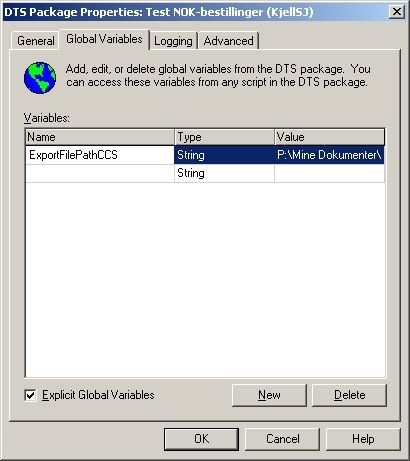
Use the 'Global Variables' folder in the 'DTS Package Properties' dialog to define the set of configuration parameters and their initial value. You must define the variables before using them as dynamic property values.

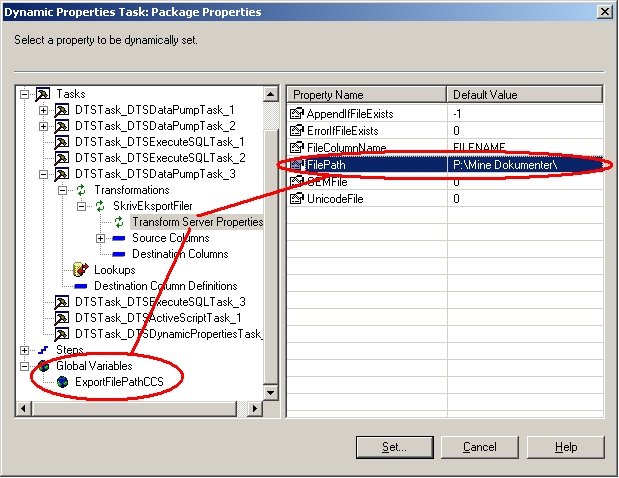
Add a 'Dynamic Properties Task' as the first task in your package. Then add an 'On Success' workflow link to the rest of package steps to ensure that the package gets correctly configured before execution. Open the properties dialog of he dynamic properties object, then click 'Add' to open the window showing all package elements and their settable properties (see screenshot below).


Browse to find the applicable 'write file' task and select the transformation properties node in the treeview. The right panel of the window will show the same properties as can be set directly on the task object, except that when setting the values from this window will make them configuration parameters instead of hard coded values. Select the property that you want to convert into a dynamic property, click 'Set' and then connect the property to the applicable global variable. Repeat for all properties that should be parameter based.

The configured output folder of the 'write file' task is also used in an 'ActiveX Script Task' that deletes all existing output files to make the DTS package process repeatable. The script uses the same global variable that was used in the 'write file' task:

Function Main()

path = DTSGlobalVariables("ExportFilePathCCS").Value

filemask = path & "export_file_mask_here"

Set fso = CreateObject("Scripting.FileSystemObject")
'NOTE: fso throws an error if no files match the mask on .DeleteFile
if fso.FileExists(filemask & ".000") = true then
fso.DeleteFile filemask & ".*"
end if

Main = DTSTaskExecResult_Success

End Function

Read more about DTS best practices at Vyas' site.

You will find a good introduction to SQL Server 2000 DTS and to SQL Server 2005 SSIS at Database Journal.

Wednesday, November 23, 2005

MSCRM 3.0 added fields - row size limitation

MSCRM 1.2 had an undocumented limit to the number of (actually, the combined size of) fields you could add to an entity. At least the MBS marketing department did not know anything but "you can add any number of custom fields as you like". This limit is imposed by the SQL Server 2000 maximum row size of 8KB, minus some overhead for replication. In addition, v1.2 used updatable SQL views with 'before triggers', which further limited the available size. Some of the entities in v1.2 is quite large to begin with, e.g. the Contact entity, and you would soon hit the roof.

In v3.0, they have raised the limit by providing an extra full row for custom fields, i.e. a separate table on each entity for the added fields. In addition, SQL replication is gone, and so are the updatable views. Thus you will be able to exploit the full range of bytes in a row as you please. The new tables are named *ExtensionBase, e.g. AccountExtensionBase. All text is of course still unicode, thus each char will take up two bytes in the database row.

Note that all new custom fields are added to the *ExtensionBase table, custom fields are no longer injected into the native table of an entity.

SharePoint has a similar mechanism for custom metadata on lists; the metadata fields all share the same database table. Although this limitation exists, it rarely imposes practical restrictions in our solutions, and I think that the same will apply to MSCRM custom fields.

Sunday, February 27, 2005

Using SQL to query ActiveDirectory

Finding information in ActiveDirectory using the standard Windows 2003 Server tools is not as easy as database programmers would prefer, like using SQL select statements to read data from tables.

If you have SQL Server 2000 you can use AD as a linked server, and then apply all your SQL knowledge to query AD using SQL select statements with where, order by, group by and having clauses.

SQL Server 2000 makes AD accessible as a SQL view against the linked server using the ADSI OleDB provider.

MSDN describes how to configure and use this distributed query mechanism. Use the ADSIEdit MMC snap-in to explore the attributes for different AD objects.