Showing posts with label ServiceApplications. Show all posts

Monday, April 16, 2012

Getting Elevated Search Results in SharePoint 2010

I often use the SharePoint 2010 search CoreResultsWebPart in combination with scopes, content types and managed properties defined in the Search Service Application (SSA) for having dynamic search-driven content in pages. Sometimes the users might need to see some excerpt of content that they really do not have access to, and that you don't want to grant them access to either; e.g. to show a summary to anonymous visitors on your public web-site from selected content that is really stored in the extranet web-application in the SharePoint farm.

What is needed then is to execute the search query with elevated privileges using a custom core results web-part. As my colleague Mikael Svenson shows in Doing blended search results in SharePoint–Part 2: The Custom CoreResultsWebPart Way, it is quite easy to get at the search results code and use the SharedQueryManager object that actually runs the query. Create a web-part that inherits the ootb web-part and override the GetXPathNavigator method like this:

namespace Puzzlepart.SharePoint.Presentation
{
    [ToolboxItemAttribute(false)]
    public class JobPostingCoreResultsWebPart : CoreResultsWebPart
    {
        protected override void CreateChildControls()
        {
            base.CreateChildControls();
        }
 
        protected override XPathNavigator GetXPathNavigator(string viewPath)
        {
            XmlDocument xmlDocument = null;
            QueryManager queryManager = 
              SharedQueryManager.GetInstance(Page, QueryNumber)
                .QueryManager;
            SPSecurity.RunWithElevatedPrivileges(delegate()
            {
                xmlDocument = queryManager.GetResults(queryManager[0]);
            });
            XPathNavigator xPathNavigator = xmlDocument.CreateNavigator();
            return xPathNavigator;
        }
    }
}

Running the query with elevated privileges means that it can return any content that the app-pool identity has access to. Thus, it is important that you grant that account read permissions only on content that you would want just any user to see. Remember that the security trimming is done at query time, not at crawl time, with standard SP2010 server search. It is the credentials passed to the location's SSA proxy that is used for the security trimming. Use WindowsIdentity.GetCurrent() from the System.Security.Principal namespace if you need to get at the app-pool account from your code.

You would want to add a scope and/or some fixed keywords to the query in the code before getting the results, in order to prevent malicious or accidental misuse of the elevated web-part to search for just anything in the crawled content of the associated SSA that the app-pool identity has access to. Another alternative is to run the query under another identity than the app-pool account by using real Windows impersonation in combination with the Secure Store Service (see this post for all the needed code) as this allows for using a specific content query account.

The nice thing about using the built-in query manager this way, rather than running your own KeywordQuery and providing your own result XML local to the custom web-part instance, is that the shared QueryManager's Location object will get its Result XML document populated. This is important for the correct behavior for the other search web-parts on the page using the same QueryNumber / UserQuery, such as the paging and refiners web-parts.

The result XmlDocument will also be in the correct format with lower case column names, correct hit highlighting data, correct date formatting, duplicate trimming, getting <path> to be <url> and <urlEncoded>, have the correct additional managed and crawled properties in the result such as <FileExtension> and <ows_MetadataFacetInfo>, etc, in addition to having the row <id> element and <imageUrl> added to each result. If you override by using a replacement KeywordQuery you must also implement code to apply appended query, fixed query, scope, result properties, sorting and paging yourself to gain full fidelity for your custom query web-part configuration.

If you don't get the expected elevated result set in your farm (I've only tested this on STS claims based web-apps; also see ForceClaimACLs for the SSA by my colleague Ole Kristian Mørch-Storstein), then the sure thing is to create a new QueryManager instance within the RWEP block as shown in How to: Use the QueryManager class to query SharePoint 2010 Enterprise Search by Corey Roth. This will give you correctly formatted XML results, but note that the search web-parts might set the $ShowMessage xsl:param to true, tricking the XSLT rendering into show the "no results" message and advice texts. Just change the XSLT to call either dvt_1.body or dvt_1.empty templates based on the TotalResults count in the XML rather than the parameter. Use the <xmp> trick to validate that there are results in the XML that all the search web-parts consumes, including core results and refinement panel.

The formatting and layout of the search results is as usual controlled by overriding the result XSLT. This includes the data such as any links in the results, as you don't want the users to click on links that just will give them access denied errors.

When using the search box web-part, use the contextual scope option for the scopes dropdown with care. The ContextualScopeUrl (u=) parameter will default to the current web-application, causing an empty result set when using the custom core results web-part against a content source from another SharePoint web-application.

Wednesday, July 06, 2011

Problem creating a FAST Content SSA in SharePoint 2010

While installing Fast Search Server for SharePoint 2010 (FS4SP) on a dev farm today, I got a problem with the provisioning of a new FAST Content SSA (Search Service Application), it would hang forever at "0:01 Configuring the Search Service..." waiting for the TopologyConfigFinish.aspx page to complete.


The problem turned out to be that the SharePoint 2010 Administration service wasn't started after the mandatory server reboot after installing FS4SP. The FAST "nctrl status" cmdlet does not check this. Make sure that both the SP2010 Administration and Timer services are running:


If you still can't create new or delete search service application instances, or make topology changes at all, then you might need to delete the old SSA the hard way. See Deleteing the search service application and How to delete orphan configuration objects from SharePoint farm. Heed this warning: "Please be VERY careful when executing the deleteconfigurationobject command, if this command is not used in the correct way (if you end up deleting the wrong object) there is NO way to revert back the changes and it has the potential to render your Configuration Database useless, hence you may require to restore / rebuild your SharePoint farm".

Remember to configure SSL enabled communication again when recreating the FAST Content SSA, otherwise your next crawl will be stuck on starting while retrying every 60 seconds to connect to the document engine. Also remember to restart the FAST Search for SharePoint and the SharePoint Server Search 14 services before starting a new full crawl.

Wednesday, September 22, 2010

Missing "I Like It" in SharePoint 2010

The social tagging capability in SharePoint 2010 takes several dependencies on different service applications: the Managed Metadata Service application (MMS) for storing and providing tag definitions, the User Profile Service application (UPA) for storing the actual tagging and notes, and the Search Service for several tag-based web-parts to show tagging information such as those on the tag profile page. The identity used to run your SharePoint 2010 solutions and the content crawler identity needs to have access to the service applications that manage and store your social tagging data.

I recently added a new web-application to my development farm, and today to my surprise I noticed that the "I Like It" button in the global area was missing. In addition, the button was disabled in the item "Tags and Notes" ribbon.


The Tags & Notes buttons worked as expected in other sites in the farm, so the "Social Tags and Note Board Ribbon Controls" farm feature was activated, enabling these buttons for all sites in the farm.

I first verified that I had the "Use Social Feaures" permissions in the User Profile Service application, and did some tagging in another SharePoint site in the farm, ruling out that this had something to do with my SharePoint user. So I knew it had to be something related to my newly added web-application identity, having had problems with the search-driven tag cloud and tag profile pages in the past.

The solution is to grant the identity running the SharePoint web-applicaiton the correct connection permissions to the two service applications. My new web-application lacked permissions on the Managed Metadata Service application. Go to "Central Administration > Manage Service Applications", select the MMS application row in the list, and click "Permissions" in the ribbon to configure the connection permissions.


Add the managed account used as the service account for the web-application, and assign it permissions to read and add new terms to the MMS term store. Write access is required to allow users to apply tags never used before. Full access is not required. This will show and enable the "I Like It" button and the "Tags" tab in the popup dialog for "Tags & Notes" as expected.

Revoking the service application connection permissions for a web-application identity can be used to remove the social tagging and note board tools from contained sites. However, while the "I Like It" button is hidden when revoking access to MMS, the "Tags & Notes" button is not hidden when revoking access to UPA, rather a non-functional popup dialog is shown - not the best user experience. The following figure shows the effect of having access to MMS but not to UPA:


So, if there is something strange with the social tagging and related web-parts in your SharePoint 2010 solution, always make sure that web-applications identities and content crawler identity have applicable MMS and UPA service application connection permissions.

If you use the Note Board web-part, and it suddenly stopped working by not showing any existing notes and you cannot even add new ones - and only the web-part title is shown, then make sure that your Search Service Application (SSA) indexing is crawling properly. This can happen after applying e.g. a cumulative update. Remember that you can always check if the tags and notes database is operational using the UPA.

Friday, August 27, 2010

SharePoint 2010 My Tasks Web Part using Search Driven Cross-Site Query with Muenchian Grouping

There always seems to be a requirement for rolling up data from all sites in one or more SharePoint solutions, such as getting a list of my tasks, a list of new documents this week, or creating a searchable news archive for publishing sites; or such as creating a site map or dynamic site directory based on metadata collected in your site provisioning workflow, that are later maintained by site owners.

SharePoint has several web-parts that can do cross-list and cross-subsite queries, such as the Content Query web-part, but all restricted to a single site-collection. In addition, there are the classic Data View web-part and the new XSLT List View web-parts that can be configured using SharePoint Designer. These web-parts can connect to a diverse set of data sources, from internal SharePoint lists to external REST and OData services.

Still, the simplest solution for cross-site/cross-solution rollups is to customize the ootb search web-parts against custom search scopes in the Search Service application. In most cases, no coding will be required, pure configuration of SharePoint will go a long way. This post will show how to configure a search driven "My Tasks" web-part that will show all tasks assigned to the user across all SharePoint sites across all indexed SharePoint solutions. The unstyled cross-site task rollup web-part looks like this, included some debug info:


First you need to configure the results scope behind the search driven web-part in Central Admin. Start by adding a new scope in 'Search Service Application>Scopes' called TaskRollup using the rules as shown here:


If you can't see ContentType when adding a rule, then go to 'Search Service Application>Metadata Properties' and edit the managed property to set Allow this property to be used in scopes.

As the TaskStatus site column is not mapped to any managed property by default, you must map the crawled property ows_Status to one before it can be used. Go to 'Search Service Application>Metadata Properties' and create a managed property called TaskStatus using the mapping as shown here:


Do not go creative with the naming, stay away from spaces and special characters such as ÆØÅ - a SharePoint best practice for any artifact name used as an identifier or an URL fragment. For example, a name like "Contoso Web Ingress" first gets encoded as "Contoso_x0020_Web_x0020_Ingress" when stored, and then once more encoded as "Contoso_x005F_x0020_Web_x005F_x0020_Ingress" in a search result XML.

A full crawl is required after adding or changing crawled or managed properties. Do a full crawl of the content source you used in the TaskRollup scope. Note that there must be some matching content stored in SharePoint for these properties to be added to the property database in the first place. Thus after provisioning new site content types or site columns, you must add some sample content and then do a full recrawl of the applicable content source.

Verifying that the full crawl of the SharePoint sites content source finished without errors completes the Central Admin configuration. Now it's time to configure the ootb Search Core Results web-part to become the customized My Tasks web-part.

Open a team-site and add the Search Core Results web-part to a page. Switch to page edit mode and select 'Edit Web Part' to open the Search Core Results settings panel. Rename the web-part 'Title' to Task Rollup (cross-site) and set the 'Cross Web-Part Query ID' to User query and 'Fixed Keyword Query' to scope: "TaskRollup" as shown here:


The Search Core Results web-part requires a user query, or a configured fixed or appended query, to actually perform a search. No configured or no user query will just show a message asking for query input. The cross-page query ID setting User query is chosen here for reasons explained later.

If you want to further limit what tasks are shown in the My Tasks web-part, just add more query keywords to the 'Append Text to Query' setting as shown here:


The My Tasks web-part will show the two task fields 'Status' and 'Assigned to' in the task list. Any managed crawled property can be added to the search results by configuring the 'Fetched Properties' setting. Add the following XML <Column Name="AssignedTo"/> <Column Name="TaskStatus"/> as shown here:


You need to uncheck the 'Use Location Visualization' setting to enable the controls for customizing the result set and XSL formatting. See A quick guide to CoreResultsWebPart configuration changes in SharePoint 2010 by Corey Roth to learn more about the new search location concept in SharePoint 2010. Read all his Enterprise Search posts for an excellent introduction to the improved SharePoint 2010 search services and web-parts.

After adding 'TaskStatus' and 'AssignedTo' to the fetched properties, you will also need to customize the XSL used to format and show the search results to also include your extra task fields. Click the 'XSL Editor' button in the 'Display Properties' section of the web-part settings panel, and add the fields to the match="Result" xsl:template according to your design. Note that the property names must be entered in lower case in the XSL.

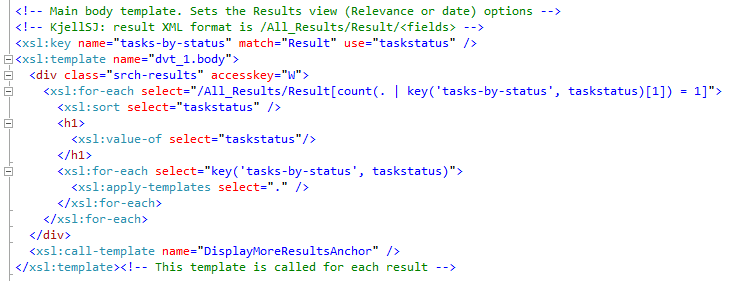
The astute reader will have noticed the nice grouping of the search results. This is done using the Muenchian method as SharePoint 2010 still uses XLST 1.0, thus no simple XSLT 2.0 xsl:for-each-group. The customized "My Tasks" results XSL creates a key called 'tasks-by-status' that selects 'Result' elements and groups them on the 'taskstatus' field as shown here:


Again, note the requirement for lower case names for the fetched properties when used in the XSL. Use the <xmp> trick to see the actual result XML.

The final part of the puzzle is how to turn the cross-site task list into a personal task list. Unfortunately, the [Me] and [Today] filter tokens cannot be used in the enterprise search query syntax, so some coding is required to add such dynamic filter tokens. Export the customized Search Core Results web-part to disk to start packaging into a WSP solution.

Create a new TaskRollupWebPart web-part SPI in your web-parts feature in Visual Studio 2010. Make the new web-part class inherit from CoreResultsWebPart in the Microsoft.Office.Server.Search assembly. Override the methods shown here to add dynamic filtering of the query through the SharedQueryManager for the web-part page:

namespace PuzzlepartTaskRollup.WebParts
{
[ToolboxItemAttribute(false)]
public class TaskRollupWebPart : 
Microsoft.Office.Server.Search.WebControls.CoreResultsWebPart
{
QueryManager _queryManager;
protected override void OnInit(EventArgs e) {
  base.OnInit(e);
  _queryManager = SharedQueryManager.GetInstance(this.Page).QueryManager;
}
 
protected override System.Xml.XPath.XPathNavigator GetXPathNavigator(string viewPath)
{
  SPUser user = SPContext.Current.Web.CurrentUser;
  _queryManager.UserQuery = string.Format("scope:\"TaskRollup\" AssignedTo:\"{0}\""
user.Name);
  return base.GetXPathNavigator(viewPath);
}
 
protected override void CreateChildControls()
{
  base.CreateChildControls();
  //debug info
  //Controls.Add(new Label { Text = string.Format("FixedQuery: {0}<br/>
AppendedQuery: {1}<br/>UserQuery: {2}", 
FixedQuery, AppendedQuery, _queryManager.UserQuery) });
}
}
}

The code in GetXPathNavigator is what adds the current user to the QueryManager.UserQuery to filter tasks based on the assigned user by [me]. There are five query objects available on a search web-part page, where QueryId.Query1 is the default. This is also what is exposed in the web-part settings as the 'User Query' option. Use the GetInstance(Page, QueryId) overload in SharedQueryManager to get at a specific cross-page query object.

Replace the content of the TaskRollupWebPart.webpart file with the exported Search Core Results configuration. This will ensure that all the configuration done to customize the ootb web-part into the My Tasks web-part is applied to the new TaskRollupWebPart. A small change is needed in the metadata type element to load the new TaskRollupWebPart code rather than the CoreResultsWebPart code:

<webParts>
<webPart xmlns="http://schemas.microsoft.com/WebPart/v3">
<metaData>
<type name="PuzzlepartTaskRollup.WebParts.TaskRollupWebPart, 
$SharePoint.Project.AssemblyFullName$" />
<importErrorMessage>$Resources:core,ImportErrorMessage;</importErrorMessage>
</metaData>

Build the feature and deploy the package to your test site from Visual Studio 2010. Add the web-part to a page and verify that you get only your tasks as expected.

I know that this seems like a lot of work, but a search-driven web-part is easily created and tested before lunch. The inevitable styling & layout using XSL and CSS is what will burn hours, as usual.
 
A drawback of search driven web-parts or code is the delay before new/updated content is shown due to the periodical crawling schedule, typically five or ten minutes. On the positive side, the results will be automatically security trimmed for you based on the logged on user - no authentication hassles or stored username password required as with the XSL List View.

Note that most enterprise search classes are still sealed in SharePoint 2010 as in SharePoint 2007, except the CoreResultsWebPart and some new classes, so you're limited to what customizations can be achieved with configuration or the SharedQueryManager. Search driven web-parts works equally well in SharePoint 2007, except that there is no SharedQueryManager, but rather the infamous search results hidden object (SRHO) which is unsupported.

Recommended: SharePoint Search XSL Samples and the Search Community Toolkit at CodePlex.

Friday, July 02, 2010

Scalable SharePoint 2010 Farm & Services Architecture

This post describes a proposed solution design for providing an intranet collaboration farm capable to scale out to support a publishing portal and extranet collaboration with partners and suppliers. The design is based on a set of diverese sites types identified in an Information Architecture analysis, and the general planning recommendations for these types. In addition, several non-functional requirements is accounted for in the design, such as farm security, robustness and availability.

The SharePoint 2010 farm is designed with scale out support for different future solution areas. The initial farm architecture will be designed to support collaboration for internal users only, with an option to also add an intranet publishing solution. The long term goal of the farm is to eventually support collaboration with external users also, such as partners an suppliers.

All SharePoint 2010 solutions are built from a set of elements ranging from the farm hosting the solutions down to sites that contains the actual functionality and information of the solutions.


SharePoint solutions are deployed into SharePoint web-applications in a SharePoint farm. Web-applications are management containers for site collections. SharePoint uses site collections to structure the sites and subsites that implements the actual functionality of SharePoint solutions.

Site collections bridge logical architecture and information architecture (IA). The design goals for site collections in the model are to create logical divisions of content and functionality, in addition to satisfy requirements for URL design. To satisfy the requirements for URL design, each web application includes a single root-level site collection, such as ://portal/. In addition, a set of managed paths are used to incorporate a second tier of site collections, such as ://portal/HR/ and ://portal/sites/***.

All web-applications in a farm share a group of common SharePoint 2010 service applications that provide shared services such as indexing & search to the farm. I use the term “shared services provider” (SSP) in this post for such a group of service applications. A farm can contain multiple groups of shared services, such as an intranet SSP and an extranet SSP.

The overall SharePoint farm architecture for internal collaboration can be summarized like this (click to enlarge):


The initial SharePoint 2010 farm will be configured to support two solutions: providing team-sites for internal collaboration in groups or projects, and for providing My Sites for employees. These two web-applications will share a group of shared service applications (“default group”) for search, user profiles and enterprise taxonomy.

The User Profile service is required to provide My Sites. In addition, this service application is what provides all social features such as tagging, rating and social bookmarking.

Note that a search service application is needed for more than just crawling and queries, the social tagging functionality in SP2010 also requires search. The reason is that several web-parts such as Note Board, Tag Cloud and Tagged Items in some modes depends on the search service to do security trimming to provide their content. This includes the tag profile page, which use such web-parts. You can also use the search service and the content search, people search and social search capabilities when customizing the user experience of your solutions. A typical example is creating a tag cloud web-part for managed metadata and enterprise keywords columns for lists and libraries, not just for social bookmarking (it is not really social tagging that is implemented in SP2010) with the standard "Tags & Notes" ribbon.

If you use FAST Search for SharePoint 2010 (FS4SP) then the FAST Content SSA will provide the content sources that are crawled for search results, except for people search. The FAST Query SSA has a different set of content sources, including the one feeding the people scope. Only one Search Service Application (SSA) should be associated with your web-application, either FAST or standard SharePoint 2010 Server search. Note that FAST doesn't index the social tags, which affects those social tagging web-parts that depends on search (see above).

The intranet will use Active Directory as the identity provider for authentication in classic mode. The web-application authentication mode can later on be switched from classic to claims-based as needed. Note that it is not recommended to switch the mode from claims-based to classic.

The farm is also designed to scale-out to support future SharePoint 2010 solutions such as a publishing intranet (://puzzlepart). Note that other service applications not shown here might be required to support the functional solution design and future solutions.

The different web-applications in the farm runs in separate application pools to achieve process isolation. This way an error or crash in one application will be isolated and not affect the other web-applications in the farm.

Anywhere access for mobile employees to the intranet sites is provided using Forefront Unified Access Gateway (UAG). This supports a wide range of locations such as at home or on the road, and a wide range of devices from laptops to smart phones.

The overall SharePoint farm architecture target for collaboration with external partners and suppliers can be summarized like this (click to enlarge):


The extended 2011+ version of the farm is scaled-out to support two new solutions; one is the ://puzzlepart web-application for intranet publishing, the other is an extranet web-application for collaboration with external users such as partners and suppliers. The former connects to the intranet shared services provider (“default group”) and will as such reuse and share search, user profiles, and the enterprise taxonomy (metadata and content types) with the existing solutions for team-sites and my sites.

The extranet collaboration solution must not be connected to the intranet SSP for information security reasons. Using a separate group of shared services for all service applications that may contain or expose confidential information is strongly recommended – an extranet SSP (“custom group”). A typical service application of this kind is search. Using separate service applications prevents accidental information exposure due to e.g. misconfiguration of a service application.

The User Profile service application is included in the extranet SSP even if the extranet will not provide My Sites at all. This service is what enables user to do social tagging and bookmarking, and must thus be part of the extranet SSP to provide social features. It is not recommended to connect the extranet to the intranet User Profile service for the same reasons as for the Search service.

Still, some service applications are typically shared across both the intranet and the extranet web-applications. This includes the enterprise taxonomy – you need to provide for consistent classification and tagging of content across all solutions to drive findability. The managed metadata service, including content type hubs, is specifically built for the purpose of being both shared and syndicated across multiple solutions.

Another security aspect is access control; the extranet must use a separate claims-based authentication provider, that can be federated with external identity providers. The intranet and extranet web-applications must trust different providers for authorization. Using separate providers prevents accidental information exposure due to e.g. misconfiguration of site access control and group memberships. Note that multi-mode authentication is preferred over mixed mode for extranet collaboration.

A final aspect of the extended farm design is that the extranet web-application and shared services are run in separate application pools from the intranet. This ensures process isolation to prevent errors and crashes in the extranet processes to affect the intranet solutions. It also isolates malicious use of the extranet process resources from affecting the intranet processes, such as denial of service attacks.

Remote access for external users to the extranet collaboration web-application is provided using Forefront Unified Access Gateway (UAG) combined with ADFS for federated identity and access management (IAM). Using UAG saves you from setting up and managing a separate extranet farm in a DMZ perimeter zone; instead you give a controlled set of external users secure anywhere access to a controlled set of internal applications hosted on the intranet farm.

Saturday, June 12, 2010

SharePoint 2010 Intra-Farm Term Store Syndication

The managed metadata service in SharePoint 2010 makes it simple to realize an enterprise taxonomy across all site-collections in a farm, or even across farms. In addition, the managed metadata service (MMS) application can be syndicated, that is, you can have multiple instances of the MMS and they can all be consumed in combination as one by web-applications. You can have multiple instances of the other service application types, but only one of them can be the active default association in a consuming web-application.

The Managed metadata service application overview on Technet used to have a nice example scenario of managed metadata term store and content type syndication across multiple departments in a company, in the page published on April 16th. As the example scenario has been removed in the page published on May 12th, the following figure shows the MMS syndication example:


For those of you who speak Spanish, or want to run it through Google translate, the managed metadata syndication example is still available here: http://technet.microsoft.com/es-es/library/ee424403.aspx

The salient point of the example is that the HR, IT, Products and Legal departments all share a common base term store and content type hub, allowing for the Products department to extend the base with its own term store and content types, and allowing the Legal department to have its own private term store while syndicating both the Global and Products managed metadata services.

An important detail in the example is that the Legal department uses term sets to represent confidential information. Therefore, it requires its own term store that prohibits other departments from seeing the confidential terms, even as new terms and term sets are added. Thus, the Legal department requires its own default term set location to prevent new confidential terms being added to the Global and Products managed metadata services.


This scenario is quite possible to realize as the two managed metadata service connection setting Default keyword location and Default term set location allows for specifying per MMS connection if this is the MMS term store where new keywords and column specific term sets will be added. However, as these options are set on the "Managed Metadata Service Connection" proxy itself rather than on the web-application "Service Application Associations" settings, there is a problem for the example scenario.

All web-applications in a farm share all service applications, connection proxies and proxy groups defined in the farm. The example scenario requires the IT, HR, Products and Legal web-applications to all be connected to the "Global Managed Metadata" service. As indicated by the red markup in the above figure, the web-apps require a different setting for default term set location - Legal requires "no", the others "yes". Thus, they cannot use the same MMS connection, a second connection is needed. However, you cannot add another local service application connection from Manage Service Applications, only cross-farm connections can be created from Central Admin .

The solution is to use PowerShell to add a new Managed Metadata Service Connection with the command New-SPMetadataServiceApplicationProxy using the -ServiceApplication parameter, rather than the -Uri parameter used for cross-farm connections.

 New-SPMetadataServiceApplicationProxy -Name "MMS_PX001" -ServiceApplication "MMS2" 

Some other parameters are:
-DefaultKeywordTaxonomy: This service application is the default storage location for keywords.
-DefaultSiteCollectionTaxonomy: This service application is the default storage location for column specific term sets.
-ContentTypeSyndicationEnabled: Publish content types from the content type hub.
-ContentTypePushdownEnabled: Push-down updates from the content type hub to subscribers.
-DefaultProxyGroup: Add this connection to the service application associations [default] proxy group.

Don't add your custom MMS syndication connections to the default proxy group as you will need to configure the service application associations per web-application that subscribes to a syndicated set of managed metadata services, typically using the [custom] proxy group. Additional custom proxy groups can be created in the farm using the New-SPServiceApplicationProxyGroup PowerShell cmdlet.


Note that as there are two term set "default" settings, there are four possible combination of MMS connection configurations for terms. Thus, four MMS connection variants must be created to cover all possible scenarios per managed metadata service instance. Then, each web-application can use its own service application associations [custom] proxy group to pick the applicable set of MMS connections.

Make sure that each proxy group has only zero or one default keyword location and default term set location. Having zero for either will prevent users from adding new keywords or new term sets. Having multiple defaults for either will cause an error as SharePoint cannot know in which of the locations to add new keywords and new term sets.

A final note about term store permissions: Access to the term store is granted per web-application using the app-pool account, not per user or group.  In addition, you can control permissions on each term group using the "contribute" and "manage" settings for granting rights to users and groups. If users are not granted contribute rights, they will be restricted to read even if the web-application's MMS connection permissions allows for more than just read.

[UPDATE] This scenario will make incremental crawl of friendly URLs (FURL) fail in SP2013; and if you contact Microsoft Support you will get help from people who don't understand proxy groups, default proxy/MMS connection, default keyword location and default column-specific term set location settings, who will tell you that the product group confirms that the documented scenario on Technet is in fact not supported. Stay away from using SharePoint for anything else than a single department collaboration scenario, SP2013 is not built for real-life enterprise usage.